What matters when choosing components?
Decide what can remain at your regular desk before choosing what to carry. A stand, keyboard and mouse work as a setup decision; a hub or dock then needs to match the laptop and the connections required at each location.
| Concern |
What to check |
Who this matters to |
| A desk for prolonged work |
Check space for an elevated laptop screen or separate monitor, plus a separate keyboard and mouse; confirm the laptop-to-monitor connection. |
If I spend long periods on documents and meetings, I want a desk arrangement that does not rely on the laptop’s built-in input devices when its screen is raised. Around 36% of consumers put this sustained-work setup first. |
| One-connection compatibility |
Check the laptop’s video-capable port and external-display limit, then match the dock’s operating-system support and delivered charging wattage. |
I want the screen and everyday peripherals ready when I connect my laptop, without assuming every USB-C port does the same job. This is the main concern for around 29% of consumers. |
| Portability between locations |
Compare the hub or dock’s size and power-adapter needs, and check that its connectors fit the displays and devices at each location. |
When I change desks frequently, the connections I carry must be practical to pack and usable on arrival. Around 21% of consumers prioritise portability over a fuller fixed-desk setup. |
| Video and voice calls |
Check available ports, mounting position and compatibility with the work laptop and meeting software. |
If meetings are central to my working day, I need call equipment that fits where I work rather than another desk accessory to carry without a purpose. For around 14% of consumers, calls are the primary equipment concern. |
Joybuy products for connections and calls
These docks, adapters and call accessories address connections or meetings in a hybrid laptop setup. Choose screen placement and separate input devices alongside them where your regular desk needs those components.
 No image available
Targus USB-C Universal Dual HDMI 4K Dock, 100W Power Delivery Pass-Thru (Retail Packaging)
Consider this for a desk where display connections and laptop charging through a dock are priorities. The product name specifies dual HDMI and 100W Power Delivery pass-through; confirm the laptop’s supported display configuration and charging requirement, and check whether the required external power adapter is included.
View on Joybuy
 No image available
USB-C multiport adapter with 2 HDMI, DP, RJ45, PD, SD/TF and audio
Consider this adapter for a single external display alongside wired networking and USB peripherals. Its name also specifies two USB 3.0 and two USB 2.0 connections. The product information specifies single-display operation despite the multiple video sockets; check the laptop’s USB-C video capability and charging needs.
View on Joybuy
 No image available
MOVESPEED DK5A1 USB-C 10-in-1 Docking Station
Consider this for a desk needing an external display, data ports and card access. The product name specifies 4K 60Hz HDMI, USB-C 10Gbps, USB-A 10Gbps/5Gbps, SD/TF 160MB/s and 3.5mm audio. Check the laptop’s video support separately, and confirm laptop-charging pass-through if you need it.
View on Joybuy
 No image available
EMEET All-in-One 4K Webcam with Sony Sensor
Consider an external webcam where your regular meeting desk calls for separate camera and audio equipment. Its product name specifies fixed focus, a four-microphone array, dual speakers and a 98° adjustable field of view. Check its mounting position and compatibility with the work laptop and meeting software.
View on Joybuy
 No image available
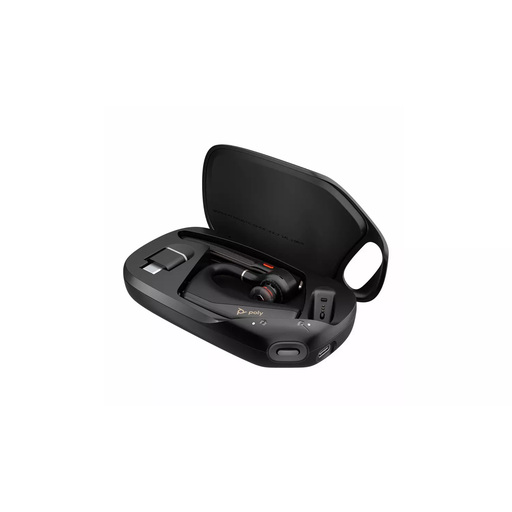
HP Poly Voyager Legend 50-M UC Bluetooth Headset, Black
Consider a Bluetooth headset if voice calls move with you between work locations. Check whether the work laptop permits Bluetooth headsets and whether the call software supports the controls you intend to use.
View on Joybuy
Frequently asked questions
Does a hybrid worker need to buy their own monitor or dock?
No particular purchase follows automatically from UK display-screen guidance. The Health and Safety Executive says an employer should consider the individual’s home and workplace arrangements where its display screen equipment rules apply; use that assessment and your actual setup to establish what is needed.
When does display screen equipment guidance apply to home working?
The Health and Safety Executive describes display screen equipment users as workers who use it daily for continuous periods of an hour or more. Its guidance also addresses home workers and people who routinely split work between home and a workplace; the applicable assessment concerns their actual working arrangements.
Can any USB-C laptop run two monitors through a dock?
No: check the exact laptop’s video-capable ports and supported number of external displays against the dock’s stated configuration. Microsoft Support notes that a splitter duplicates a display signal, while Apple Support directs Mac users to their model’s display-support specifications.
How can I tell whether a dock will charge my laptop?
Compare the dock’s delivered USB Power Delivery wattage and power-adapter requirements with the laptop maker’s charging recommendation. Apple Support, for example, advises using at least the minimum recommended adapter wattage for a USB-C-chargeable Mac.
What if a monitor works directly but not through a dock?
Check the intended extend-or-duplicate setting, then test one monitor and its cable through the dock before reconnecting other accessories. Microsoft Support notes that docks and adapters can affect external-display connections, so compare the laptop, dock and monitor documentation for the intended configuration.


