Choose the accessory that addresses your main obstacle: a compatible external monitor for document-heavy work, a webcam or headset for calls, or a dock when your laptop can support the display, data and charging connections you need. If calls keep dropping, check the broadband and Wi-Fi connection before buying call equipment; a direct Ethernet connection can help with a local Wi-Fi problem but cannot repair a fault with the broadband service.
Who this setup is for
Hybrid workers on frequent video calls
If meetings regularly expose problems with your camera image or outgoing voice, assess those separately. A webcam will not address household noise picked up by a microphone, while a headset will not change the camera image.
Laptop users working across documents
When spreadsheets, reference material and other applications compete for screen space, an external display may help. Apple Support and Microsoft Support both make the laptop’s display capabilities an important check before adding a screen or dock.
Home workers with interrupted calls
If the connection is the recurring problem, establish whether it lies with Wi-Fi in the home or the broadband service. Ofcom recommends troubleshooting the connection rather than assuming a new peripheral will resolve it.
What to check before buying
Identify the problem that most disrupts your work, then check the proposed accessory against your laptop, meeting software and home connection.
| Concern | Buying checks | Who this matters to |
|---|
| Video-call quality |
Check meeting-platform and operating-system compatibility, then distinguish microphone noise reduction from listening noise cancellation. |
If colleagues struggle to hear me or my camera makes meetings difficult, call equipment comes first. About 26% of consumers put clear video and voice ahead of other setup needs. |
| Screen space |
Confirm the laptop’s video output, supported external-display count and the monitor’s input before choosing a screen. |
When I need documents and applications visible together, a suitable external display matters more than extra desk ports. Around 21% of consumers make workspace expansion their primary need. |
| Ports and charging |
Match a dock’s required connection and display mode to the laptop; check its power delivery against the laptop’s charging requirement. |
If connecting a display and peripherals means repeatedly rearranging cables, I need a compatible way to bring them together. Approximately 21% of consumers prioritise port and charging integration. |
| Connection reliability |
Check for outages and test the connection at different times; where practical, try Ethernet directly to the router. |
When calls drop despite usable audio and video equipment, I need to find out whether Wi-Fi or the broadband service is at fault. For about 16% of consumers, a stable connection is the main concern. |
| Keyboard and mouse use |
Check keyboard layout and mouse fit, plus the connection method and any device-switching support you need. |
If typing and pointing occupy much of my home-working day, the controls I use deserve attention before another call accessory. Roughly 16% of consumers put extended-use input comfort first. |
Common buying mistakes
-
Assuming every USB-C port and cable does the same job
A matching connector does not establish that a laptop, cable and dock can provide the video, data and charging functions you expect. Microsoft Support notes that unsupported hardware or cable combinations can limit USB-C functionality.
Check the exact laptop port specification, charging requirement and intended display arrangement against the dock or monitor before ordering.
-
Buying a second screen without checking display support
The laptop may not support the intended number of independent external displays. Microsoft Support explains that a display splitter duplicates a signal rather than creating two separately extended desktops.
Check the laptop or graphics specifications for supported display count and connection method before choosing another monitor or a multi-display dock.
-
Treating a broadband fault as an accessory problem
A webcam or headset cannot repair an unreliable broadband service. Ofcom advises checking for outages and contacting the provider when the fault points beyond the home Wi-Fi connection.
Record interruptions and, if practical, compare Wi-Fi with a direct Ethernet connection to the router before deciding what to buy.
-
Confusing listening noise cancellation with microphone clarity
Active noise cancellation concerns what the wearer hears; it does not by itself establish how clearly other people hear the wearer.
For calls in a noisy room, check the chosen headset’s microphone and connection specifications separately from its listening features.
Brands to consider
Logitech
A reference point for webcams and keyboard-and-mouse options for a home desk.
- Logitech lists its Brio 505 webcam with a privacy shutter and certification for Microsoft Teams, Google Meet and Zoom.
- Those specifications concern Brio 505; check the exact webcam or input-device model for the features you need.
Jabra
Offers office-headset ranges relevant to call-intensive hybrid work.
- Jabra lists headset variants with wired, Bluetooth or USB connections and differing voice-pickup features.
- Check the exact variant’s connector and meeting-service compatibility; listening noise cancellation is not a substitute for checking its microphone.
Anker
Offers docks for connecting displays, peripherals and, on selected models, Ethernet through a laptop desk setup.
- Anker’s dock range lists different port arrangements and charging outputs.
- Available display and charging functions still depend on the exact dock, laptop, operating system and cable.
Dell
Offers USB-C monitors, including configurations intended to combine a display connection with laptop charging.
- Dell lists USB-C monitor models with differing resolutions, connectivity and power-delivery capabilities.
- For a one-cable desk setup, match the chosen monitor’s video mode and power output to the laptop rather than assuming every Dell display supports it.
Joybuy accessories for a home desk
These products address screen space, laptop connections, video calls, listening and everyday keyboard-and-mouse use. Choose according to the problem you identified, rather than treating the items as a set to buy together.
 Image unavailable
ASUS ProArt PA278CV IPS WQHD monitor
Consider this 27-inch WQHD display if documents and applications need more room on your desk. Its listed connections include USB-C, HDMI and DisplayPort, and the description also identifies a USB hub and adjustable stand. Before relying on USB-C for a one-cable setup, check that your laptop supports the required video connection and that the monitor’s power output meets its charging needs.
Joybuy
 Image unavailable
V7 V7UC-U3CRJ45HDVG-BLK USB-C adapter
This adapter is relevant if your laptop needs a wired router connection alongside desk peripherals. The description lists Gigabit Ethernet, HDMI up to 4K at 30Hz, VGA, two USB 3.0 ports and 100W USB-C power delivery. Its stated SST mode is for a single display, not two independent external displays; confirm the laptop’s video and charging compatibility before buying.
Joybuy
 Image unavailable
Targus 2K Webcam with Auto Focus
Consider this webcam when camera focus and positioning are the main obstacles to home video calls. The description lists autofocus, a 67° field of view, a privacy slider, an adjustable clip and a tripod thread. Check the video resolution before buying: the product name says 2K, while its technical description also says Full HD 1080p.
Joybuy
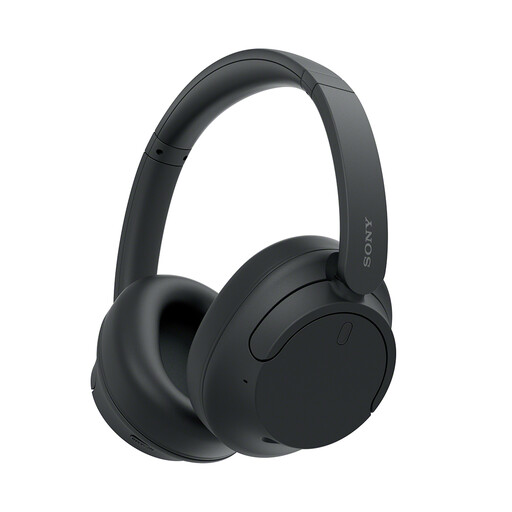 Image unavailable
Sony WH-CH720N over-ear headphones, black
These headphones suit a setup where hands-free listening and switching between devices matter during calls. The description lists Bluetooth 5.2 multipoint, an integrated microphone and a 3.5 mm cable option. Their listening noise cancellation does not establish how well the microphone handles noise in your room; check microphone suitability and meeting-app compatibility separately.
Joybuy
 Image unavailable
HP 680 CFT dual-mode keyboard and mouse set
Consider this set if typing, pointing or moving between work and personal computers is the daily friction. Its description lists quiet keys, a wrist rest, negative tilt and connections to up to three devices using Bluetooth or a receiver. Confirm the keyboard layout before buying if you require a UK layout.
Joybuy
Questions about compatibility and calls
How do I check whether a dock or USB-C monitor will work with my laptop?
Start with the exact laptop model’s specifications: check its video output, supported external-display count and charging requirement, then compare those with the dock or monitor. Apple Support bases Mac display support on the particular computer and its ports; Microsoft Support also warns that unsupported USB-C hardware or cables can limit device functions.
Will an Ethernet adapter help if video calls drop on Wi-Fi?
It can help you test the local Wi-Fi link if you can connect your computer directly to the router. Ofcom says this wired connection should be faster and more reliable than Wi-Fi, but an adapter cannot fix a broadband-service fault. Check for outages and contact your provider if the service remains unreliable.
Does a USB-C dock let me use two independent external monitors?
Not necessarily: the laptop and dock must support the intended display arrangement. Microsoft Support notes that a splitter duplicates one display signal rather than creating two independent extended desktops, so check the laptop’s supported display count before buying.
Should I choose a headset or a webcam for home-working calls?
Choose according to what other attendees struggle with: a headset addresses listening and microphone placement, while a webcam addresses the camera image or framing. Check the headset’s microphone and connection specifications, or the webcam’s computer and meeting-platform compatibility, for the particular model you are considering.


