Start with the part of your existing laptop setup that limits your work: a raised screen and separate keyboard and mouse for prolonged laptop use, an external monitor for screen space, or meeting equipment for calls. Consider a dock when you need a regular desk connection, but check the laptop’s video, charging and display limits first; a USB-C connector alone does not establish which functions will work.
Who this setup is for
Compatibility-first laptop users
If you already have a work laptop, check what its ports, cables and operating system can do before choosing a monitor or dock. Microsoft Support and Apple Support both describe connection requirements that depend on the device and configuration.
Frequent home-and-office movers
If you move between desks, decide which accessories need to travel with you and which can stay connected at home. That choice affects how many items you pack and reconnect.
Meeting-heavy hybrid workers
If calls shape your working day, camera placement, microphone connection and access permissions may matter more to your next purchase than another screen. Check the meeting application and your employer’s device rules before relying on a new peripheral.
What to check before buying
Identify your primary constraint before adding equipment. For a dock or external display, check the exact laptop model first; for call equipment, check the work device and meeting application.
| Concern |
What to check |
Who this matters to |
| Laptop compatibility |
Check the laptop model’s video output, supported display count and charging requirements; match the cable and dock to the functions needed. |
If I want to connect displays and power through my work laptop, I need to know what its ports actually support before choosing accessories. Around 31% of consumers put compatibility first. |
| Meeting equipment |
Check the camera or audio connection and whether the work device and meeting application permit its use. |
When calls fill my day, I need a camera or microphone I can position and select in the meeting application. Meeting equipment comes first for around 25% of consumers. |
| Portability |
Decide what travels between locations and what can stay at a desk; check whether a dock needs a separate power supply. |
If I pack up after work, fewer items to carry and reconnect matter more to me than a permanently connected desk. Around 25% of consumers make portability their primary concern. |
| Prolonged screen work |
Check screen position, space for a separate keyboard and mouse, and whether an external monitor can remain in place. |
For long stretches of laptop work, I need a screen position that does not tie me to the built-in keyboard. Screen and desk arrangement take priority for around 19% of consumers. |
Purchasing pitfalls
-
Assuming every USB-C connection does the same job
A matching connector does not establish that a cable and laptop port support the video or charging function you need. Microsoft Support notes that USB-C cables do not all support the same features.
Check the exact laptop model and port functions, then match the cable, monitor and dock specifications to them.
A different compatible cable or adapter may be needed for the intended connection.
-
Choosing a multi-monitor dock before checking the laptop
A dock’s display outputs do not determine how many external screens the host laptop can run. Apple Support says Mac external-display support depends on the model.
Confirm the laptop’s supported display arrangement before selecting a dock for it.
-
Overlooking camera and microphone permissions
A connected webcam or headset may still need permission in the meeting application or browser. Microsoft Learn describes per-app camera and microphone permissions for Teams browser apps.
Check device settings, the meeting application and any employer restrictions before depending on new equipment for a call.
-
Buying a permanent workstation setup without speaking to your employer
For display-screen equipment used at both home and work, the Health and Safety Executive says the employer’s assessment should cover both arrangements.
Ask about the applicable workstation assessment and equipment process before personally buying a permanent monitor, stand or input setup.
Brands to consider for specific equipment
Dell
Dell’s dock range is relevant if you want a regular connection between a compatible laptop and desk peripherals.
- Dell lists up to 100W power delivery for Dell systems and 96W for non-Dell systems on the Pro Dock WD25.
- Those WD25 figures do not establish the charging or display capability of a particular host laptop.
CalDigit
CalDigit’s Element Hub is a reference point for a fixed desk built around a compatible Thunderbolt 4 or USB4 host.
- CalDigit lists multiple connection options for the Element Hub.
- CalDigit advises checking host display and charging support; the hub cannot bypass a laptop’s display limits.
Logitech
Logitech offers webcam models to compare when built-in camera placement or privacy controls are limiting your meeting setup.
- Logitech lists 1080p video and an integrated privacy shutter for its Brio 100.
- Check the exact webcam model’s connection, mounting position and suitability for your work device.
Jabra
Jabra’s business headset range is relevant when calls take place across home and workplace locations.
- Jabra offers model-specific connection and microphone options within its headset range.
- Confirm the chosen model’s connection, comfort for your use and permission to use it with a managed work device.
Joybuy products for desk and call setups
These products cover a portable display, desk connections, call audio and a webcam. Choose by the problem you need to solve with your existing laptop, then check the required connections and work-device permissions.
 No image available
ASUS ZenScreen MB166CR FHD
Consider this external display if you want another screen that can move between desks. Check your laptop’s video output and the monitor’s required connection before buying.
View on Joybuy
 No image available
Targus USB-C Universal Dual HDMI 4K Docking Station, 100W Power Delivery Pass-Thru, Retail Packaging
Consider this dock for a regular desk where you want HDMI display connections and pass-through power from a USB-C setup. Its name specifies dual HDMI 4K outputs and 100W Power Delivery pass-through; check your laptop’s supported displays and whether the power adapter you need is included.
View on Joybuy
 No image available
Baseus Metal Gleam Series II 10-in-1 USB-C Hub, Cosmic Black
Consider this hub if your desk needs display, data and network connections through one accessory. Its named connections include two HDMI outputs, USB-A and USB-C data ports, RJ45, SD/TF slots and a USB-C Power Delivery input. The 100W figure describes the PD input, not a guaranteed charging output to your laptop; check the host’s video support for the intended display arrangement.
View on Joybuy
 No image available
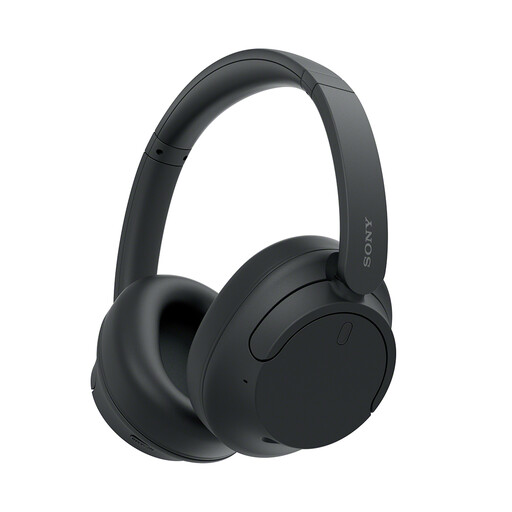
Sony WH-CH720N Noise-Cancelling Over-Ear Headphones, Black
Consider these headphones if portable listening equipment is part of your home-and-office routine. Before relying on them for meetings, check how the microphone connects to your work laptop and whether the meeting application and employer allow that connection.
View on Joybuy
 No image available
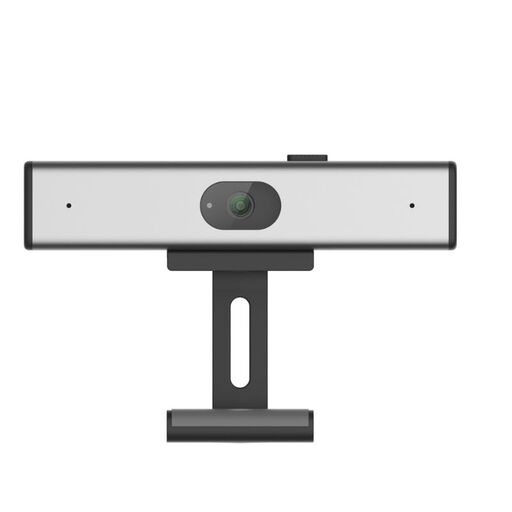
Philips SPL6308S/00 2K QHD Clip-On Webcam, EU Version, Silver
Consider this clip-on webcam if a separate camera position would suit your video calls. Its name specifies 2K QHD video and a noise-reduction microphone; check its connector, mounting fit and camera permissions for your work laptop before buying.
View on Joybuy
Common questions
Will any USB-C dock charge my laptop and run two monitors?
No: the laptop, dock and cable must support the functions you intend to use. Microsoft Support notes that USB-C cables differ in feature support, while Apple Support describes model-dependent external-display limits. Check the exact laptop model, charging requirement and display configuration before choosing a dock.
Can I use an external monitor or dock with my MacBook?
Possibly, but the supported number of external displays and the required connections depend on the Mac model. Check Apple Support’s information for your exact model and match the monitor or dock to its ports and display limits.
Why can my work laptop detect a webcam or headset when Teams cannot use it?
Check the camera, microphone and speaker selected in Teams, followed by system and browser permissions. Microsoft Learn describes per-app permission requirements for Teams browser apps; if settings are locked, ask your employer’s IT team about device restrictions.
Should I buy a monitor or stand myself for prolonged laptop work?
Discuss your workstation needs with your employer before buying equipment for a permanent work setup. The Health and Safety Executive says assessments for workers using display-screen equipment at home and in the office should cover both arrangements. Its posture guidance also describes using a separate keyboard and mouse when raising a laptop screen, or using a separate display.


