Buying priorities
Start with the laptop rather than the accessory: identify its ports, supported charging and display limits, then match the home setup to the number of screens and peripherals you actually use.
| Priority |
What to check |
Your needs |
| Reliable reconnection |
Confirm USB-C DisplayPort Alt Mode, Thunderbolt, USB4 or other stated host capability. Compare the laptop’s accepted charging power with the dock’s delivered power, and use a host cable that supports the required protocol. |
I want the display, charging and peripherals to reconnect predictably after commuting, rather than relying on a USB-C connector that only fits physically. |
| Comfort for longer work |
Assess screen position, glare, lighting, keyboard and mouse placement, desk space and session length together. Use separate input devices if raising the laptop would put its built-in keyboard too high. |
I need a workstation arrangement that remains comfortable during longer screen-based tasks, not simply a larger screen. |
| Employer compatibility |
Check approved-accessory rules, driver installation rights, DisplayLink support, firmware-update permissions and support arrangements. Prefer a native video route where the employer confirms the required port mode is supported. |
I want to avoid an accessory that depends on software, firmware or network features my work laptop cannot install or support. |
| Useful display capacity |
Confirm the laptop’s supported monitor count, resolution and refresh rate. Match dock outputs to monitor inputs, then choose Ethernet, USB and audio ports only where they are useful at the home desk. |
I need enough screen space and ports for my work without paying for multi-display capacity that the laptop cannot use. |
Joybuy product options
Joybuy options for a hybrid-work laptop desk, including fixed external displays, portable second screens and docks for compatible USB-C laptop connections.
 No image available
Targus USB-C Universal Dual HDMI 4K Docking Station
For a fixed desk with displays, USB peripherals and wired network access through one host connection.
Stated features include USB-C Alt Mode host connection, two HDMI 2.0 ports, card readers, Ethernet and 100W Power Delivery pass-through.
Check that the laptop supports USB-C DisplayPort Alt Mode, the required charging input and two external displays. Confirm whether a suitable 100W or higher power adapter is included.
Joybuy
 No image available
ASUS ProArt PA278CV IPS WQHD Monitor
For longer fixed-desk screen work where a separate display and adjustable positioning are the priority.
The listing states a 27-inch WQHD IPS display, HDMI, DisplayPort, USB-C with power delivery, a USB hub, VESA compatibility and height, tilt, swivel and pivot adjustment.
Check whether the laptop’s USB-C port supports video output and accepts the monitor’s delivered power. A keyboard, mouse or separate dock may still be needed for a fuller one-cable setup.
Joybuy
 No image available
ASUS ZenScreen MB166CR Full HD Portable Monitor
For commuters who want an extra screen without leaving a permanent monitor at home.
This 15.6-inch Full HD IPS portable monitor is stated to weigh 780g, measure 11.8mm thick and use USB-C DisplayPort Alt Mode.
It requires a device with USB-C DisplayPort Alt Mode and has no HDMI input. Check that its screen size and position work for the length of your home sessions.
Joybuy
 No image available
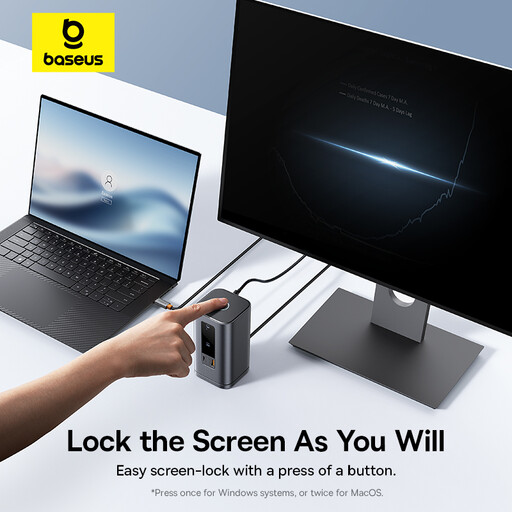
Baseus Wisdom Series 11-in-1 Workstation Dock
For a stable home desk with several displays, peripherals and a wired network connection.
The listing specifies two HDMI ports, two DisplayPort ports, USB 3.2 ports, Ethernet, audio, a Type-C host connection and up to 100W PD input.
Check the laptop’s video protocol, monitor-count and bandwidth limits. Confirm the charger arrangement, power delivered to the laptop and any employer policy on accessories, drivers or firmware.
Joybuy
 No image available
Dahua 31.5-inch 4K Curved OLED Monitor
For a dedicated desk where a larger external display is more useful than portability.
The listing states a 31.5-inch 4K OLED panel, USB-C with 65W power, HDMI 2.1, DisplayPort 1.4, USB hub, integrated speakers, VESA support and height, tilt and swivel adjustment.
At a stated 6.5kg, it is intended for a fixed location. Check desk space, viewing distance, USB-C video support, accepted charging power and host display limits.
Joybuy
Frequently asked questions
Does every USB-C laptop port support an external monitor and a dock?
No. USB-C is a connector type, not a guarantee of every function. Check the laptop’s official documentation for DisplayPort Alt Mode, Thunderbolt or USB4 support and its external-display limits; HP documentation for the USB-C Dock G5 specifically requires DisplayPort Alt Mode for USB-C dock functionality.
How do I check whether a dock will charge my work laptop?
Compare the laptop manufacturer’s required or supported USB-C input power with the power the dock delivers to the host, not only the wattage printed on the dock’s mains adapter. The laptop must accept USB-C charging, and its accepted voltage or wattage can limit delivered power.
Should I ask my employer before adding a DisplayLink dock or webcam?
Yes, where the work laptop is employer-managed. DisplayLink-based video products can require software installation, a compatibility check and a restart on Windows, so confirm approved-accessory, driver-installation, security and support policies before buying.
When does UK display-screen-equipment guidance matter for a home setup?
Health and Safety Executive guidance says the Display Screen Equipment Regulations can apply to people who work from home permanently, long term or routinely split time between home and workplace. For workers using display screen equipment daily for continuous periods of an hour or more, employers must assess the workstation, including both settings where relevant.
Can I throw away an old monitor, dock, webcam or headset with ordinary waste?
Do not assume so. UK WEEE rules regulate electrical and electronic equipment to encourage recovery, reuse and recycling; use a local-authority collection route or a retailer or manufacturer take-back option where available.


