Start with your work laptop: check its ports, external-display limits, charging requirements and your employer’s device policy before choosing desk accessories. A compact USB-C hub can suit a portable, one-screen setup, while a dock may suit a fixed desk with several connections. Neither can add display support the laptop lacks or override restrictions on work devices.
Who this setup is for
Hybrid workers with managed laptops
If you use an employer-issued Windows or Mac laptop, confirm which ports, external devices and software your IT team permits before choosing features you may be unable to use. Microsoft documents controls for USB devices and driver updates; the restrictions on your own laptop depend on your employer’s policy.
Home workers who spend time on calls
If video meetings shape your home-working day, focus on a camera and headset that connect to your laptop and work within its device policy. A physical webcam shutter may also matter when your desk is in a shared space.
Workers with a fixed, multi-device desk
If you connect a display, input devices, charging and perhaps Ethernet whenever you work at home, compare docks against the exact connections your laptop supports. A hub may be enough if you need fewer connections and regularly carry it between locations.
What to check before buying
Check laptop and employer compatibility before deciding how many desk connections you need. Then choose call equipment, display connections or a portable hub according to the task that matters most on your home-working days.
| Concern |
What to check when buying |
Who this matters to |
| Work-device approval |
Confirm the laptop model and ports, then ask IT about permitted USB devices, wireless receivers and required software. |
If my employer manages my laptop, I need to know that I can connect and use an accessory before choosing its features; around 33% of consumers put work-device approval first. |
| Calls and privacy |
Check the camera or headset connection, operating-system requirements and any physical privacy control you want. |
When meetings dominate my home-working day, I need call equipment that fits my laptop and shared space; around 27% of consumers make calls and privacy their primary concern. |
| Fixed-desk connections |
Check laptop video support and display count, dock outputs and the power delivered to your laptop. |
If I reconnect a monitor and several peripherals each time I work from home, I want a repeatable desk setup; roughly 27% of consumers prioritise those connections. |
| Portable connections |
Check the outputs you will use and whether pass-through charging needs a separate suitable charger. |
When I move between home and another workplace, I would rather carry a small set of connections than maintain a fixed dock; about 13% of consumers put portability first. |
Common buying mistakes
-
Assuming every USB-C port can drive a dock and multiple displays
A USB-C connector does not, by itself, establish video support or display count. Lenovo conditions its USB-C dock operation on supported host protocols, while Apple says the number of external displays depends on the Mac model.
Check your exact laptop’s port and display specifications alongside the dock’s requirements before choosing cables, monitors or a dock.
A different connection method or an adapter may be needed for the intended display setup.
-
Choosing a peripheral before checking work-device policy
On managed Windows laptops, Microsoft Intune can restrict USB device types and control driver updates. A camera or receiver that physically fits may therefore still require employer approval.
Ask IT which docks, cameras, wireless connections and software installations are allowed, particularly if your intended device needs a driver or management app.
A restricted device may need an IT-support request before it can be used.
-
Confusing charger input with power delivered to the laptop
Power figures can describe different parts of the connection. Dell lists different WD25 power delivery for Dell and non-Dell hosts, while Anker says its 555 hub reserves 15W of its quoted 100W pass-through input for hub operation.
Compare the laptop charger’s rating with the power the accessory delivers to your particular host, and check whether a suitable adapter is included.
-
Applying Great Britain marking guidance to Northern Ireland
Government electrical-equipment guidance distinguishes Great Britain from Northern Ireland. A marking statement written for England, Scotland and Wales does not, on its own, settle the position in Northern Ireland.
If the product is for Northern Ireland, consult the applicable Northern Ireland product-marking guidance rather than relying solely on Great Britain advice.
Relevant brands to consider
Lenovo
Lenovo’s ThinkPad dock range is relevant when a fixed desk needs display, network and charging connections, particularly with a compatible ThinkPad.
- Lenovo provides a compatibility finder and says its USB-C and Thunderbolt docks require a host port supporting the relevant display or dock protocol.
- Check the laptop model before relying on ThinkPad-specific functions; Lenovo says some are unavailable on non-Lenovo systems.
Dell
Dell’s WD25 dock is a reference point for a fixed desk needing USB-C connectivity and managed-dock features.
- Dell specifies display modes and dock-management features for the WD25.
- Dell lists WD25 power delivery as 100W for Dell systems and 96W for non-Dell systems; confirm the rating applicable to your laptop.
Logitech
Logitech’s business webcams are relevant when video calls are the main reason to add a peripheral.
- Logitech publishes connector and operating-system requirements for individual models; its Brio 505 has a physical privacy shutter.
- Check model-specific software requirements and employer camera policy rather than assuming every enhanced feature is available on your work laptop.
Anker
Anker’s hubs and docks are relevant when a carryable set of extra connections is more useful than a permanent desk dock.
- The Anker 555 USB-C Hub is an example with HDMI display output and pass-through charging.
- Anker says the 555 uses 15W of its quoted 100W pass-through input, outputs video through HDMI rather than its USB-C ports, and does not include a wall charger.
Joybuy products for home desks
These products cover several distinct home-desk needs: display and port connections, calls, and keyboard-and-mouse input. Choose within the relevant need only after checking the connection and work-device restrictions for your laptop.
 No image available
Targus USB-C Universal Dual HDMI 4K Dock, 100W PD Pass-Thru (Retail Packaging)
Consider this dock for a fixed desk where you need two HDMI connections alongside other peripherals.
Its title specifies USB-C, dual HDMI 4K and 100W power-delivery pass-through; that figure does not establish the power your laptop will receive. Check your laptop’s USB-C video and display support, whether a suitable power adapter is included, and employer approval for the dock.
Joybuy
 No image available
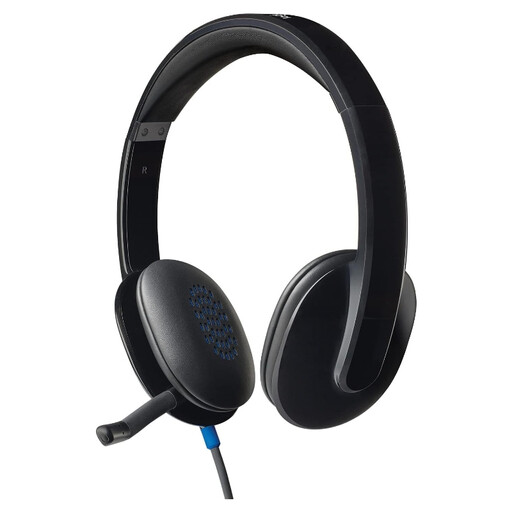
Logitech H540 Wired Headset
A wired headset is an option when work calls are the main desk-accessory need. Before choosing the H540 for a managed laptop, confirm that its connection fits an available port and that your employer permits the audio device.
Joybuy
 No image available
V7 V7UC-U3CRJ45HDVG-BLK USB-C Adapter
Consider this adapter if one external display and a compact set of desk connections meet your needs.
Its title specifies 4K HDMI, VGA, Gigabit Ethernet, 100W power-delivery pass-through and two USB 3.0 ports. Check that your laptop supports the required video connection, that a single-display setup is sufficient, and that a suitable charger is available.
Joybuy
 No image available
HP 680 CFT Dual-Mode Keyboard and Mouse Combo
This set addresses typing and pointing at a home desk rather than adding display or network capability. Confirm the keyboard layout and whether your employer permits the connection method you intend to use.
Joybuy
 No image available
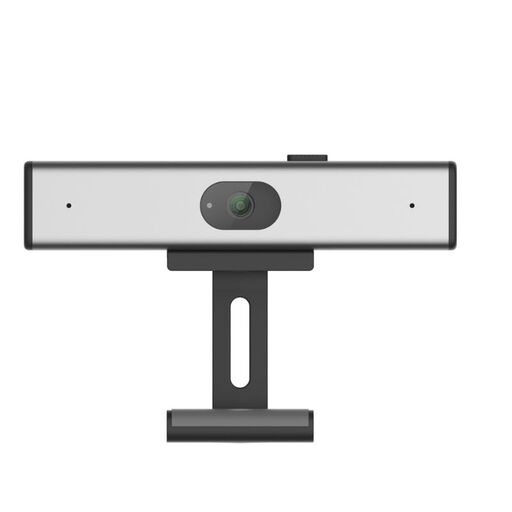
Philips SPL6308S/00 2K QHD PC Webcam, EU Version, Silver
Consider this webcam when adding video to a home call setup is the priority. Its title identifies the 2K QHD variant; check its connector and operating-system requirements against your laptop, and confirm that your employer permits an external camera.
Joybuy
Frequently asked questions
Can my employer-issued laptop block a webcam, dock or USB receiver?
Yes, a managed Windows laptop can be configured to restrict those devices. Microsoft documents Intune controls for USB device types and device installation, but your employer’s settings determine what is permitted on your laptop; ask IT about the particular accessory and any required drivers before buying.
Will a USB-C dock automatically run two external monitors?
No. Check the exact laptop model’s display limit and video-capable ports, then compare them with the dock’s supported configuration and the cables you plan to use. Apple says Mac display support depends on the computer model, while Lenovo specifies host-protocol requirements for its USB-C docks.
Is a plug-and-play webcam suitable for any managed work laptop?
No. Straightforward USB setup does not override employer camera restrictions or the webcam’s connector and operating-system requirements. For example, Logitech lists USB-C, Windows 10 or later and macOS 10.15 or later for its MX Brio 705; check the requirements of the exact webcam you are considering.
What should I do with an old dock, hub or webcam?
Use an appropriate electrical-equipment collection route rather than treating it as ordinary rubbish. Government guidance on waste electrical and electronic equipment addresses recovery and recycling; check your retailer’s or local authority’s current collection arrangements for the item.


