Choose the upgrade that addresses your most persistent problem at the home desk: a monitor for cramped documents, a dock or hub for repeated reconnection, call equipment for frequent meetings, or a stand with separate input devices when the laptop setup needs adjusting. Check your exact laptop's display, port and charging capabilities, and any employer rules, before buying; a USB-C connector alone does not establish what a dock can do.
Who the choices are for
Document-heavy laptop workers
If you regularly compare documents, use spreadsheets or keep several applications visible, screen space may matter more than adding another laptop accessory. A home desk that is reconnected often may also call for a simpler cable arrangement.
Meeting-heavy remote collaborators
If home-working days revolve around calls, decide whether camera framing, microphone placement or listening comfort is the problem to address before choosing a webcam or headset.
Workers who move their laptop between locations
If the same laptop travels between home and another workplace, consider how much of the setup must be packed away. A stand and separate keyboard and mouse may be worth assessing together, alongside your employer's workstation arrangements.
What to prioritise
Start with the task that causes the most friction during recurring home-working days, then check whether the proposed accessory works with your laptop and workplace requirements.
| Concern |
What to check |
Who this matters to |
| Screen space |
Check the exact laptop model's supported external displays, then match its video connection to the monitor input and cable. |
When documents and spreadsheets compete for room on my laptop screen, I want more visible workspace. Around 37% of consumers would put screen space first. |
| Desk connections |
Match the laptop's video and USB capabilities to the hub or dock; check charging requirements if it will power the laptop. |
If reconnecting my home display and peripherals interrupts each workday, I want fewer separate connections to manage. For around 27% of consumers, that is the primary need. |
| Video calls |
Identify whether the issue is camera framing, microphone pickup or listening comfort, and check device and calling-platform compatibility. |
When much of my home day is spent in meetings, I care more about how I see and hear colleagues, and how they hear me, than about another display. Call equipment would come first for around 18% of consumers. |
| Laptop setup |
Check stand fit and desk space, whether separate input devices are needed, and your employer's workstation assessment process. |
If I move my laptop between workplaces but use it for long desk sessions at home, I need a setup I can position and pack away. Around 18% of consumers would prioritise this need. |
Purchasing pitfalls
-
Assuming every USB-C port can run the same dock
USB-C describes the connector, not a guarantee of video output, a particular data capability or laptop charging. The laptop, dock and cable all affect which functions are available.
Note your exact laptop model, intended displays, peripherals and charging requirement, then compare them with the dock's compatibility information. Microsoft Support advises checking the hardware and software involved when diagnosing USB-C problems.
A different cable or adapter may be needed to make the intended connection.
-
Buying workstation equipment before checking work arrangements
An individual workstation assessment may affect which equipment is appropriate for regular home use. The Health and Safety Executive advises that assessments cover both home and office where workers use display-screen equipment in each location.
Check your employer's assessment and equipment-request process before buying for a recurring workstation; do not assume a personal purchase will meet an identified need.
-
Choosing a stand without planning how to type
Raising a laptop changes the position of its built-in keyboard and trackpad. A stand also has to fit the laptop and the available desk space.
Consider the stand, keyboard and mouse as one setup decision, checking laptop fit and how often everything must be packed away.
Separate input devices take additional desk space and may need to be carried between locations.
-
Assuming personal accessories are permitted on a work laptop
Software, storage and connections used with an employer-managed device can be subject to workplace security rules. The Information Commissioner's Office identifies security considerations when organisations allow personal devices for work.
Ask your employer or IT team before connecting an accessory that requires a driver, handles work data or uses a connection your workplace has not approved.
Brands to consider for specific desk equipment
Logitech
Logitech's business range spans keyboards, mice, webcams and headsets for laptop-based work and calls.
- Several accessory types are available within the range, according to Logitech's business product pages.
- Check the individual model's operating-system, connection and conferencing-platform compatibility rather than assuming it applies across the range.
Anker
Anker's hub and dock range is relevant when the main task is connecting displays, peripherals and laptop power at a home desk.
- Its range includes different port and display arrangements, according to Anker.
- The functions available depend on the particular hub or dock and the host laptop; match both before choosing.
Kensington
Kensington offers laptop stands and docking equipment for more established desk setups.
- Its product range gives shoppers stand and connection options for different desk needs.
- Kensington distinguishes the USB-C connector from optional video, data and charging capabilities. For stands, check laptop fit and individual workstation needs.
Joybuy product options
These monitors, connection accessories, webcam and input devices address different tasks at a laptop-based home desk. Choose by the task you need to improve, rather than treating them as interchangeable upgrades.
 No image available
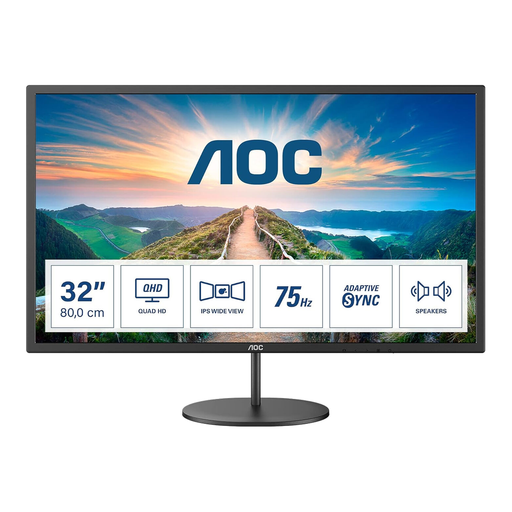
AOC Q32V4 31.5-inch IPS monitor
Consider a separate display if documents and applications feel cramped on the laptop screen.
- 31.5-inch IPS display with built-in speakers.
- Check that your laptop supports the intended display connection and that the screen fits your desk.
Joybuy
 No image available
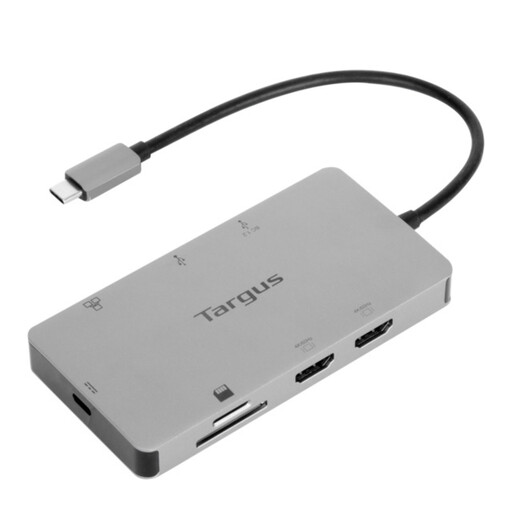
Targus USB-C Universal Dual HDMI 4K Docking Station, 100W Power Delivery Pass-Thru
Consider a dock if reconnecting displays and other desk accessories is the recurring inconvenience.
- Dual HDMI connections and 100W Power Delivery pass-through are stated in the product name.
- Check your laptop's video and charging support for the intended arrangement, as well as the required power adapter and box contents.
Joybuy
 No image available
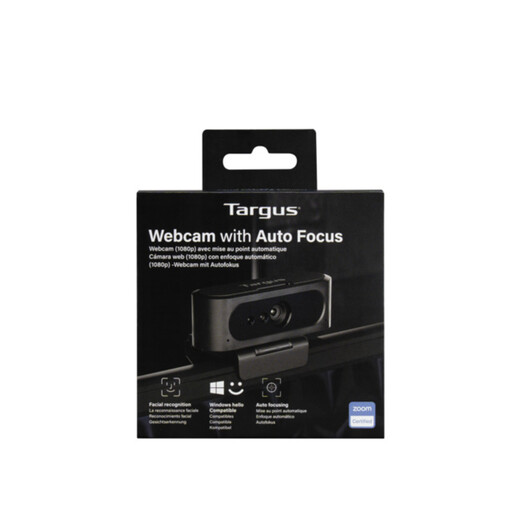
Targus 2K Webcam with Auto Focus
A dedicated webcam is an option when camera positioning is the main issue in frequent calls.
- The product name specifies auto focus.
- Confirm the camera's output resolution before choosing by the 2K wording in its name, and check compatibility with your work device and calling platform.
Joybuy
 No image available
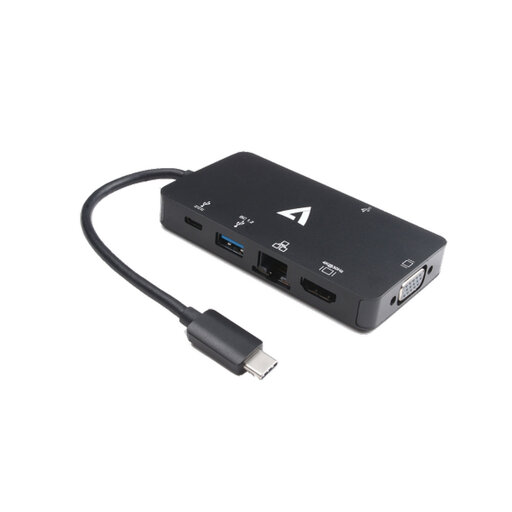
V7 V7UC-U3CRJ45HDVG-BLK USB-C Adapter
Consider this adapter when a home-desk connection needs display, wired-network and USB ports together.
- The product name specifies 4K HDMI, VGA, Gigabit Ethernet, 100W Power Delivery and two USB 3.0 ports.
- Check laptop video and charging compatibility. Confirm the intended display arrangement before relying on HDMI and VGA at the same time.
Joybuy
 No image available
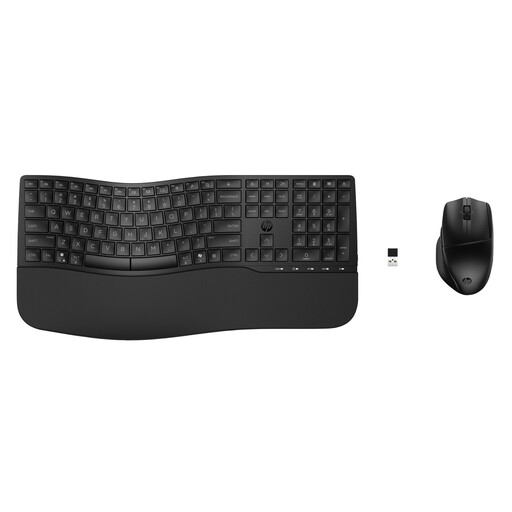
HP 680 CFT Dual-Mode Keyboard and Mouse Combo
Separate input devices are worth considering if you raise the laptop or use a more permanent home-desk arrangement.
- The set includes a keyboard and mouse; check the connection method against your work device.
- Confirm that the keyboard layout suits your typing needs and that personal accessories are permitted on a managed laptop.
Joybuy
Common questions
Should I choose a monitor or a dock first?
Choose a monitor first if limited visible space is the main obstacle; choose a dock first if reconnecting equipment is the bigger interruption. For either purchase, check the exact laptop's supported displays and connections rather than assuming a dock can add display support the laptop does not have.
Will any USB-C laptop port run displays and charge through a dock?
No: the connector shape alone does not establish video output or charging support. Check the laptop, dock and cable requirements for the display arrangement and power you intend to use; Kensington's dock guidance also distinguishes a USB-C connector from its optional capabilities.
Should I ask my employer before buying equipment for regular home work?
Yes, check the workplace assessment and equipment-request process before paying for a recurring setup. In Great Britain, the Health and Safety Executive advises that an assessment should cover both home and office where workers use display-screen equipment in both places; your individual assessment is the starting point for identifying what is needed.
Can I connect my own webcam or other accessory to a work laptop?
Check your employer's IT rules before connecting it, particularly if it needs software or can access work data. The Information Commissioner's Office highlights security considerations for personal devices used for work; an accessory being physically compatible does not establish workplace approval.
What if my current laptop setup causes discomfort?
Raise the issue through your employer's workstation assessment process rather than assuming a generic stand or monitor will address it. The Health and Safety Executive's home-working guidance calls for an assessment that covers the relevant work locations, so the equipment choice can reflect your actual setup and needs.


