Frequent location switchers
Workers who carry a laptop between home and a workplace regularly and want a compact set of accessories they can reconnect without moving an entire workstation.


Choose a compact hub and portable accessories if you regularly carry your laptop between locations; consider a monitor and desk dock if you work at one home desk often and want to reconnect several devices there. Before buying either setup, check the laptop’s video-capable ports, supported displays, charging needs and any work-device requirements: a USB-C connector alone does not establish what a hub or dock can do.
Workers who carry a laptop between home and a workplace regularly and want a compact set of accessories they can reconnect without moving an entire workstation.
Hybrid workers who use one home desk often enough to consider an external screen, separate input devices and connections that can stay in place.
People whose main equipment question concerns online meetings rather than additional screen space, and who need to decide whether a separate webcam or headset would address it.
Choose it when: your laptop and accessories move between desks regularly, and you need only the connections used at each location.
Accept: a compact hub may offer fewer connections or more limited display options than the dock you would leave on a desk; check the exact model.
Choose it when: you regularly work on documents at one desk and want a monitor and peripherals ready to reconnect.
Accept: the equipment takes up desk space and is less convenient to carry; the laptop must support the intended dock and display arrangement.
| Concern | What to check | Who this matters to |
|---|---|---|
| Laptop and display compatibility | Check the exact laptop model’s video-capable ports and supported external displays; match dock outputs and charging requirements to it. | If I want an external screen or dock, I need to know the laptop can run the arrangement before choosing accessories. Around 31% of consumers put compatibility first. |
| Portability and reconnection | Decide what must travel; compare the accessory’s size, connections and cables with what can stay at each desk. | When I move between work locations, I want a kit I can carry and reconnect without packing a full desk setup. Portability is the primary need for around 25% of consumers. |
| Calls and camera privacy | Assess your existing camera and microphone, then check connection methods, meeting-device requirements and any desired physical camera cover. | For regular online meetings, I care more about a workable call setup and camera privacy than another display. Around 25% of consumers make this their first concern. |
| Screen space and desk layout | Measure the available desk area and plan where the screen, keyboard, mouse and any laptop stand would sit. | If I spend long periods on documents at home, I need enough room to position a screen and separate input devices sensibly. That is the leading need for around 19% of consumers. |
USB-C identifies the connector, not every capability behind it. Anker’s guidance for its cited hub requires DisplayPort Alt Mode on the laptop port for external video; a USB-C port on a hub may also be data-only.
Check the laptop’s exact port specification and the hub’s video outputs before relying on it for a monitor. Check charging support separately.
A dock’s listed display modes do not establish what a particular laptop can drive. Apple advises checking the video ports and supported number of displays for the exact Mac model.
Match the displays you intend to use, including resolution and refresh rate, to the laptop and dock combination.
The intended connection may also require additional cables or adapters.
A monitor, larger dock and full-size peripherals can make sense at a frequently used home desk, but are less convenient when the same equipment must be carried elsewhere.
List what actually moves with the laptop, and choose portable connections for those tasks; leave fixed equipment at the desk where you use it.
Peripheral features do not determine the right layout for every person or desk. The Health and Safety Executive advises considering the individual home working situation rather than assuming everyone needs office-equivalent equipment.
Check the space available for the proposed screen and input devices, and consider your own working arrangement before adding equipment.
USB-C hubs for a compact kit or additional desk connections.
Desk docks for workers considering more connected peripherals, charging or multiple displays.
Keyboard, mouse, webcam and headset options for desk input and online calls.
These choices cover an external screen and desk connections, alongside separate input and audio accessories. Combine only what suits your laptop, available desk space and routine between locations.
 No image available
Consider this external screen for document work at a home desk. Check the laptop’s video output and the cable needed to connect it; the monitor does not replace a dock or call equipment.
 No image available
Consider this dock where desk connections can remain in place. Its name identifies dual HDMI 4K and 100W Power Delivery pass-through; check the exact laptop’s display support and what power supply the intended setup requires.
 No image available
Consider a hub if you need to reconnect accessories at different desks. Check which of this model’s seven ports serve your devices, whether the laptop can send video through it and the USB-C power connection’s role before relying on it for charging.
 No image available
Separate keyboard and mouse input may suit a laptop used at a home desk. This is the UK English version; check its connection method against the laptop or any adapter you plan to use.
 No image available
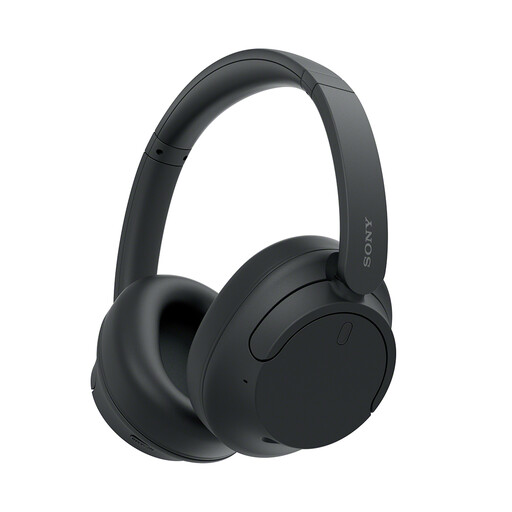
Consider these for the audio part of a call-focused setup. Check their connection method and suitability for your meeting device and work requirements; noise cancellation in the product name does not establish call performance in your surroundings.
A compact hub suits a small set of connections that moves with your laptop; a desk dock is worth considering when several peripherals remain connected at one workstation. Check the exact laptop’s ports, display support and charging requirements before choosing either device.
No. Anker’s guidance for its cited hub says the laptop’s USB-C port needs DisplayPort Alt Mode for external video through that hub. Check both the laptop port and the particular hub’s video output; a USB-C socket on the hub may serve another purpose.
Base the choice on what must move and how often you use one desk. Carry a compact set of the connections you repeatedly need between locations; if document work regularly happens at home, consider leaving a monitor and peripherals there, accepting the space they occupy.
No. The Health and Safety Executive advises considering the individual home workstation rather than assuming everyone needs office-equivalent equipment. Assess your screen work, available desk space and device placement before deciding which additions would be useful.