Workers reconnecting a laptop each day
If you regularly attach a home monitor, charger and peripherals, establish what your laptop can support before choosing a hub or dock.


Choose the upgrade that addresses your main difficulty: a monitor for limited screen space, a dock for repeated connections, or a webcam, headset or input devices for a specific call or desk-control need. Before buying, check the work laptop’s connections and charging requirements alongside your employer’s rules for peripherals; a more elaborate setup is useful only if those conditions fit.
If you regularly attach a home monitor, charger and peripherals, establish what your laptop can support before choosing a hub or dock.
If meetings drive your purchase, identify whether camera placement, private listening or microphone use needs attention. Check that the chosen connection and conferencing setup are permitted on your work computer.
If equipment must be cleared away or shared with a personal computer, consider the space taken by a monitor and dock before adding them. A compact input setup or simpler connection arrangement may better fit the desk.
Identify the task that currently interrupts your work, then check laptop compatibility and workplace permissions before deciding how much equipment that task requires.
| Concern | What to check | Who this matters to |
|---|---|---|
| Laptop and display compatibility | Check the laptop’s video-output and charging specifications against the intended monitor or dock. For a dock, check the supported display setup for your laptop. | If my aim is to reconnect a screen and charger through one cable, that connection has to work with my laptop. Around 33% of consumers put compatibility first. |
| Calls | Decide whether the problem is camera placement or call audio, then check the conferencing setup and permitted connection type. | When meetings fill my working day, I want to improve the part of the call setup that holds me back rather than replace everything. Call needs come first for around 27% of consumers. |
| Desk space and duplication | Measure the usable desk area and identify which ports or accessories your existing equipment already provides. | On a desk I share or clear away, I need equipment that fits without duplicating what I already use. Around 20% of consumers make space and duplication their primary concern. |
| Screen and input setup | Check monitor positioning and whether a separate keyboard and mouse can connect to the work computer. | For sustained work on documents, I need a workable screen position and a convenient way to type and point. That daily setup is the first priority for around 20% of consumers. |
A matching connector does not establish that a laptop can send video to a monitor through a dock or accept the intended charging arrangement.
Compare the exact laptop port specification with the dock’s display and power requirements before buying.
The National Cyber Security Centre explains that peripheral connections can introduce security risks and that organisations may restrict them. A device you can connect physically may therefore be unusable for work.
Ask your employer about USB, Bluetooth, webcams, audio devices and any required software before choosing a connection type.
A dock, a USB-C hub monitor and a compact hub can cover different combinations of displays, ports and charging. Extra connections do not help if you will not use them.
List what you attach on a typical home-working day, then compare only setups that provide those connections and work with your laptop.
A webcam addresses video framing, while a headset serves private listening and microphone use. A speakerphone requires an appropriate space for open audio.
Choose according to the recurring call problem, and keep any laptop equipment that already meets your needs.
Relevant when comparing a USB-C monitor with a separate dock for a more permanent home desk.
Relevant when comparing docks for USB-C, USB4 or Thunderbolt laptop connections.
Relevant when the purchase is a webcam, call-audio device, keyboard or mouse rather than a full docking setup.
These products address different parts of a home desk: laptop connections, video calls, screen space, private call audio and separate input devices. Choose by the need you are addressing, then check the particular device against your work computer.
 No image available
Consider this dock if reconnecting a laptop to displays and desk accessories is your main inconvenience.
The product name specifies dual HDMI 4K connections and 100W power-delivery pass-through. Check your laptop’s display output and charging requirements, whether a suitable power adapter is supplied, and whether your employer permits the dock.
 No image available
A separate webcam is worth considering when laptop-camera placement is the specific problem during calls.
The product name says 2K and auto focus, but check the supported video resolution rather than relying on the title alone. Confirm that the webcam works with your conferencing setup and is permitted on the work computer; it does not replace private call audio.
 No image available
Consider an external monitor if limited laptop-screen area is the main obstacle and you have room for a permanent display.
The product name identifies a 31.5-inch IPS monitor with built-in speakers. Check the available desk space, stand-positioning options and whether your computer has a compatible video output.
 No image available
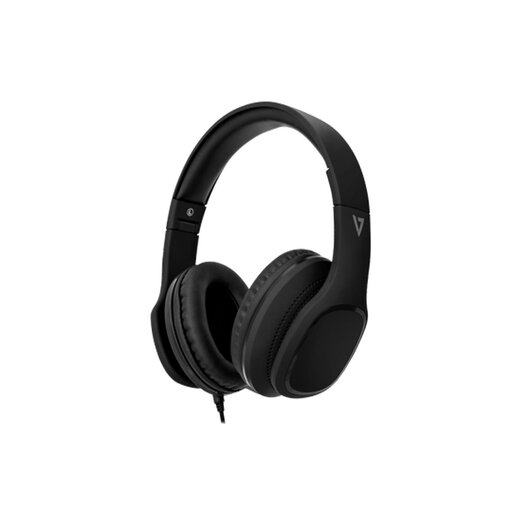
These headphones are an option when private listening and a microphone matter more than changing the video setup.
The product name specifies a wired design, 40mm drivers and an inline MEMS microphone. Check for a compatible audio connection or suitable adapter and confirm that personal audio devices are permitted for work calls.
 No image available
A separate keyboard and mouse may suit a desk where the laptop sits away from your usual typing position.
This is the UK English version of the wireless keyboard-and-mouse set. Check the required receiver connection and your employer’s wireless-peripheral rules; if switching between computers matters, confirm that the set supports it before buying.
Check your employer’s display-screen-equipment assessment process before deciding what to buy yourself. The Health and Safety Executive says its DSE guidance can apply to people who work at home long term or routinely split work between home and workplace; where an assessment identifies necessary action or equipment, workers cannot be charged for it.
Yes, your employer may restrict peripheral connections on a work computer. The National Cyber Security Centre describes security risks associated with peripheral interfaces and organisational controls over their use, so check the rules for USB, Bluetooth and required software before buying.
No: a USB-C connector alone does not establish a compatible video path. Check the exact laptop port specification and the hub’s display requirements; Microsoft’s docking guidance discusses DisplayPort over USB-C as a connection mode for docks and displays.
Treat the monitor count as conditional on the complete setup. For its SD4842P dock, Kensington specifies conditions involving the laptop, dock and monitors for maximum-resolution use, including Display Stream Compression support where applicable; check the intended laptop, operating system, displays and cables against the dock documentation.