What should you check before choosing?
Start with the workstation issue, then check whether the proposed equipment fits the computer and the way the desk is used.
| Priority |
What to check |
Your needs |
| Assessment outcome |
Identify the particular workstation or task issue. For work in both locations, check the home and office arrangements rather than assuming they need identical equipment. |
I want equipment that addresses an issue at my actual workstation, not a standard bundle. HSE says the DSE assessment should guide what is needed. |
| Screen and inputs |
Check screen position and whether a separate display is necessary. If a stand raises the laptop, assess where the keyboard and pointing device will sit. |
A different screen position might help my desk arrangement, but I also need to be able to place the input devices suitably. HSE assesses screens, keyboards and pointing devices separately. |
| Display and dock compatibility |
Compare the exact computer’s video outputs with the monitor or dock inputs, cables and intended display configuration. If charging through USB-C is expected, check the power supplied and what the computer accepts. |
I need the planned displays and connections to work with my computer. Apple says Mac display support depends on the model, resolution and refresh rate; Microsoft says host capability and available power can limit dock functions. |
| Meeting peripherals |
Check the required connection, operating-system support and meeting platform. Confirm any employer rules for connecting or managing the device. |
If calls expose a camera, audio or privacy need in my work arrangement, I want a peripheral that works with the systems I must use. |
Relevant brand examples
These model and range examples illustrate features to check; a brand name alone does not establish suitability for a particular workstation.
Dell
Dell’s P2425HE is an example to examine when an assessment points to an adjustable external monitor and a USB-C desk connection.
- Dell UK lists a 23.8-inch Full HD screen, up to 90W power delivery, and height, pivot, swivel and tilt adjustment for this model.
- Check the laptop’s USB-C video support, charging requirements and intended display configuration before relying on a monitor connection.
Lenovo ThinkVision
ThinkVision is a monitor range to compare when a compatible USB-C desk connection is part of the assessed need.
- Lenovo UK describes a USB-C one-cable solution with PD 3.1 power delivery of up to 140W within its ThinkVision range.
- That capability is not a specification for every ThinkVision model. Check the chosen monitor’s ports and power rating against the host computer.
Logitech
Logitech has input and meeting peripherals to consider where a particular task or workstation assessment identifies a need.
- Logitech describes multi-device switching for its ERGO K860 for Business keyboard and says its Brio 305 webcam is certified for Microsoft Teams, Zoom and Google Meet.
- Those details apply to the named models. Check layout, connection method, operating-system support and employer approval for the device being considered.
Joybuy options for assessed workstation needs
These options cover external monitors, a dock and a mouse. Consider each only where the workstation assessment or work task identifies a matching need, then check compatibility with the exact computer and setup.
 No image available
BenQ MA270UP Nano Glossy IPS 27-inch 4K USB-C HDR P3 monitor
Consider this height-adjustable screen if the assessment identifies a display-position need. Check that the exact computer supports the intended video connection and display setting; if charging through the monitor matters, confirm the computer’s power requirements too.
View on Joybuy
 No image available
Targus USB-C Universal Dual HDMI 4K Dock, 100W PD Pass-Thru (Retail Packaging)
For a desk that needs docked displays and peripherals, check the laptop’s supported display configuration, the required cables and its charging requirements. The dock’s stated pass-through rating does not establish what a particular laptop will accept.
View on Joybuy
 No image available
ASUS ProArt PA278CV IPS WQHD monitor
If the assessment identifies a need for a separate screen, check that the computer can output the intended WQHD display setting and that the screen can be positioned suitably. Confirm the connection and power requirements if USB-C charging is part of the plan.
View on Joybuy
 No image available
ASUS ZenScreen MB166CR FHD monitor
For an assessed need for an additional screen between work locations, check this model’s video input against the exact laptop’s output and confirm that its positioning suits each workstation where it will be used.
View on Joybuy
 No image available
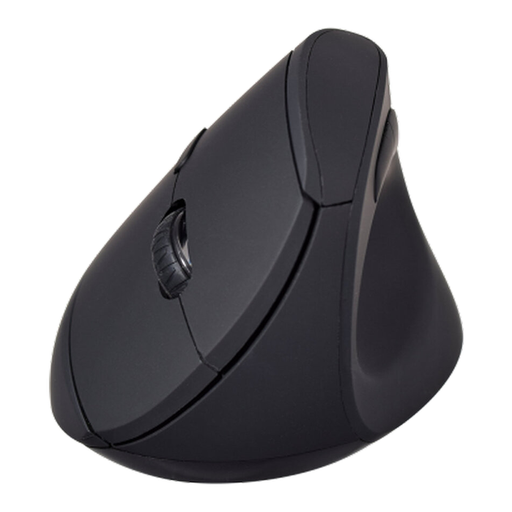
V7 MW500BT Bluetooth/2.4GHz vertical mouse, 6 buttons, 1600 DPI
Consider a separate mouse where the assessment identifies an input-device need. Check whether its shape suits the user and whether the intended wireless connection is permitted on the work computer; this is a mouse, not a keyboard-and-mouse set.
View on Joybuy
Common questions
Does every UK home or hybrid worker need an external monitor or dock?
No. The Health and Safety Executive says home workers may not need office-type equipment. Where the DSE Regulations apply, the individual workstation assessment should guide whether additional equipment is needed.
When must a UK employer assess a home workstation?
HSE says employers must assess the workstation when a worker uses DSE daily as part of normal work for continuous periods of an hour or more. If the worker uses DSE at home and in an office, the assessment should cover both settings.
Can a worker be charged for equipment required by a DSE assessment?
No. For the UK DSE workstation assessment described by the Health and Safety Executive, workers cannot be charged where the assessment indicates that action is needed, such as providing DSE equipment.
What should I check before choosing a USB-C monitor or dock?
Check the exact computer’s video capability, intended display count and settings, matching ports and cables, and the power it can accept if charging is expected. Apple says Mac display support varies by model, resolution and refresh rate; Microsoft notes that insufficient dock power can reduce functions.
When is a webcam or headset worth considering for hybrid work?
Consider one when calls are part of the job and the current camera, audio or privacy arrangement does not meet that task’s requirements. Check the exact device’s connection and operating-system support, the required meeting platform and any employer device rules.


