Carry the equipment you need at both locations, such as your laptop and compact input devices, and add a portable monitor only if a second screen justifies the extra load. If you spend longer sessions at one desk, a monitor and dock can stay connected there. Before buying either setup, check your laptop’s video output, charging requirements and port capabilities; a USB-C connector alone does not establish what a display or dock will do.
Who each setup suits
Frequent home-to-office movers
If you regularly pack your workstation, a compact kit that connects quickly may matter more than leaving a full set of equipment at each location. Account for the bag, cables and protection as well as the devices themselves.
Multi-screen workers with a main desk
If you spend long sessions at one location with displays and wired peripherals, leaving a monitor and dock connected there can reduce repeated setup. Check that your laptop supports the dock’s required connections, display arrangement and charging output.
People switching between two devices
If you alternate between a work computer and another computer or tablet, a compatible multi-device keyboard or mouse may save repeated pairing. Check the switching feature and connection method on the exact peripheral.
What to check before buying
Carry-first kit
Choose it when: You change work location often and need the same equipment available at both desks.
Trade-off: A portable second screen still adds weight, cables and potentially a driver requirement.
Fixed desk with dock and monitor
Choose it when: One location hosts your longer work sessions and its display and peripherals can remain connected.
Trade-off: The dock’s charging and display capabilities depend on your laptop and connection configuration.
| Concern |
What to check |
Who this matters to |
| Carry load and setup |
Compare the complete packed kit, including cables and protection; check how each device connects at both locations. |
If I pack up after each workday, I want fewer bulky items to carry and reconnect. Around 31% of consumers would put that carry-and-setup need first. |
| Display and charging compatibility |
Check the exact laptop port’s video functions and the dock’s charging output for your laptop model. |
A connector that fits is little use to me if the screen stays blank or the laptop needs its own charger. For around 31% of consumers, compatible connections would be the primary concern. |
| Main-desk setup |
Check the monitor’s desk footprint and the dock’s supported display arrangement with your laptop. |
When I spend longer sessions at one desk, I want its display and peripherals ready when I sit down. A fixed-desk setup would come first for around 25% of consumers. |
| Switching input devices |
Confirm multi-device switching on the exact keyboard or mouse, its connection method and whether the layout has the keys you use. |
If I work across a computer and another device, I want to switch input without repeated pairing. Around 13% of consumers would prioritise that need. |
Setup mistakes to avoid
-
Assuming every USB-C port carries video
A portable monitor can have the right-shaped connector without receiving a plug-and-play video signal. ASUS explains that USB-C display use depends on video support at both the computer and monitor; some alternative connections require a driver.
Check your exact laptop’s port documentation against the monitor’s connection requirements before ordering.
A different connection method may mean carrying an adapter or using a driver-supported setup.
-
Treating dock charging wattage as universal
Dell lists up to 130W for Dell systems and 96W for non-Dell systems on its WD25TB4 dock. Those model-specific figures do not establish what every laptop will receive.
Compare the dock’s applicable output with your laptop maker’s charger specification, then check compatibility for the exact laptop.
You may still need the original charger if the applicable dock output does not meet your laptop’s requirement.
-
Judging a portable screen by its size alone
The display is only part of what travels with you. ASUS lists its 14-inch ZenScreen MB14AC at 0.59 kg; the complete kit may also include a cable, stand and protective case.
Consider everything that must fit in your bag, then check the screen’s connection method against your laptop.
Brands relevant to these setups
Dell
Dell’s WD25TB4 is an example to consider for a desk where a dock can remain connected to displays and peripherals.
- Dell lists Thunderbolt 4 connectivity and power delivery of up to 130W for Dell systems or 96W for non-Dell systems on this dock.
- Check the exact laptop’s connection, display and charging requirements; the WD25TB4 figures are not guarantees for other docks or every host configuration.
ASUS
ASUS ZenScreen portable monitors offer a route for people who need to take a second display between locations; connections vary by model.
- ASUS lists the ZenScreen MB14AC as a 14-inch display weighing 0.59 kg and measuring 9 mm thick.
- Check the exact monitor and laptop connection. ASUS states that USB-C video needs the required host-port function, while USB-A hybrid-signal use on the MB14AC requires a DisplayLink driver.
Logitech
Logitech has compact input devices for people who would rather carry a keyboard or mouse than duplicate them at each desk.
- Logitech says compatible Easy-Switch keyboards and mice can pair with up to three devices and switch between them by button.
- Verify Easy-Switch on the exact model. A compact keyboard such as the MX Keys Mini may not suit someone who needs an integrated number pad.
Laptop carry and protection options
These Joybuy options focus on carrying or covering a laptop between work locations. Choose by your laptop’s exact dimensions or model identifier, and decide whether you need a bag for transport or a fitted cover for the device itself.
 No image available
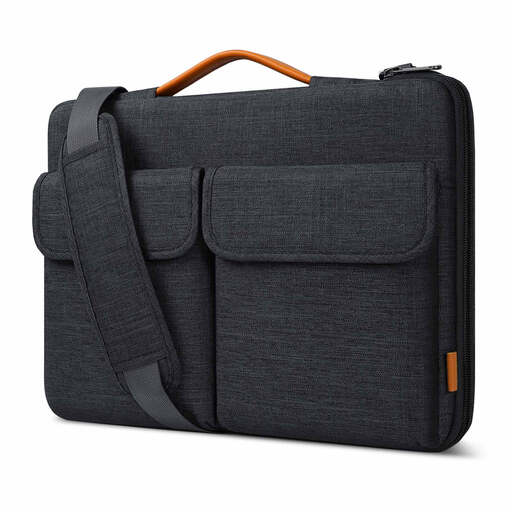
Inateck LB03008-15BG 15.6-inch laptop bag
A shoulder bag to consider if you carry a laptop between locations. The title specifies a 15.6-inch size and splashproof construction; compare your laptop’s dimensions with the bag’s fit measurements before buying.
View on Joybuy
 No image available
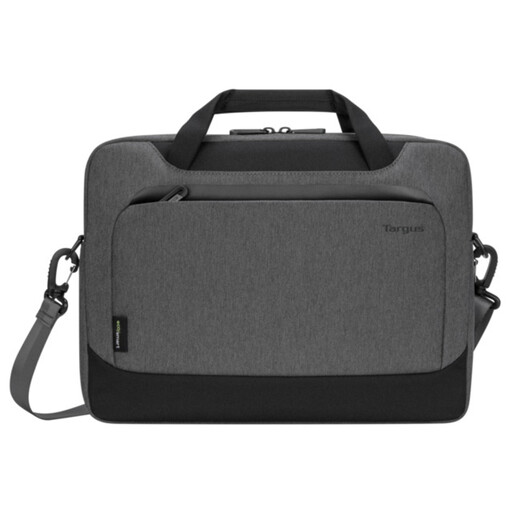
Targus EcoSmart Cypress 14-inch slipcase, Grey
A slipcase option for carrying a 14-inch laptop. Check your device’s dimensions against the case’s internal fit rather than relying on screen size alone.
View on Joybuy
 No image available
VoxorAI 14-inch notebook sleeve, Brown
A sleeve to consider if you want a separate covering for a laptop you carry between desks. Its title specifies a 14-inch size; confirm your laptop’s dimensions against the sleeve’s fit before ordering.
View on Joybuy
 No image available
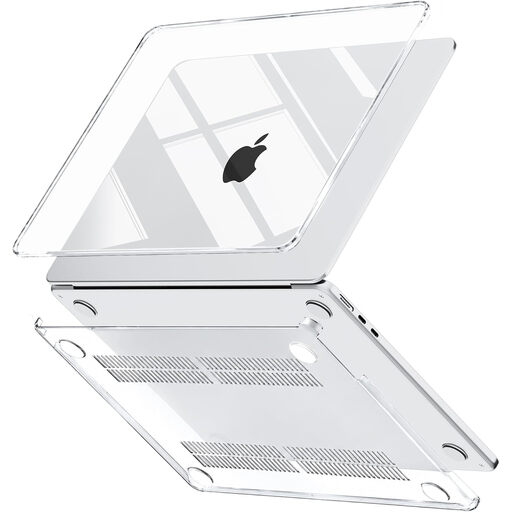
13.6-inch hard-shell cover for A3449, A3240, A3113 and A2681
A snap-on cover for a laptop with one of the model identifiers named in the title, rather than a bag for carrying accessories. Confirm your laptop’s exact identifier and the cover’s fit and cut-outs before buying.
View on Joybuy
Common questions
Will any USB-C laptop work with a USB-C portable monitor?
No: plug-and-play USB-C video requires the appropriate video function on both the laptop port and monitor. ASUS distinguishes this from DisplayLink-based connections, which require the relevant driver. Check the specifications for your exact laptop and monitor before purchase.
When should I leave a dock at one desk?
A fixed dock makes sense when one desk hosts your longer sessions and you regularly connect its display or wired peripherals. Check its charging and display support with your laptop, and whether you can use that dock at the location where it will stay.
Can one keyboard or mouse switch between my work laptop and another device?
Some compatible peripherals can: Logitech says its Easy-Switch models can pair with up to three devices and switch by button. Confirm that the exact keyboard or mouse has the feature and that both devices support its stated Bluetooth or receiver connection method.


