Check your laptop and workplace rules before choosing accessories for home and office. A dock makes sense where a compatible laptop can connect to equipment that stays at a desk; a portable monitor, compact keyboard or separate charger addresses different needs when equipment must travel. The laptop’s display and charging capabilities, the cables you use and employer restrictions still determine whether the arrangement will work.
Who needs which kind of setup?
One-cable desk switchers
If a monitor and other equipment can remain at a desk, a dock may spare you from reconnecting each item separately. Check the exact laptop’s video output, supported display count and charging input before choosing one: Microsoft’s USB-C guidance explains that video over the connector depends on an applicable alternate mode, while Apple says external-display support varies by Mac model.
Carry-everything commuters
When neither location has a permanent accessory setup, decide which display, input device and charger genuinely need to fit in your bag. A compact keyboard or portable monitor can travel with the laptop, but each adds something to carry and connect. The Health and Safety Executive advises that display-screen-equipment assessments cover both home and workplace situations where applicable.
Users of employer-managed laptops
A peripheral can be technically compatible without being permitted for work. Before buying a personal keyboard, receiver, webcam or dock, ask which connections and software your organisation allows. The National Cyber Security Centre’s bring-your-own-device guidance treats usability, security and device management as connected considerations.
What should you check before buying?
Start with the laptop model and employer permissions, then decide what can remain at each location and what must travel. A dock, a portable screen and a charger solve different parts of that daily move; none removes the need to check the relevant connections.
| Concern |
What to check |
Who this matters to |
| Laptop and display compatibility |
Check the exact laptop’s video-output capability, external-display limit and charging input against the dock or monitor and its required cable. |
If I want to connect a laptop at a prepared desk, I need the screen and power connections to work with that particular model. Around 36% of consumers would put compatibility first. |
| What travels between locations |
Decide what may stay at each desk, then consider the number of devices and cables you would carry. |
When I commute without a settled desk at both ends, the equipment has to be manageable to take with me. Portability would come first for around 29% of consumers. |
| Keyboard and meeting continuity |
Check available ports, supported connection methods and whether work-device rules allow receivers, Bluetooth and any required software. |
I may want familiar typing controls and a dependable way to join calls at either location. Around 21% of consumers would prioritise consistent input and meeting equipment. |
| Workplace rules and workstation needs |
Ask about permitted personal devices and software; where applicable, discuss a display-screen-equipment assessment covering both locations. |
Before choosing my own accessories, I need to know what my employer permits and whether an assessment identifies equipment needs. Those questions would lead the decision for around 14% of consumers. |
Mistakes to avoid across two work locations
-
Assuming every USB-C port can run a monitor
The connector’s shape does not establish that the laptop supplies the video mode a dock or monitor needs. Microsoft explains that USB-C alternate mode can carry video when the relevant capability is supported.
Find the exact laptop model’s video and charging specifications, then compare them with the proposed dock, monitor and cable.
-
Choosing a dock by its display ports alone
A dock’s outputs do not establish how many external displays the connected laptop can support. Apple says the supported count depends on the Mac model.
Check the laptop’s documented display support before comparing a dock’s outputs and required host connection.
-
Assuming a personal peripheral is approved for work
Employer controls may affect whether you can use Bluetooth, USB receivers, cameras, storage or configuration software, even if the accessory connects to the laptop.
Ask your IT team about the particular device and connection method before buying it for an employer-managed laptop.
-
Buying a stand instead of addressing a workstation need
A stand changes screen position but does not, by itself, settle every workstation consideration. The Health and Safety Executive says an applicable display-screen-equipment assessment should cover both home and workplace use.
Use your employer’s assessment process to identify what is needed at each location before making a personal purchase to address it.
Brands relevant to these equipment choices
Anker
Anker’s docking-station range is relevant when you want a desk connection for displays, power and peripherals.
- Anker describes selected docks that combine several desk connections through one laptop connection.
- Check the particular dock against the laptop’s video modes, display limit and charging requirements; a feature offered by one model does not apply to the whole range.
Belkin
Belkin’s Thunderbolt docks and hubs are relevant to desks with several connected devices, such as displays, wired networking and drives.
- Belkin lists display, connection and charging capabilities for particular Thunderbolt dock configurations.
- Those capabilities depend on the selected model and a compatible laptop; extra dock connections do not change the laptop’s own display support.
Logitech
Logitech is relevant when a compact keyboard that moves between desks matters more than adding dock ports.
- Logitech lists Bluetooth and Logi Bolt receiver connections for the MX Keys Mini for Business.
- That model has no number pad. Confirm that its layout and permitted connection method suit the intended work laptop.
Joybuy equipment for hybrid work
These products address different parts of a laptop setup that moves between home and office: a dock for a prepared desk, portable displays, a foldable keyboard and a separate charger. Choose by the equipment you can leave in place, what you need to carry and the compatibility checks above.
 Image unavailable
Targus USB-C Universal Dual HDMI 4K Docking Station, 100W Power Delivery Pass-Thru, Retail Packaging
Consider this for a desk where you want to reconnect a laptop to equipment left in place.
The product name specifies dual HDMI connections and 100W power-delivery pass-through. Check your laptop’s video output, supported display configuration and charging input, as well as the dock’s cable and power-adapter requirements. Confirm what comes in the box.
View on Joybuy
 Image unavailable
UPERFECT 14-inch 60Hz Touchscreen Portable Monitor with 180° Adjustable Stand
Consider a portable screen when an additional display cannot remain at either work location.
The product name specifies a 14-inch touchscreen and an adjustable 180° stand. Check the laptop’s video output, touch compatibility and whether the intended connection also supplies power; check the monitor’s carry weight if it will commute with you.
View on Joybuy
 Image unavailable
ASUS ZENSCREEN MB166CR FHD Portable Monitor
This is another portable-display option for a laptop setup without a screen that can stay at both locations.
FHD is part of this model’s name. Before choosing it, confirm that your exact laptop supports the monitor’s required video connection and the external-display arrangement you intend to use.
View on Joybuy
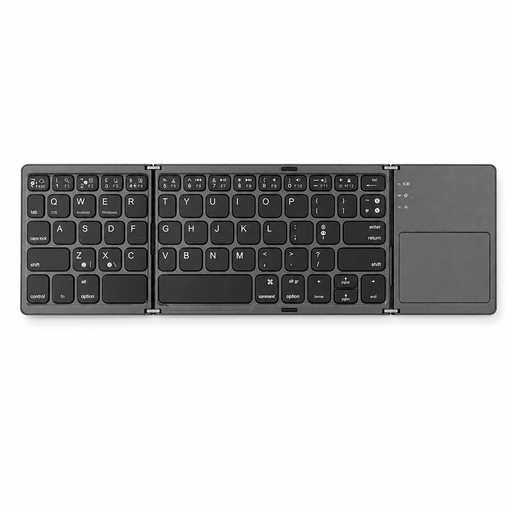 Image unavailable
VoxorAI B033 Black Bluetooth Wireless Keyboard
Consider a keyboard you can take between desks when consistent typing controls matter to you.
The product name specifies Bluetooth connectivity. Check the keyboard layout against your typing needs and confirm that Bluetooth peripherals are permitted on your work laptop.
View on Joybuy
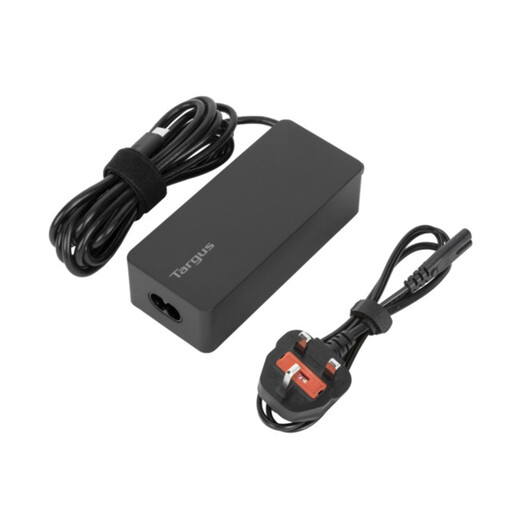 Image unavailable
Targus 65W USB Type-C Charger
A separate charger may suit you if moving a charger between home and office is the main inconvenience.
The product name specifies 65W and USB Type-C. Check that your laptop accepts charging through its intended port and that this charger meets its required input; a charger does not replace the display and peripheral connections of a dock.
View on Joybuy
Hybrid-work equipment questions
Will any USB-C laptop run an external monitor through a USB-C dock?
No: a USB-C connector alone does not establish the video capability a particular dock needs. Microsoft explains that an applicable alternate mode can carry video over USB-C; check the exact laptop specifications and the dock’s host-connection requirements.
Will a multi-display dock let my Mac use two external screens?
Not necessarily. Apple says external-display support depends on the Mac model, so check that model’s display-support specifications before choosing a dock for two screens.
Can I use my own wireless keyboard or USB receiver with a work laptop?
Check your employer’s rules before buying it for work use. Technical compatibility does not settle whether Bluetooth devices, receivers or associated software are permitted; the National Cyber Security Centre’s device-security guidance addresses the balance between usability and organisational controls.
Should I buy a stand to improve both my home and office workstations?
A stand may be one part of the arrangement, but choose it in light of the needs at both locations rather than assuming it resolves the whole workstation setup. The Health and Safety Executive says an applicable display-screen-equipment assessment should cover both home and workplace situations.


