Choose a laptop if your work requires desktop applications or peripherals that you cannot use on a tablet; consider a keyboard-equipped tablet only after checking your exact apps, access methods and employer rules. If your current computer already does the work, a dock, portable monitor or charger may address a more specific problem, but its connections and power demands must suit that computer.
Who is this for?
Workers reliant on desktop software
If you move between work locations but need employer applications, several windows, external displays or wired peripherals, establish which device and connections can run your required workflow before choosing accessories.
Travellers with tablet-friendly tasks
Browser work, email, calls, document review and light editing may suit a keyboard-equipped tablet. Check app access, files, authentication and employer permission before treating it as a laptop replacement.
Workers improving an existing computer
If your computer already meets your software needs, identify whether limited screen space, repeated cable changes or time away from sockets is the problem. A compatible display, dock or power solution can target that issue without replacing the computer.
What matters when choosing?
Decide whether you need a different computer before adding equipment to carry between home and work. Then check the connections and power requirements of the complete setup.
Laptop
Choose it when: required desktop software or peripheral support rules out a tablet workflow.
Trade-off: the computer and its charging equipment still have to travel, and an external display or dock remains dependent on its supported outputs.
Tablet with keyboard
Consider it when: your permitted work apps, files, calls and authentication methods function on the intended tablet.
Trade-off: a keyboard and multitasking features do not establish compatibility with desktop apps, security tools or peripherals.
| Concern |
What to check |
Who this matters to |
| Work compatibility |
Confirm employer permission and the required operating system, apps and access methods. Test the intended workflow where possible. |
If my work relies on a specified app or secure access method, I need a device that can actually run it. Around 33% of consumers would put work compatibility first. |
| Carry and setup |
Consider the complete kit, including the keyboard, charger, cables and any display; check keyboard compatibility with the exact tablet. |
Moving between locations regularly, I want equipment I can carry and set up without unnecessary pieces. Roughly 27% of consumers would prioritise carry and setup. |
| Screen and connections |
Check the computer’s documented video output and supported displays against the dock or monitor inputs. |
When documents and meetings compete for screen space, or I reconnect peripherals each day, those connections become my main concern. Around 20% of consumers would make screen space and reconnection their priority. |
| Power away from sockets |
Check whether the device accepts USB-C charging, its required input, the power bank’s per-port output and the cable rating. |
If I cannot count on a socket, I need to know how I will power the whole work setup. Approximately 20% of consumers would put mobile power first. |
Buying pitfalls
-
Assuming every USB-C port can drive a display
A dock may fit the port without providing the intended monitor setup. Lenovo says its ThinkPad USB-C Dock Gen 2 requires a host supporting USB-C Alt Mode or Thunderbolt, and actual video output depends on the computer.
Compare the exact laptop’s documented video and multi-display support with the dock and monitor requirements.
-
Planning for a second screen but not its power draw
RTINGS notes that many portable monitors lack built-in batteries and draw power from the laptop. A monitor also adds something to carry and position at each location.
Check how the display connects and is powered, and whether its extra screen space justifies adding it to your travelling kit.
Your setup may also need another cable, more frequent laptop charging or a suitable separate power source.
-
Equating a tablet keyboard with laptop compatibility
A physical keyboard improves input, but it cannot establish whether employer applications, security tools or peripherals work on the tablet.
List the tasks and access methods you must use, then check them on the intended tablet and operating system before replacing a laptop.
-
Choosing a power bank by its headline output
Maximum charging claims depend on the device and cable. Anker says its cited 140 W laptop-charging claim requires a 5 A cable and that performance varies with use conditions.
Match your device’s charging input to the bank’s output per port and the cable’s rating.
Brands to consider for specific equipment
Lenovo
A reference for workers considering a ThinkPad laptop-and-dock setup or a dock for another compatible notebook.
- Lenovo describes the ThinkPad USB-C Dock Gen 2 as providing data, power and video connections for compatible Lenovo and certain other notebooks.
- The host needs USB-C Alt Mode or Thunderbolt for the relevant connection; video output depends on the host, and some management features are specific to selected ThinkPads.
Apple
A reference for an iPad-and-keyboard setup when the required work is compatible with iPadOS.
- Compatible Magic Keyboard options offer a physical keyboard and trackpad, adjustable viewing and USB-C pass-through charging.
- Keyboard compatibility depends on the iPad model; the accessory does not establish support for an employer’s desktop workflow.
ASUS
A reference for adding a portable display to an existing compatible computer.
- ASUS specifies a 15.6-inch FHD IPS panel, two USB-C DP Alt Mode ports, mini-HDMI, a kickstand and a 0.92 kg weight for the ZenScreen MB16AHG.
- A USB-C video connection still depends on the source device’s output capability.
Anker
A reference for chargers, power banks, hubs and docks in a mobile work kit.
- Its range includes several types of USB-C power and connection accessory.
- Anker’s cited 140 W charging claim requires a 5 A cable; actual performance varies with use conditions.
Joybuy laptops and a dock for hybrid work
These laptops are options when you need to carry a work computer between locations. The USB-C dock addresses reconnecting a compatible computer to displays and peripherals; check your work requirements and host connections before choosing either route.
 No image available
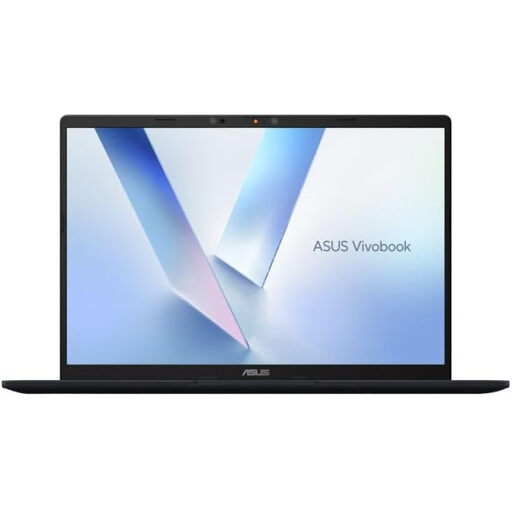
ASUS Vivobook 14 X1407QA-LY003W Copilot+ PC, Snapdragon X, 16GB/512GB, Quiet Blue
Consider this 14-inch laptop if you need a Windows computer to move between work locations. Check your required apps, authentication and peripherals against its Snapdragon X platform, and assess battery runtime for your journey and working day.
View on Joybuy
 No image available
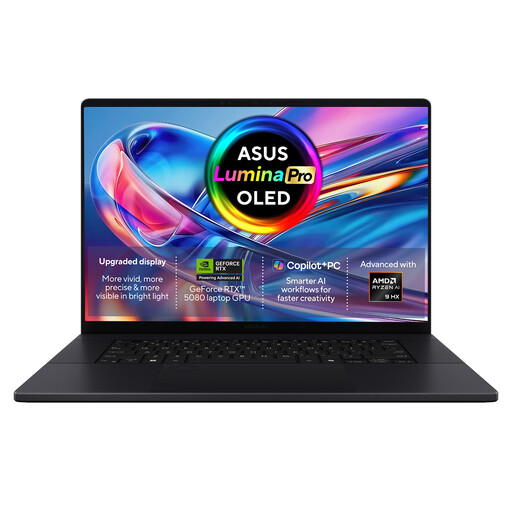
ASUS ProArt P16 H7606WW-SE006W, 16-inch 4K OLED, Ryzen AI 9 HX 370, RTX 5080, 64GB/2TB
This Windows 11 Home laptop is an option to assess for a workflow requiring its listed processor, graphics and memory configuration. Its 16-inch display and 1.95 kg listed weight matter when deciding what to carry; check battery runtime for work away from a socket.
View on Joybuy
 No image available
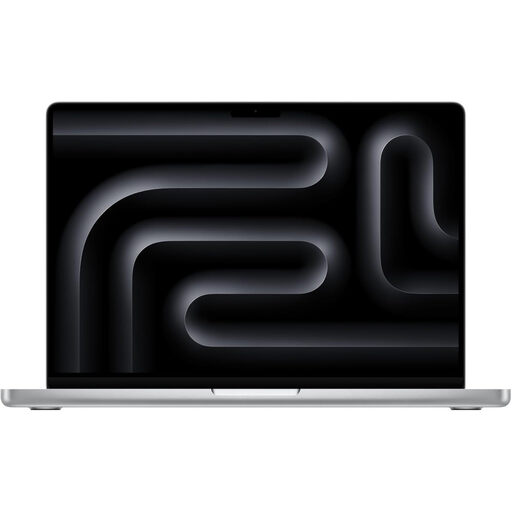
Apple MacBook Pro 14.2-inch M5 Pro, 15-core CPU/16-core GPU, 24GB/2TB, Silver
Consider this macOS laptop if your required work software and access methods support it. A USB-C power adapter or USB-PD charger rated at 70W or above is required; confirm whether a suitable adapter comes with this variant, and check its weight and battery runtime for travel.
View on Joybuy
 No image available
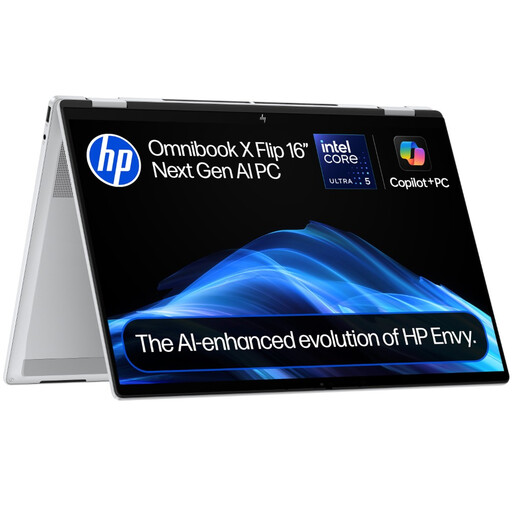
HP OmniBook X Flip 16-as0004na, 16-inch touchscreen, Core Ultra 5 226V, 16GB/512GB
Consider this Windows 11 Home convertible if you want laptop and tablet-style positions in one computer. Check its weight and battery runtime for regular travel, and confirm its ports and charging requirements against the accessories you plan to use.
View on Joybuy
 No image available
Targus USB-C Universal Dual HDMI 4K Docking Station, 100W PD Pass-Thru
This dock is for reconnecting a compatible computer to a desk setup rather than replacing the computer. Confirm your host’s USB-C video and display support, its charging requirement and whether the external 100W-or-above adapter required for the intended setup is included.
View on Joybuy
Frequently asked questions
Can a tablet with a keyboard replace my hybrid-work laptop?
It can replace a laptop for your work only if the intended tablet supports every task and access method you need. Check employer permission, required apps, files, authentication, calls and peripherals; a compatible keyboard and trackpad do not settle those questions.
Will any USB-C dock run my monitors and charge my laptop?
No: a USB-C connector alone does not establish the video output or charging support you need. Lenovo says its ThinkPad USB-C Dock Gen 2 requires a host supporting USB-C Alt Mode or Thunderbolt, while actual video output depends on the host. Compare your laptop’s documented display and charging capabilities with the exact dock configuration.
Will a portable monitor affect laptop battery life?
It can if the monitor draws power from the laptop. RTINGS notes that many portable monitors have no built-in battery, so check how the intended display is powered alongside your laptop charger and any power bank.


