Start with the task that makes working at home awkward: a compatible dock and external screen can simplify a frequently rebuilt desk, while a webcam or headset matters more when remote meetings dominate. Check the laptop’s video and charging capabilities before choosing a dock, and assess the whole workstation rather than assuming one accessory will resolve discomfort. The Health and Safety Executive advises covering both home and office setups in a display screen equipment assessment where the rules apply.
Who this setup is for
Laptop commuters rebuilding a desk at home
If you carry a work laptop between home and another workplace, you need to reconnect a screen, power and peripherals without dedicating more space than necessary. The Office for National Statistics reported that 28% of working adults in Great Britain were hybrid working in autumn 2024; that figure describes working patterns, not demand for particular accessories.
Home-based workers concerned about their workstation
For sustained computer work, screen position, input devices and desk arrangement deserve attention alongside any new equipment. The Health and Safety Executive advises that, where applicable, assessments for workers using display screen equipment at home and in the office should cover both locations.
Hybrid workers with frequent video calls
If remote meetings recur throughout your week, consider whether your camera, microphone, privacy controls and the equipment you carry between locations suit those calls.
What matters when choosing equipment
Decide whether reconnection, sustained desk work or meetings cause the most friction; then check each accessory against your laptop and home space.
| Concern | What to check | Who this matters to |
|---|
| Fast reconnection |
Check the laptop’s USB-C or Thunderbolt video support, dock charging output and the display connections you need. |
When I bring my laptop home, I want to reconnect without plugging in every peripheral separately. Around 29% of consumers would put quick reconnection first. |
| Screen space and input comfort |
Consider desk depth, screen position and whether a separate keyboard and pointing device suit your workstation assessment. |
For a long session at home, I need a screen and input arrangement that fits my desk rather than another device to squeeze onto it. Comfortable workstation use would come first for around 29% of consumers. |
| Meetings and privacy |
Check camera privacy controls, microphone connection and any software or platform requirements for the features you want. |
If calls are a substantial part of my work, I need equipment that fits both my meeting software and where I take those calls. Meeting and privacy needs would lead the choice for around 18% of consumers. |
| Compatibility without unnecessary extras |
Match the exact laptop, operating system, charging requirement and permitted peripheral connections to the accessory. |
I do not want to choose extra dock or peripheral features that my work laptop cannot use. Avoiding a mismatched purchase would be the primary concern for around 24% of consumers. |
Buying pitfalls
-
Assuming every USB-C port supports the same dock functions
A matching connector does not by itself establish external-display or charging support. HP specifies that USB-C Alt Mode functionality on its USB-C G5 Essential Dock requires a host with DisplayPort Alt Mode or Thunderbolt support; available features can also vary by laptop and operating system.
Identify your exact laptop model and compare its port, display and charging specifications with the dock you intend to use.
-
Buying an accessory before reviewing the workstation
A monitor or keyboard may leave the underlying desk arrangement unchanged. The Health and Safety Executive advises assessing the home setup where display screen equipment rules apply and considering equipment needs in that context.
Review the screen, keyboard, pointing device and available desk space together. Raise discomfort and equipment needs through your workplace’s assessment process.
-
Choosing meeting equipment by a headline feature
Some features depend on software or computer type. Logitech says Brio 505 auto-framing requires Logi Tune and is unavailable on ChromeOS or ARM computers.
Check your work-device policy, operating system and meeting application before choosing a camera for a software-dependent feature.
Brands to consider for hybrid-work equipment
Lenovo
Relevant when comparing a portable dock with one that remains connected at a home desk.
- Lenovo lists dock models with different display connections and charging specifications; its ThinkPad Universal USB-C Dock is listed with three 4K at 60Hz display connections and 65W charging.
- Those figures describe particular models, not what every laptop will support. Check the chosen dock against your laptop and operating system.
Logitech
Relevant for compact keyboards and webcams at a space-limited desk.
- Logitech lists an English UK layout of the MX Keys Mini for Business, which can switch among up to three devices; its Brio 505 webcam has a stated 1080p resolution and privacy shutter.
- Check the exact connection method and platform requirements: some Brio 505 features need software and have computer-type restrictions.
Jabra
Relevant if a headset needs to move between a home desk and other calling locations.
- Jabra describes the Evolve2 65 Flex as foldable and lists active noise cancellation and noise-cancelling microphone features for that model.
- These are Jabra’s product claims, not independent call-quality results. Check the exact adapter, communications variant and work-device policy.
HP
Relevant when dock compatibility needs to be checked against a specific host laptop.
- HP documents the DisplayPort Alt Mode or Thunderbolt host requirement for USB-C Alt Mode functionality on its USB-C G5 Essential Dock.
- HP notes that supported features can vary by laptop and operating system; a compatible connector alone does not establish every dock function.
Joybuy products for different home setups
These options cover separate choices for reconnecting a laptop, adding screen space, packing away a keyboard and taking desk-based calls. Choose the accessory that addresses your main task, then check it against your work device.
 No image available
Targus USB-C Universal Dual HDMI 4K Docking Station, 100W Power Delivery Pass-Thru
Consider this dock when reconnecting a laptop to HDMI displays is a recurring part of working at home.
Its stated features include dual HDMI 4K connections and 100W Power Delivery pass-through. Check the laptop’s video and charging support, and whether the required power supply is available.
Joybuy
 No image available
ASUS ZenScreen MB166C 15.6-inch Full HD portable USB-C monitor
This is a separate-screen option for someone who wants a display that can move with their laptop rather than remain on a desk.
The stated configuration includes an IPS panel and anti-glare surface. Check that the laptop can send video through its USB-C connection before choosing it.
Joybuy
 No image available
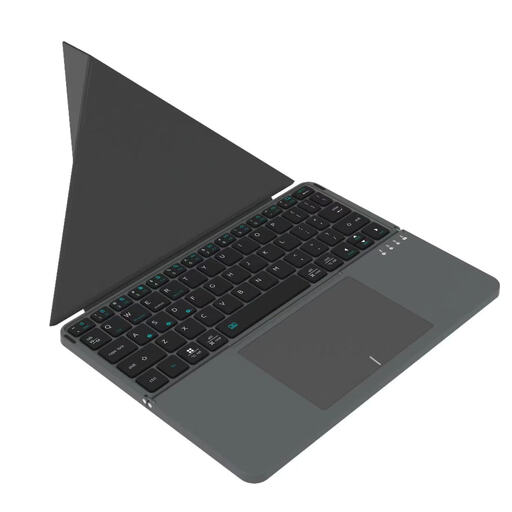
VoxorAI BOX1 black Bluetooth wireless keyboard
A wireless keyboard is worth considering when you need to position the laptop screen separately from where you type.
Check the keyboard layout and whether your work device permits Bluetooth peripherals before buying.
Joybuy
 No image available
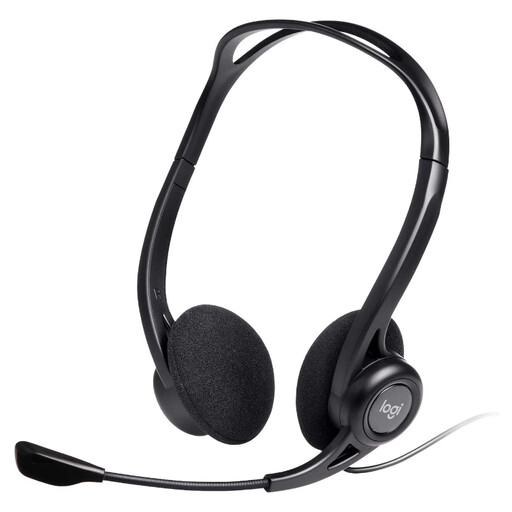
Logitech 960 wired USB headset with inline remote, black
This wired headset suits a desk-based calling setup if its connection works with your computer and meeting software.
It has a stated noise-cancelling microphone and inline remote. Check the connector against your work device; it is not a wireless option.
Joybuy
 No image available
BenQ MA320UP 32-inch 4K USB-C Mac monitor with height-adjustable stand
Consider this larger display for a regular home desk where screen space matters more than carrying the monitor between locations.
The stated configuration includes a Nano Glossy IPS panel, HDR, P3 and a height-adjustable stand. Check desk space and the exact laptop’s USB-C video compatibility.
Joybuy
Common questions
Do I need a separate monitor or office chair to work from home?
No particular item is automatically necessary for every home workstation. The Health and Safety Executive says office-type furniture or equipment may not be needed to achieve a good posture; assess the arrangement you use and discuss equipment needs through your workplace’s process.
How can I check whether a USB-C dock will run my monitor and charge my laptop?
Start with the exact laptop model and its port specification, then compare its video and charging capabilities with the dock and monitor. HP states that USB-C Alt Mode functionality on its USB-C G5 Essential Dock requires host DisplayPort Alt Mode or Thunderbolt support, and that available features can vary by laptop and operating system.
Which webcam features matter for home video calls?
Check the camera’s connection and meeting-platform compatibility, mounting position, lighting features and physical privacy control against your setup. Logitech lists 1080p resolution and a privacy shutter for the Brio 505, but says its auto-framing needs Logi Tune and is unavailable on ChromeOS or ARM computers.


