Workers who commute with a laptop
If your computer moves between home and a workplace, consider what you can comfortably carry as well as how it connects to a screen and peripherals at each desk.


Start with a laptop that runs your work applications and is practical to carry between locations. Add a portable monitor if you need a second screen at changing desks; for a regular home desk, a monitor and dock may be more useful, provided the laptop supports the intended display and charging setup. For prolonged desk work, consider an elevated screen with separate input devices, and add call equipment to address a specific camera or audio problem.
If your computer moves between home and a workplace, consider what you can comfortably carry as well as how it connects to a screen and peripherals at each desk.
A repeatable desk arrangement matters when you use a laptop for long sessions. The Health and Safety Executive (HSE) advises using a separate keyboard and mouse so the laptop screen can be raised.
Check how your existing camera and microphone perform in the rooms where you normally take calls. Lighting, framing and background noise point to different accessory choices.
Choose the main computer around the work you do in both locations, then decide whether your recurring need is a mobile second screen, a fixed desk connection or clearer calls.
Choose it when: You regularly carry one computer and do not need a second screen at every location.
Consider: For prolonged work at a desk, the HSE advises separate input devices so the laptop screen can be elevated.
Choose it when: You need a second screen at more than one location without relying on a permanent desk.
Consider: You must carry another device and confirm its video connection and power requirements against your laptop.
Choose it when: You repeatedly connect a monitor and accessories at the same home desk.
Consider: A dock is less useful away from that desk, and its charging and display capabilities must match the laptop.
| Priority | What to check | Your needs |
|---|---|---|
| Main laptop | Check your work applications against the exact processor and operating system. Consider carrying weight, screen size, memory, storage and the connections needed at either desk. | I need one computer I can take between locations without giving up access to my work software. |
| Desk posture | For prolonged laptop use, plan how to raise the screen while keeping the keyboard and mouse separate, as the HSE advises. Check that the arrangement fits your regular desk. | Long sessions at my home desk call for a screen and input-device arrangement I can use comfortably. |
| Mobile second screen | Check the portable monitor’s size, resolution, stand and power requirements. Confirm that the laptop and intended cable support its video input; a USB-C connector alone does not settle compatibility. | Documents or calls need to stay visible beside my main task, even when I work away from a permanent desk. |
| Fixed desk connections | Compare the dock’s documented charging output and display support with the exact laptop, cable and monitor arrangement. Microsoft’s Windows guidance notes that hardware and software combinations can limit USB-C and external-display operation. | At home, I want to reconnect my monitor and accessories without rebuilding the desk setup each time. |
| Calls | Identify whether the problem is camera image, framing or voice pickup. For a headset, check the exact version’s computer connection and meeting-platform requirements. | My usual calls need a clearer picture or voice in the lighting and noise conditions where I work. |
The computer, cable, dock and display all affect what a connection can do. Microsoft’s Windows guidance also distinguishes a single external display from an arrangement with independently extended displays.
Compare the laptop’s documented video output with the dock and monitor requirements, including monitor count, resolution, refresh rate and specified cable.
Available sockets do not establish that a dock can supply the laptop’s required charging power or support the planned displays.
Start with your laptop’s charging and display requirements, then check the exact dock model’s specifications.
A laptop that is convenient to carry still needs a suitable arrangement for sustained desk work. The HSE advises separating the keyboard and mouse so the screen can be raised during prolonged laptop use.
At a regular desk, consider a riser or external display alongside separate input devices before adding less relevant accessories.
A webcam addresses image-related needs, while a headset addresses different audio needs; neither fixes a poor connection or an unsuitable meeting environment.
Try a call in your usual room and meeting platform, then choose equipment for the issue you can identify and check that its exact version is compatible.
These examples illustrate different equipment routes; a brand reference is not a substitute for checking the exact model and configuration.
A reference point for portable business laptops: Lenovo UK lists the ThinkPad X1 Carbon Gen 13 Aura Edition at under 1 kg.
Dell UK’s P1425 illustrates the portable-screen route: it lists a 14-inch display at 1920 × 1200 and 60 Hz.
Anker UK describes docks intended to connect a laptop to displays, power and desk accessories.
Logitech offers separate webcam and work-headset options for different call needs.
These options cover laptops to carry between work locations and one portable monitor for a second screen. Choose the laptop around your software and connections before deciding whether the extra screen fits your routine.
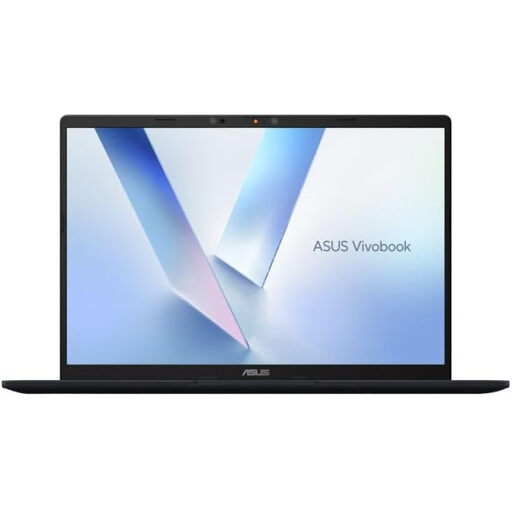 No image available
A 14-inch laptop to consider if you carry your main computer between locations. The listing states 1.49 kg, USB4 with DisplayPort support, HDMI and an FHD IR camera; check your work applications, expected working battery life and the exact monitor or dock arrangement before buying.
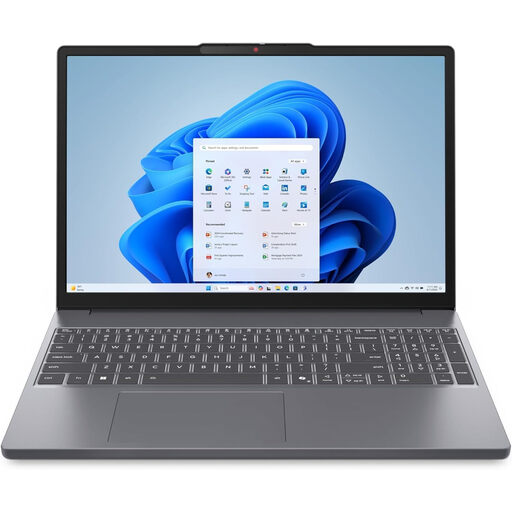 No image available
Consider this larger-screen laptop if the 15.3-inch display suits both your work area and commute. The listing states 1.59 kg and a webcam with a privacy shutter; check working battery life, external-display connections and keyboard layout for your setup.
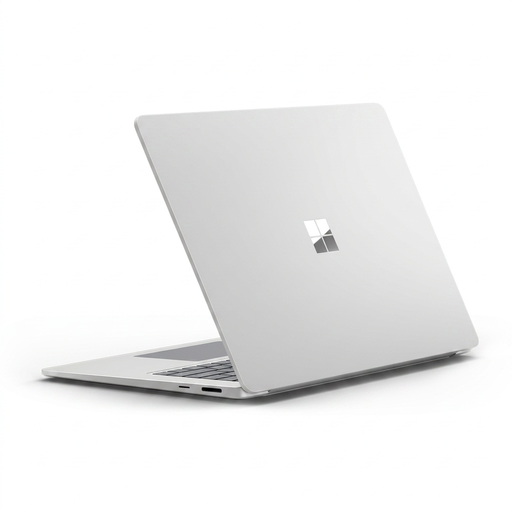 No image available
A 15-inch touchscreen laptop for someone considering a larger display while moving between desks. The listing states 1.66 kg, a 1080p camera and Windows Studio Effects; check that essential work applications run on this Snapdragon-based model, along with working battery life and external-display support.
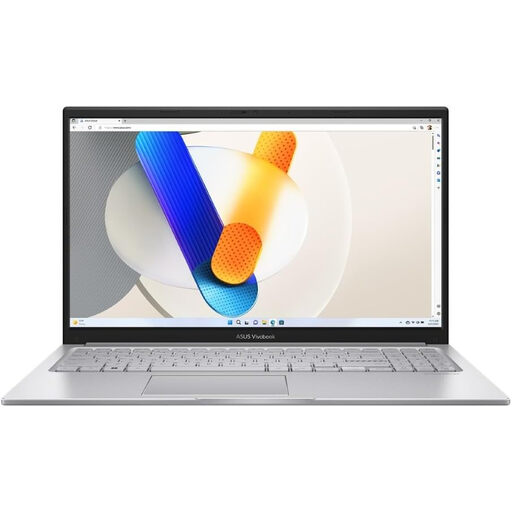 No image available
This 15.6-inch laptop is an option if you want one computer for home and workplace use and can accommodate its stated 1.70 kg weight. The listing includes an integrated webcam and HDMI; check working battery life and the USB-C display modes before planning a monitor or dock connection.
 No image available
A second-screen option for working away from a permanent desk, with listed 10-point touch and VESA compatibility. Before carrying it alongside your laptop, confirm that the laptop outputs video over the intended connection and whether your arrangement needs a separate power supply and cable.
No. Check the laptop’s documented charging and external-display capabilities against the exact dock, cable and monitors. Microsoft’s Windows guidance notes that hardware and software combinations can limit USB-C operation, and a plan for independently extended displays needs specific support.
For prolonged laptop work, the HSE advises a separate keyboard and mouse so you can raise the screen on a riser or similar support. That guidance addresses longer desk sessions, not every brief use of a laptop.
Not if your built-in camera works adequately for your usual calls. Consider a webcam when lighting or framing is a recurring image problem; check voice pickup separately, since a camera upgrade will not fix a poor connection or room acoustics.
Check the exact version’s connection method, computer and meeting-platform compatibility, receiver requirements and stated battery-life conditions. A platform-compatible version does not establish that every variant offers the same controls or connection options.