Workers with a regular home desk
If you return to the same workstation, a monitor and dock can make reconnection simpler. Check the laptop’s video support, permitted number of displays and charging requirements before choosing the dock.


For a home desk you use regularly, consider an external monitor and powered dock if your laptop supports the required video connection, display arrangement and charging input. If you carry your setup between locations, a compact hub or portable monitor may be more practical. When calls or lengthy document work are the main difficulty, address those needs directly rather than assuming a dock will solve them.
If you return to the same workstation, a monitor and dock can make reconnection simpler. Check the laptop’s video support, permitted number of displays and charging requirements before choosing the dock.
If your equipment travels with you, a compact hub or portable monitor may suit you better than a desk installation. Check the laptop’s video output and what charging equipment you would need to carry.
If calls are the main difficulty, consider the webcam, headset and privacy controls that fit your meeting setup. Check any software requirements and ask whether your employer permits the accessories on your work laptop.
Start with the task your current laptop setup makes difficult, then check the laptop’s capabilities and any workplace rules before selecting an accessory.
| Concern | What to check | Who this matters to |
|---|---|---|
| Desk reconnection and screen space | Match the dock’s required USB-C video protocol, independent-display configuration and delivered charging power to the laptop. | If I return to the same desk, I want a larger workspace without reconnecting several peripherals each time. Around 33% of consumers put that fixed-desk need first. |
| Equipment to carry | Check the hub’s host-video requirements and ports, plus the monitor cable and charging equipment your setup needs. | When I move between home and office, I need a useful kit that I can take with me. For around 27% of consumers, portability is the primary concern. |
| Online meetings | Confirm meeting-platform and computer compatibility, including any software needed for the features you intend to use. | If calls interrupt my work most often, I would address camera, microphone or headset needs before adding desk ports. Meeting equipment comes first for around 20% of consumers. |
| Work-device permissions | Ask IT whether the proposed peripheral, Bluetooth connection or companion software is allowed on the managed laptop. | I do not want to buy an accessory that I cannot use for work, even if it connects to my laptop. Around 20% of consumers put workplace approval and compatibility first. |
The connector shape alone does not establish video output, charging or multi-display capability. A hub’s display options can also depend on the laptop’s DisplayPort support.
Check the laptop specification against the dock, hub or monitor’s required video protocol and charging arrangement before buying.
Microsoft Support explains that a display splitter can duplicate one signal rather than create two independent displays.
Confirm that the laptop and dock support the number of independently extended screens you want at your intended resolution and refresh rate.
Power delivered to the laptop can depend on the host system. Dell specifies 100W for Dell systems and 96W for non-Dell systems on its WD25 dock.
Compare the dock’s host-specific output with your laptop’s recommended charging wattage.
A managed laptop may restrict peripherals or the software needed to use them. The National Cyber Security Centre provides guidance to organisations on managing peripherals securely.
Ask your IT team about the proposed accessory, connection method and any required driver or companion software before ordering.
Dell’s dock range is relevant to a regular home desk where a laptop needs external displays, peripherals and power through one connection.
Lenovo’s USB-C docks are relevant when a home workstation needs connections for displays, Ethernet and USB peripherals.
HP’s powered USB-C docks are relevant to a desk setup that needs display outputs and laptop charging from one connection.
Anker’s compact USB-C hubs are relevant when ports need to travel between home and office.
Logitech is relevant when meeting accessories or input devices, rather than more desk ports, address the immediate need.
These choices address different parts of a hybrid-work setup: desk connections, a screen to carry, video meetings and listening on the move. Choose according to the need you want to solve, then check compatibility with your work laptop.
 Image unavailable
For a regular desk where you want to reconnect displays and peripherals through a dock. The title specifies dual HDMI outputs and 100W power-delivery pass-through; check the laptop’s independent-display support, charging needs and workplace permissions before relying on either function.
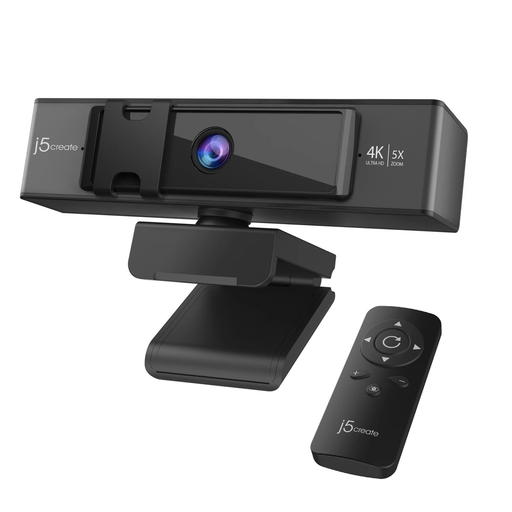 Image unavailable
For a setup where video meetings matter more than additional desk ports. Its named features include 4K video and 5x digital zoom; check compatibility with your work laptop, meeting platform and employer’s peripheral rules.
 Image unavailable
For taking a second screen between work locations. This 15.6-inch Full HD IPS model uses USB-C; confirm that your laptop supports video output through the connection you plan to use.
 Image unavailable
For a laptop setup needing several connections through one hub. The title specifies two HDMI outputs rated 4K 120Hz and 4K 60Hz respectively, USB data ports, RJ45, SD/TF and a USB-C PD input. Check the laptop’s video-output and independent-display limits before expecting those display modes.
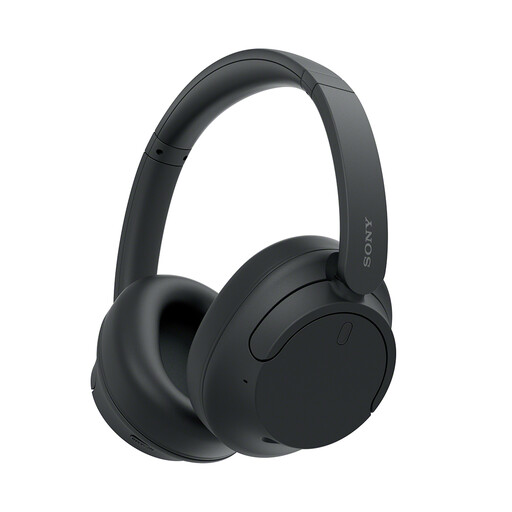 Image unavailable
For listening and calls when you move between work locations, rather than for adding display or charging connections. Check the headphones against your meeting setup and employer’s rules for connected accessories; keep enough awareness of your surroundings when using noise cancellation.
No. USB-C describes the connector, not every function available through it. Check the laptop’s video protocol, supported displays and charging specification against the dock’s requirements; Lenovo specifies USB-C Alt Mode, DisplayLink or Thunderbolt support for its relevant docks.
A simple splitter may duplicate the same picture instead. Microsoft Support advises checking the laptop and display hardware when setting up external monitors; for two extended screens, confirm support for two independent displays in your intended dock arrangement.
Use the laptop maker’s recommended charging wattage as your starting point, then compare it with what the dock delivers to that laptop. Dell, for example, lists different WD25 power-delivery figures for Dell and non-Dell systems, so the dock’s headline figure alone is not enough.
Yes, a managed work laptop may be subject to peripheral or software controls, so ask your IT team before purchasing. The National Cyber Security Centre addresses organisational management of peripherals, while Apple notes that new accessories may require approval on Mac laptops with Apple silicon.