What to check before buying
Start with the work pattern, desk space and laptop you already have. Then choose the display and input arrangement before adding a dock or adapter.
| Priority |
What to check |
Your needs and relevant context |
| Sustainable working position |
Check whether the screen can be positioned separately from typing and pointing devices. Confirm that the desk surface and cable layout work safely for the chosen arrangement. |
I want a setup that supports sustained screen work without assuming that a laptop-only layout or office-style equipment is automatically right. The Health and Safety Executive says assessments should consider individual circumstances and sustainable posture. |
| Display and dock compatibility |
Check the exact laptop model, operating system, video-capable USB-C, Thunderbolt or USB4 support, display limits, monitor input and charging requirement. |
I need the planned monitor, dock or adapter to work with my actual laptop, not simply a similarly shaped USB-C port. Apple, Microsoft and Lenovo all direct buyers towards model-specific compatibility information. |
| Space and cable routing |
Measure available desk depth and plan socket access, cable length and storage. Avoid trailing leads, damaged cables and overloaded extension arrangements. |
I need a setup that fits a shared room or can be put away when necessary. A compact raised-laptop arrangement may be more practical than a permanent multi-device desk. |
| Employer equipment arrangements |
Ask whether you are a DSE user and whether a home-and-office workstation assessment has been completed. Separate required equipment from optional personal upgrades. |
I want to check employer provision before personally funding core workstation equipment. In January 2026, 38% of workers in Great Britain were working remotely or in hybrid arrangements, according to the Health and Safety Executive; this figure describes working arrangements, not the share needing equipment. |
Joybuy product options
Joybuy options for fixed-desk monitor setups, a compatible single-display connection route, and separate input devices for a raised-laptop arrangement.
 No image available
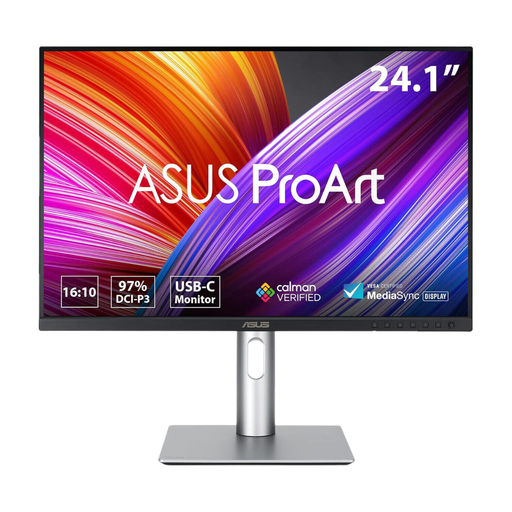
ASUS PROART PA248CRV IPS WUXGA
For a fixed desk using a separate keyboard and mouse, with an independently positionable external screen.
Stated USB-C video, data and 96W Power Delivery; HDMI, DisplayPort and USB hub. Check that the laptop supports the required USB-C video mode and charging path. A separate keyboard and mouse are required for this setup route.
Joybuy
 No image available
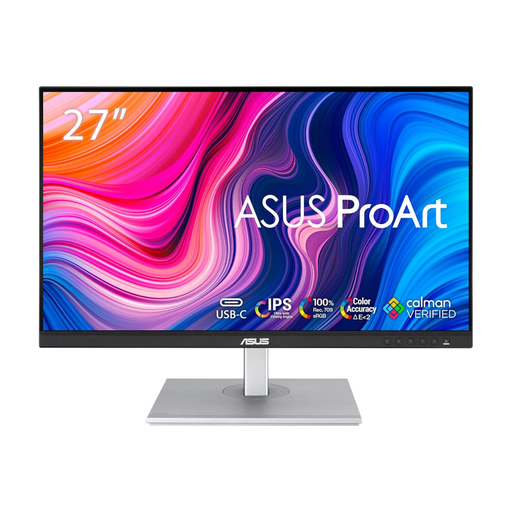
ASUS PROART PA278CV IPS WQHD
For a stable desk where a 27-inch external screen can remain in place alongside separate input devices.
Stated HDMI, DisplayPort, USB-C and USB hub connectivity, with a height, tilt, swivel and pivot stand. Confirm laptop video output and whether USB-C charging meets the laptop’s power requirement. Keyboard and mouse are not included.
Joybuy
 No image available
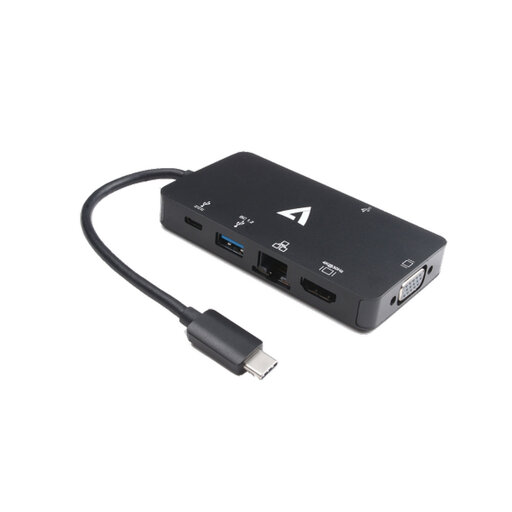
V7 V7UC-U3CRJ45HDVG-BLK USB-C Adapter
For a compatible laptop needing one external display and common desk connections in one adapter.
Stated USB-C Alt Mode, HDMI up to 3840 × 2160 at 30Hz, VGA, Gigabit Ethernet, two USB ports and 100W Power Delivery input. SST mode is limited to one display; verify monitor input, resolution and refresh-rate needs.
Joybuy
 No image available
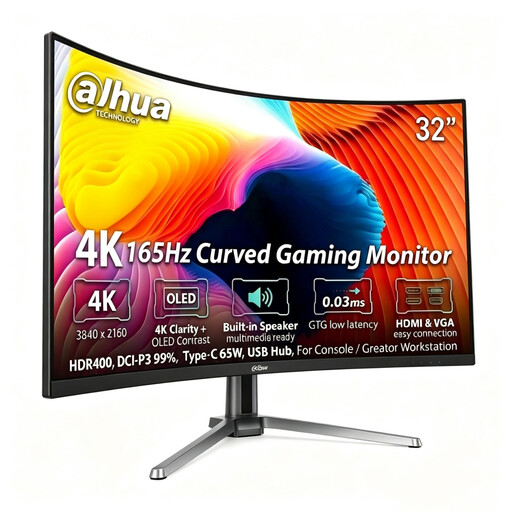
Dahua 32-inch 4K 165Hz Curved OLED Monitor
For a permanent, spacious home desk with room for a separately positioned large display and separate input devices.
Stated 31.5-inch 4K display, HDMI 2.1, DisplayPort 1.4, USB hub, Type-C 65W and height, tilt and swivel adjustment. Check desk space, cable routing, laptop Type-C video support and charging requirements.
Joybuy
 No image available
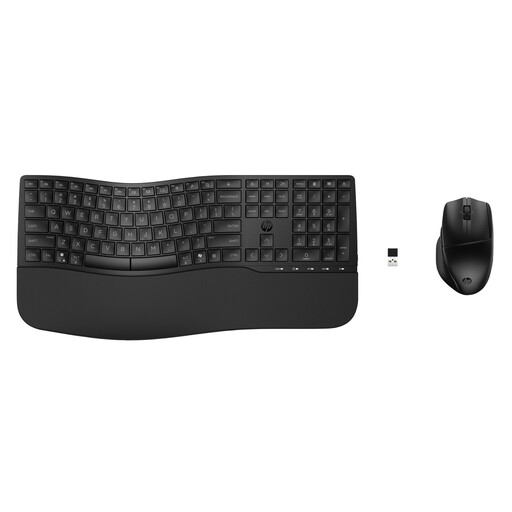
HP 680 CFT Dual-Mode Keyboard and Mouse Combo
For a raised-laptop setup that needs separate typing and pointing devices alongside a separately chosen stand.
Stated Bluetooth or HP Unifying Dongle connectivity for up to three devices, plus quiet keys, wrist rest, negative tilt and programmable controls. A laptop stand is still needed to raise the screen; check layout and device connection support.
Joybuy
Frequently asked questions
When should I ask my employer about DSE equipment before buying a monitor, stand or dock?
Ask before buying if you work at home permanently or long term, routinely split between home and workplace, and use DSE daily for continuous periods of an hour or more. The Health and Safety Executive says the DSE Regulations can apply in these circumstances; where an assessment shows extra equipment is needed, the employer cannot charge the worker for it.
Does a USB-C port guarantee that a dock can run an external monitor?
No. USB-C is a connector shape, not proof of video capability. Check the exact laptop specification for USB-C DisplayPort Alt Mode, Thunderbolt or USB4 support required by the dock, plus supported display count, resolution and refresh limits. Lenovo states that its USB-C and Thunderbolt docks require a Type-C port with industry-standard Alt Mode or Thunderbolt support.
Can I use a laptop closed with an external display?
Possibly, but confirm this for the exact laptop model and operating system. Apple documents closed-lid operation for supported MacBook models with an external display and accessories connected, while also stating that external-display support depends on the individual Mac model. Other manufacturers also publish model-specific display limits.
What should I check about power and cables for a home docking setup?
Match the dock’s stated host power delivery with the laptop’s charging requirement, and match its display output with the monitor input and cable or adapter. The Health and Safety Executive advises checking plugs, leads, wires and cables, avoiding trailing wires and keeping the work area clear; dock display and charging figures remain model-specific.
Is CE marking still relevant for electrical workstation accessories sold in Great Britain?
Yes, where relevant product-regulation aims and requirements are met: the Department for Business and Trade states that CE marking continues to be recognised alongside or instead of UKCA marking for the Great Britain market. For a consumer purchase, use a traceable seller and retain product and warranty information rather than treating a logo alone as proof of laptop compatibility.


