Check your laptop’s ports, display and charging capabilities, along with your employer’s peripheral rules, before choosing accessories. A compact hub and portable input devices suit frequent trips between desks; a dock, monitor and separate keyboard and mouse make more sense at a regular workstation, provided the laptop supports the connections and displays you need.
Who needs which setup?
People using managed work laptops
If your employer controls peripheral connections, establish which USB, Thunderbolt and wireless devices are permitted before buying. The National Cyber Security Centre notes that organisations may restrict external interfaces; dock makers including Kensington also specify host-port and operating-system requirements.
Frequent home-to-workplace commuters
If you regularly move your equipment, focus on what you can carry and reconnect at each desk. A compact hub and input devices may be more practical to pack than moving a complete desk setup, but you still need to account for cables and charging.
People working regularly at a home desk
If you spend extended periods at a home workstation, consider screen position and separate input devices as well as connectivity. The Health and Safety Executive says that, where display screen equipment requirements apply, assessments should cover both home and workplace use.
What should you check before buying?
Start with connections and workplace rules: they determine whether an accessory can do the job at all. Then decide whether carrying less equipment or setting up a recurring desk matters more to you.
| Concern |
What to check |
Who this matters to |
| Laptop and workplace compatibility |
Check the exact port capabilities, required charging power and supported displays. For a managed laptop, confirm permitted peripheral types. |
If my work laptop cannot use the intended dock or my employer does not allow its connection, the other features cannot help me. Around 36% of consumers put compatibility and permission first. |
| Portability between desks |
Check what must travel with the hub or input devices, including cables and any separate charger. |
I move between home and work often, so I want equipment I can pack and reconnect without carrying a whole desk setup. Portability is the leading need for around 29% of consumers. |
| Regular-desk display and input |
Confirm monitor support and available desk space; consider screen position and separate keyboard and mouse use. |
When I work for long periods at one desk, I care more about a repeatable screen and input arrangement than carrying everything with me. Around 21% of consumers make that their main priority. |
| Equipment for calls |
Check whether the laptop and employer permit the headset, webcam or wireless connection you intend to use. |
Calls take up much of my workday, so I need audio or video equipment that I can connect at both locations. For around 14% of consumers, call equipment comes first. |
Buying mistakes to avoid
-
Assuming every USB-C port supports the same dock features
The connector shape alone does not establish video output, laptop charging or USB4 capability. Anker specifies both Power Delivery and DisplayPort Alt Mode for its PowerExpand 9-in-1 USB-C PD Dock, while Microsoft warns that USB4 functionality depends on the computer and cable.
Find your laptop’s exact port specification and original charger requirement, then compare them with the requirements of the particular hub or dock.
-
Counting dock video ports instead of supported displays
Two video connectors do not establish that a laptop can run two independent external screens. Microsoft notes that a splitter duplicates a signal, and Kensington documents display limitations for particular hosts.
Check the laptop maker’s external-display specification for your model and operating system before choosing a multi-display dock.
-
Buying a peripheral before checking work-device rules
A personally bought device may not be permitted on a managed laptop even when its connector fits. The National Cyber Security Centre identifies peripheral interfaces as a security consideration that organisations may control.
Ask which USB, Thunderbolt, Bluetooth and receiver-based devices are allowed before choosing a dock, headset, webcam or keyboard.
-
Building an extensive home desk before using the assessment process
For workers to whom display screen equipment requirements apply, the Health and Safety Executive says assessments should address both home and workplace use. That process can help identify what the workstation needs.
Ask your employer about its display screen equipment assessment and equipment arrangements before making major comfort-related purchases.
Brands to consider
Anker
Anker offers portable USB-C hubs and docks for adding connections to a laptop.
- Its range includes portable options for connecting accessories at different desks.
- Check the exact model against your laptop: Anker specifies Power Delivery and DisplayPort Alt Mode support for its PowerExpand 9-in-1 USB-C PD Dock.
Kensington
Kensington offers USB-C, USB4 and Thunderbolt docks for recurring desk setups.
- Its guidance identifies operating system, connection type, display count and power delivery as dock-selection checks.
- Display support is host-specific. Kensington lists single-external-display limitations for certain laptops used with its SD5760T dock.
Logitech
Logitech offers keyboard-and-mouse combinations, including compact and multi-device options.
- A compact combination is an option to consider when input devices need to travel between desks.
- Check the keyboard layout and whether the work laptop permits the model’s Bluetooth or receiver connection.
Joybuy products for different setups
These choices cover a hub or adapter for connections, a portable screen, separate keyboard and mouse input, and wired audio. Choose by the equipment you actually move between desks, then check each connection against your laptop and workplace rules.
 No image available
Baseus Metal Gleam Series 7-Port USB-C Hub, Grey
Consider this USB-C hub if you want to carry a single connection accessory between desks. Check that its ports match your equipment, that your laptop supports the functions you need and whether your charging arrangement requires a separate charger.
View on Joybuy
 No image available
V7 V7UC-U3CRJ45HDVG-BLK USB-C Adapter
Consider this adapter if a desk needs wired networking alongside display and USB connections. Its named features include 4K HDMI, VGA, Gigabit Ethernet, two USB 3.0 ports and 100 W Power Delivery; confirm your laptop’s video and charging support before relying on them.
View on Joybuy
 No image available
ASUS ZenScreen MB166C 15.6-Inch USB-C Monitor
For a second screen that can move between locations, this model is a 15.6-inch Full HD IPS monitor with a USB-C connection. Confirm that your laptop supports the required USB-C display output.
View on Joybuy
 No image available
Philips 3000 Series SPT6318B/05 Wireless Keyboard and Mouse, UK English
For separate keyboard and mouse input at a regular desk, this is the UK English variant of the wireless set. Check its connection method against your laptop’s available ports and your employer’s peripheral rules.
View on Joybuy
 No image available
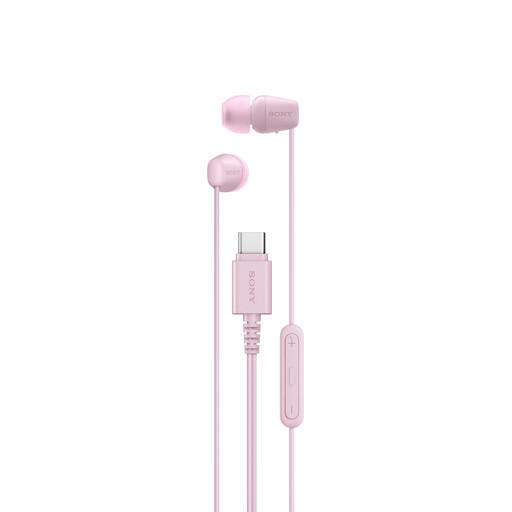
Sony IER-EX15C Wired USB-C Earbuds, Pink
For wired audio when working at either location, these earbuds use USB-C. If you plan to use them for calls, check your laptop’s USB-C audio support, the microphone arrangement and whether personal audio devices are permitted.
View on Joybuy
Frequently asked questions
Will any USB-C dock charge my laptop and run a monitor?
No: a USB-C connector does not guarantee charging or video output. Check your laptop’s Power Delivery, DisplayPort Alt Mode, USB4 or Thunderbolt capabilities against the dock’s requirements; Microsoft also notes that USB4 functionality can be limited by the computer or cable.
Will a dock with two video ports give me two extended monitors?
Not necessarily. The laptop’s graphics and operating-system support also determine its external-display options. Microsoft notes that a splitter duplicates a signal rather than creating an independently extended screen, so check the laptop maker’s display specification before buying.
Can I use my own peripherals with an employer-issued laptop?
Check your employer’s policy before connecting them. The National Cyber Security Centre says organisations may restrict peripheral interfaces, including connections relevant to docks, headsets and wireless devices; a compatible plug alone does not establish permission.
Should I buy home-desk equipment before asking my employer?
Ask about the display screen equipment assessment process first if you routinely work for extended periods at home and at the workplace. The Health and Safety Executive says applicable assessments should cover both settings, helping establish what equipment the workstation requires.


