Two-desk regulars
If you spend sustained periods at both home and office desks, consider which monitor, charger, keyboard and mouse can stay in place. That may matter more than carrying a single set of accessories back and forth.


Start with the exact laptop model: check its video-capable ports, supported external displays and charging requirements before choosing a dock, monitor or spare charger. A dock and fixed monitor make sense at a desk you use regularly; a compact adapter or portable screen is worth considering when equipment must move with you. For longer desk sessions, plan how to position the screen and use separate input devices, and check your employer’s rules before connecting accessories to a managed laptop.
The useful purchase is the one that solves a repeated connection or screen-arrangement problem at the desks you actually use.
If you spend sustained periods at both home and office desks, consider which monitor, charger, keyboard and mouse can stay in place. That may matter more than carrying a single set of accessories back and forth.
If you change sites, hot desks or meeting rooms often, consider what fits in your bag and which display connections are available at each location. A screen that travels with you solves a different problem from one left on a desk.
If your employer manages the laptop, confirm which docks, USB peripherals, charging equipment and display software it permits before buying. Approval and technical compatibility are separate checks.
Check the laptop’s capabilities first, then decide what can remain at each desk and what must travel. The concerns below reflect different primary needs; your own setup may call for more than one accessory.
| Concern | What to check | Who this matters to |
|---|---|---|
| Ports and displays | Check the exact laptop port’s video protocol and its supported external-display count at your intended resolution and refresh rate. Confirm any dock or driver requirements with your employer. | If my dock plugs in but cannot run the screens I need, the rest of the desk setup is beside the point; around 36% of consumers put port and display compatibility first. |
| Home-desk arrangement | Decide whether regular, prolonged use calls for a fixed screen. If you raise the laptop, allow space for a separate keyboard and mouse. | At a home desk I use for long stretches, I want to position the screen without typing on a raised laptop; for around 29% of consumers, the usable desk arrangement is the primary concern. |
| Equipment to carry | Decide whether the extra screen must travel or can stay at one location. Check the portable screen’s video and power connections, or the inputs on displays already at your desks. | When I move between changing desks, I need to know whether an extra screen is available without taking a fixed setup apart; portability comes first for around 21% of consumers. |
| Power and peripherals | Compare a spare charger or dock’s power arrangement with the laptop maker’s requirements. Check what equipment your workplace supplies or permits. | I would rather leave suitable power and input devices where I work than pack them every time; around 14% of consumers prioritise that duplication decision. |
For a regular home desk, a dock can bring several connections to one place, but its outputs cannot give the laptop more independent displays than the laptop supports. A compact adapter may be enough if you use one external screen and need fewer connections. If the second screen must move between locations, a portable monitor is a distinct choice: it also needs a workable video and power arrangement wherever you use it.
The Health and Safety Executive advises using a separate keyboard and mouse when a laptop screen is elevated. It also says that, for workers using display screen equipment at home and in the office, a workstation assessment should cover both settings.
A connector may fit even though the laptop port cannot provide the video or other function an accessory needs. Microsoft Support and Lenovo both describe compatibility as dependent on the host connection and supported protocols.
Look up the exact laptop model and port, then compare its capabilities with the dock, adapter or monitor’s stated requirements. Check the cable as well as the devices it joins.
Several sockets on a dock do not establish how many independent displays the laptop can run. Apple Support says Mac display support depends on the model, resolution and refresh rate; Microsoft Support notes that a simple display splitter cannot create an additional extended display.
Confirm the laptop’s intended display configuration before selecting a multi-output dock and monitor cables.
Power delivery can vary with the connected laptop. Dell, for instance, lists different maximum outputs for Dell and non-Dell systems on its SD25TB4 dock.
Use the laptop maker’s charging requirements as your starting point, then check the dock or charger, power supply and cable together.
A new monitor or riser alone may not address how the screen and input devices are positioned across both work locations. The Health and Safety Executive says an assessment should cover home and office where workers use display screen equipment in both.
Ask your employer how its workstation-assessment process applies before deciding which equipment to leave at each desk.
These brands are useful reference points for particular compatibility questions, not a substitute for checking the exact laptop and accessory models.
Dell’s USB-C and Thunderbolt desk docks are relevant when you want to compare stated power delivery and display connections for a fixed workstation.
Lenovo is a reference for ThinkPad and other compatible-laptop dock configurations, particularly where port protocols and device-management features matter.
Apple’s model-specific display guidance matters if the travelling laptop is a Mac and you are choosing a monitor, cable or multi-display dock.
These choices cover desk-connection hubs and adapters, a portable second screen and a spare USB-C charger. Choose the connection arrangement for your laptop and work locations before comparing individual products.
 No image available
Consider this for a desk where you want HDMI displays and USB peripherals connected through a hub. The product name specifies two HDMI outputs, labelled 4K at 120Hz and 4K at 60Hz, plus USB data ports, RJ45, card readers and a USB-C PD input; those output labels do not establish what your laptop can display or receive for charging.
 No image available
Consider this when moving between desks that use HDMI or VGA and you need wired network and USB connections. Its product name specifies 4K HDMI, VGA, Gigabit Ethernet, two USB 3.0 ports and 100W Power Delivery; confirm the laptop’s video support and charging requirements before relying on those connections.
 No image available
Consider this for connecting an HDMI screen and USB devices at a desk. The product name lists HDMI at 4K and 60Hz, USB-C and USB-A data ports, SD/TF readers and 3.5mm audio. Check the laptop’s video-capable port, and do not assume the dock will charge the laptop.
 No image available
Consider this if the extra screen needs to move between work locations. The product name specifies a 14-inch 60Hz touchscreen, VESA compatibility and a 180° adjustable stand. Check the laptop’s external-display support and how the monitor will receive video and power at each desk.
 No image available
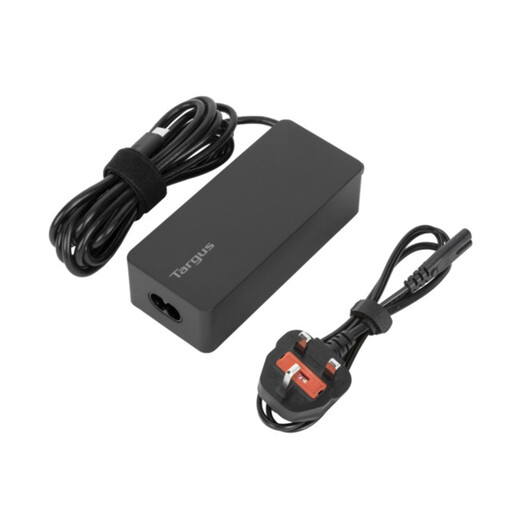
Consider a spare charger if you want to leave power at one location rather than pack the original adapter each time. This model is identified as a 65W USB Type-C charger; compare that rating and the required cable and charging profile with your exact laptop before buying.
No: a matching connector does not establish that the laptop supports every dock function. Compare the exact laptop port, cable and dock requirements for video, data and charging; Lenovo notes that its USB-C and Thunderbolt docks depend on supported protocols through the host Type-C port.
Only if the laptop supports the intended independent-display arrangement as well as the dock connections. Apple Support says Mac limits depend on the model, resolution and refresh rate, while Microsoft Support notes that a simple splitter duplicates a display signal rather than extending the desktop across two external screens.
Choose a portable monitor when the additional screen must be available at changing desks; a fixed screen avoids carrying it when you work regularly at the same home desk. Either way, confirm the laptop’s video support and the screen’s connection and power arrangement.
Yes, if you regularly use a managed laptop or need to arrange a workstation across home and office, ask about both accessory policy and the assessment process. In Great Britain, the Health and Safety Executive says employers must assess workstations where display screen equipment is used daily as part of normal work for continuous periods of an hour or more, and that an assessment for use at home and in the office should cover both. Northern Ireland has separate guidance from the Health and Safety Executive for Northern Ireland covering routine home-and-workplace use.
Check the exact laptop’s charging specification, the charger’s supported output and the cable requirements rather than choosing by connector shape or wattage alone. If the laptop is employer-managed, confirm that the charger is permitted; for a mains-powered purchase, check the product documentation and seller details.