Choose connections around the laptop you use: check its USB-C, USB4 or Thunderbolt capabilities, accepted charging power and external-display limits before choosing a dock, monitor or power bank. A fixed dock can bring several desk peripherals together, while a compact adapter or power bank is easier to carry for a narrower task. A USB-C connector alone does not establish which video, data or charging functions will work.
Who needs which setup?
Workers switching between multi-display desks
If you move a laptop between locations but rely on monitors, wired networking and other peripherals at your main desk, check the laptop’s display limits and port capabilities before choosing a dock. Also check how much charging power the laptop accepts.
Frequent commuters who need battery backup
If you work between sockets, start with whether your laptop charges over USB-C and what power it accepts. For a power bank, compare the output of the port you will use with its output when other devices are connected.
People using two regular workstations
If you spend sustained periods working at both home and office desks, consider screen position, input devices and usable desk space at each. The Health and Safety Executive says an applicable display-screen equipment assessment should cover both situations.
What to check before buying
Start with the laptop’s capabilities, then decide which connections should stay at a desk and which equipment needs to travel with you. The percentages below relate to consumers whose primary need is the concern in that row.
| Concern |
What to check |
Who this matters to |
| Desk connections |
Check the laptop’s port standard and supported external displays against the dock, monitors and cables. |
If I reconnect several desk devices whenever I arrive, I want one dependable connection without losing a screen. Around 36% of consumers put desk continuity first. |
| Portable power |
Check USB-C charging support, accepted power and the power bank’s output from the port used for the laptop, including when other ports are occupied. |
Between work locations, I need the laptop powered without carrying equipment I will not use. Portable power is the primary need for around 29% of consumers. |
| Comfort at both desks |
Compare screen position, separate input devices and available desk space at home and in the office. |
If I work for long periods at each desk, a working connection alone is not enough; I need a usable arrangement in both places. Around 21% of consumers chiefly prioritise this two-location setup. |
| Simple reconnection |
List the display and peripherals you actually use, then check that the chosen adapter and cables support those functions. |
With one display and a few basic peripherals, I would rather reconnect simply than manage dock features I do not need. This is the main concern for around 14% of consumers. |
Common buying mistakes
-
Choosing by the shape of the USB-C plug
A cable may fit even when the laptop, cable or connected device cannot provide the required display, data or charging function.
Check the exact laptop port and the cable’s supported functions against the intended dock or monitor. Microsoft’s USB-C guidance distinguishes connector compatibility from USB4 capability.
-
Expecting a dock to add display support to the laptop
The host computer still limits the display arrangement. CalDigit, for instance, states that full TS4 functionality depends on the host and that original Apple M1 computers support only one external monitor through Thunderbolt.
Check your exact laptop model’s external-display limits alongside the dock’s host-specific display information before choosing screens.
-
Treating total power-bank output as laptop output
Sharing ports can change the power available to the laptop. Anker lists up to 65W USB-C PD output for its 537 Power Bank, but 45W plus 20W when two USB-C ports are used.
Compare the laptop’s charging requirement with both the single-port rating and the documented output when your other devices are attached.
-
Assuming a dock completes both workstations
A convenient connection does not settle screen position or input-device use at either desk. The Health and Safety Executive says an applicable display-screen equipment assessment should cover home and office working.
Assess each location separately before deciding where a monitor, keyboard or mouse should remain.
Keeping both desks ready may require a second set of peripherals rather than carrying the same set each day.
Relevant brands for reference
These examples illustrate different dock and portable-power requirements; suitability still depends on the particular laptop and product.
Dell
Dell’s Pro Dock WD25TB4 is a Thunderbolt 4 desk-dock option for compatible laptops.
- Dell specifies 130W power delivery for Dell systems and 96W for non-Dell systems.
- Check your laptop’s accepted charging power and display support; the dock’s stated outputs do not override the host’s limits.
CalDigit
CalDigit’s TS4 Thunderbolt Station 4 is aimed at a desk with numerous peripheral connections.
- CalDigit describes the TS4 as an 18-port dock with up to 98W host power delivery.
- CalDigit says full functionality depends on the host; USB-C computers and tablets receive reduced functionality, and original Apple M1 computers support one external monitor through Thunderbolt.
Anker
Anker’s 537 Power Bank addresses portable charging for a compatible USB-C-charging laptop, not desk connections.
- Anker lists 24,000mAh capacity and up to 65W USB-C PD output for this model.
- Anker specifies a 45W plus 20W split when two USB-C ports are used. Check the laptop’s charging requirement against the intended port arrangement.
Joybuy products for hybrid work
These choices cover desk connections, portable charging, an additional screen and carrying a laptop between locations. Select the type of equipment you need only after checking its fit with your laptop and the way you use each workspace.
 No image available
Targus USB-C Universal Dual HDMI 4K Docking Station, 100W PD Pass-Thru, Retail Packaging
A desk-dock option if you want to reconnect HDMI displays and peripherals. Check the laptop’s USB-C video capability and supported display arrangement; the stated 100W power delivery is pass-through, with an external power adapter specified as its source. Confirm whether that adapter is included.
View on Joybuy
 No image available
V7 V7UC-U3CRJ45HDVG-BLK USB-C Adapter
A compact connection option for a one-display desk with wired networking and USB peripherals. Its named connections include 4K HDMI, VGA, Gigabit Ethernet, dual USB 3.0 ports and 100W power delivery. The stated single-display operation means HDMI and VGA should not be treated as two simultaneous screens; check the laptop’s USB-C video and charging functions.
View on Joybuy
 No image available
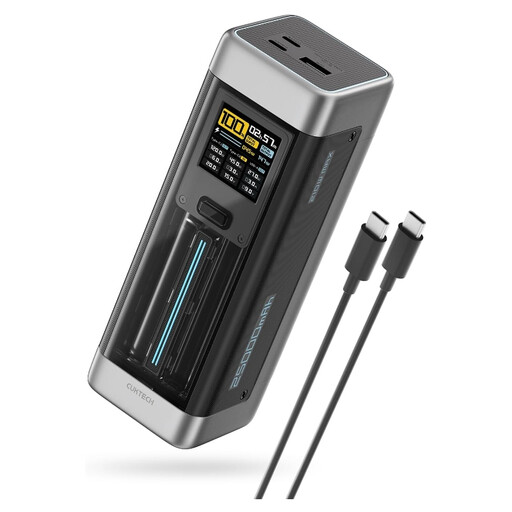
CUKTECH NO.20 P23 Power Bank, 25,000mAh, 140W, 3-Port PD3.1, Grey
For battery backup between work locations if your laptop accepts USB-C PD charging. Check the output available to the laptop when using your intended combination of ports; also check the weight and watt-hour rating if carrying it or flying matters to you.
View on Joybuy
 No image available
ASUS ZenScreen MB166CR FHD
An additional screen to consider when your workspace changes location. Check that the laptop can provide the required USB-C DisplayPort Alt Mode connection. This model does not support an HDMI connection.
View on Joybuy
 No image available
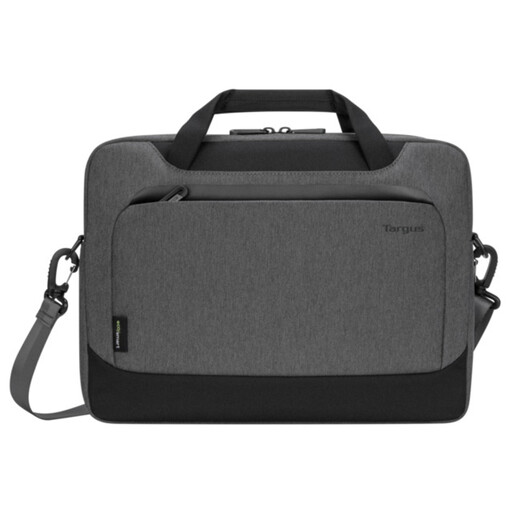
Targus EcoSmart Cypress 14-inch Slipcase, Grey
A carrying option for a laptop and small work accessories rather than a way to add power or desk connections. Measure your laptop and check its dimensions against the slipcase before buying; a 14-inch designation alone does not establish fit for every model.
View on Joybuy
Hybrid-work setup questions
Will any USB-C laptop work fully with a dock and monitor?
No. The laptop’s port, the cable and the connected equipment must support the functions you intend to use. Microsoft’s USB-C guidance notes that USB4 functionality depends on PC and cable support, so check the exact laptop model before relying on a particular display or dock arrangement.
How do I choose a dock’s charging power?
Compare the power your laptop accepts through its USB-C port with the dock’s host-delivery rating for that laptop. Ratings can differ by host: Dell specifies 130W for Dell systems and 96W for non-Dell systems on the WD25TB4.
Is connecting a monitor enough to set up both work desks?
Not necessarily. Where display-screen equipment requirements apply, the Health and Safety Executive says an assessment should cover both home and office situations. Consider screen position, input devices and desk space separately at each location rather than assuming the same connection makes both setups suitable.
Where should I pack a power bank when flying?
Keep it with you in the cabin, not in checked luggage, according to the UK Civil Aviation Authority. Check your airline’s rules for the particular battery before travelling.


