Start with the part of your hybrid-work setup that slows you down. If you carry your computer regularly, prioritise a laptop that meets your software and connection needs; if you repeatedly return to the same desk, consider compatible desk peripherals instead. For frequent calls, check whether a webcam or headset addresses the problem before replacing the computer.
Who is this setup for?
People who carry one laptop between locations
If the computer travels between home and another workplace, everyday documents and meetings must work in both places without relying on a permanent desk setup. The Office for National Statistics reported that 28% of working adults in Great Britain worked in a hybrid arrangement between January and March 2025; that figure describes working arrangements, not equipment preferences.
People who regularly return to a home desk
A repeatable desk connection and the position of the screen, keyboard and mouse may matter more than carrying every accessory. The Health and Safety Executive advises considering the workstation in both home and office settings.
People who spend much of the day on calls
When documents run adequately but meetings remain awkward, assess the camera, microphone, headset and calling-platform connection separately from the laptop itself.
What should you prioritise?
For a personal or small-business hybrid-work setup, identify your primary need before choosing accessories: moving the computer, reconnecting a desk, taking calls or working at a desk for longer periods.
| Concern |
What to check |
Who this matters to |
| A portable main computer |
Check required operating-system and workplace-app compatibility, then the ports needed for equipment at either location. |
If I carry one computer between workplaces, it needs to handle my documents and meetings without making travel cumbersome; around 31% of consumers would put that portable main computer first. |
| Repeatable desk connections |
Check the laptop’s video-output and Power Delivery capabilities against the dock’s documented display and charging requirements. |
Returning to the same desk, I want to reconnect my display and peripherals without rebuilding the setup each time; roughly 25% of consumers would make desk connectivity their primary concern. |
| Video and voice calls |
Identify whether the camera, microphone or headset needs attention, and check compatibility with your calling platform. |
When calls are the difficult part of my working day, clearer device choices matter more to me than changing an otherwise adequate computer; around 25% of consumers would prioritise meeting equipment. |
| Longer desk sessions |
Consider whether a raised laptop screen with a separate keyboard and mouse, or a separate display, suits the whole workstation. |
If I spend long periods at my home desk, I need a workable screen and input-device position rather than a laptop-only arrangement; approximately 19% of consumers would put desk setup first. |
Buying pitfalls
-
Assuming every USB-C port can run a monitor and charge a laptop
A plug that fits does not establish video output, Power Delivery or support for the displays you intend to connect. Anker’s dock guidance identifies the host port, power requirements and display support as compatibility checks.
Compare the exact laptop port specification with the dock’s documented video, charging and operating-system requirements before buying.
A different cable, power supply or display connection may be needed if the intended connection cannot provide the required functions.
-
Treating a portable laptop as a complete long-session desk setup
With a laptop alone, raising the screen also raises its keyboard. The Health and Safety Executive advises considering separate input devices or a separate display for prolonged laptop use.
Assess the position of your screen, keyboard and mouse together, then choose the desk accessories that suit your space and working arrangement.
-
Replacing the computer before identifying a meeting problem
A camera, microphone or headset issue can affect calls even when the laptop handles everyday document work.
Work out whether the difficulty is camera placement, audio, the connection or calling-platform compatibility before comparing an accessory with a replacement laptop.
-
Choosing work equipment without checking the workplace process
For employment-related display-screen work, the Health and Safety Executive says a workstation assessment should cover both home and office use where applicable. That does not make every personally selected accessory the right response.
Ask your employer about its workstation assessment and equipment process before committing to a desk arrangement for work.
Brands to consider for relevant equipment
Dell
Dell positions Latitude as a mobile business-laptop line and offers docks for laptop-based desk setups.
- Comparing a Latitude configuration with a specific Dell dock can help organise your laptop-and-desk requirements.
- Check the exact laptop and dock specifications: a shared brand does not establish the display or charging functions your setup needs.
Lenovo
Lenovo offers ThinkPad laptops alongside ThinkPad-oriented and universal dock ranges.
- The dock ranges provide distinct starting points for a repeatable desk connection.
- Lenovo’s support guidance says dock behaviour depends on the connected system and its components; check the exact host and applicable drivers or firmware.
Logitech
Logitech offers business webcams and personal video-conferencing accessories for buyers focusing on calls.
- Specified models provide camera and calling-platform features to compare against your meeting requirements.
- Manufacturer specifications or platform certifications apply to particular products, not every call environment; check your software, lighting and audio conditions.
Anker
Anker offers USB-C hubs and docks for connecting desk equipment to a laptop.
- Its dock guidance identifies host-port video, operating-system, power and monitor requirements worth comparing.
- Check those requirements against your particular laptop before relying on a dock for video output or charging.
Joybuy products for hybrid-work setups
These choices address different parts of a laptop-based setup: a computer to carry, a dock and input devices for a regular desk, a portable second screen, and a webcam for calls. Choose the part that addresses your main need, then check its fit with your existing equipment.
 No image available
HP 680 CFT Dual-Mode Keyboard and Mouse Combo
A separate keyboard and mouse are worth considering if your laptop regularly returns to a home desk, particularly when you want to position its screen independently of the input devices.
Check that the keyboard layout and intended connection suit your computer and typing needs.
View on Joybuy
 No image available
Targus USB-C Universal Dual HDMI 4K Docking Station, 100W Power Delivery Pass-Thru
This dock is a candidate for a repeatable home-desk connection if your laptop and intended displays meet its requirements.
Its name specifies dual HDMI 4K and 100W Power Delivery pass-through; those figures do not establish what your particular laptop can output or receive. Check host video support, display requirements and the power-adapter arrangement before buying.
View on Joybuy
 No image available
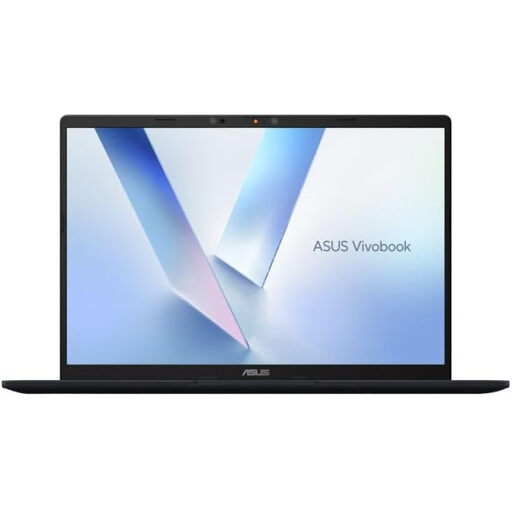
ASUS Vivobook 14 X1407QA-LY003W Copilot+ PC, Snapdragon X, 16GB RAM, 512GB SSD, Quiet Blue
Consider this laptop if the main computer must travel between work locations, provided your required applications and peripherals work with its Snapdragon X configuration.
For prolonged home-desk use, consider the screen and input-device arrangement separately from the laptop specification.
View on Joybuy
 No image available
EMEET All-in-One 4K Webcam with Sony Sensor
If the computer otherwise meets your needs but calls are the sticking point, compare an external webcam with the camera and audio equipment you already use.
The product name specifies a four-microphone array, dual speakers, fixed focus and a 98° adjustable field of view. Check operating-system and calling-platform compatibility, as well as where the camera will sit.
View on Joybuy
 No image available
ASUS ZenScreen MB166C 15.6-inch Full HD IPS Portable USB-C Monitor
A portable second screen is worth considering if you need display space away from your usual desk and are prepared to carry another device.
The product name specifies a 15.6-inch Full HD IPS screen with an anti-glare surface. Check that your laptop can provide the required video connection and that the screen’s power arrangement suits your setup.
View on Joybuy
Common questions
Can any USB-C laptop use a dock for a monitor and charging?
No: the USB-C connector alone does not establish either function. Check the laptop’s documented video-output capability and Power Delivery support, then compare its requirements with the dock’s display, power and operating-system specifications.
What should I add for prolonged laptop use at a home desk?
Consider a separate keyboard and mouse so you can raise the laptop screen, or use a separate display. The Health and Safety Executive advises assessing the whole workstation and individual needs rather than relying on one accessory choice for everyone.
Do workplace display-screen rules mean I must personally buy desk equipment?
No: the Health and Safety Executive’s guidance on employer workstation assessments does not require you to select and buy a particular accessory yourself. If you use display-screen equipment for work at home and elsewhere, ask your employer how its assessment and equipment process applies to your setup.
Are electrical-product marking requirements the same throughout the UK?
Do not assume one marking rule applies to every UK destination. Department for Business and Trade guidance distinguishes products placed on the market in Great Britain from those placed on the market in Northern Ireland; if you are importing or placing equipment on a market yourself, check the rules for the product and destination.


