Buying priorities
Start with the laptop you already own: confirm its display capability, then match charging and ports to the way you work between locations.
| Priority |
What to check |
Your needs |
| Whole-workstation comfort |
Check screen position, keyboard, mouse, desk space, chair and lighting together. Consider whether a stand, separate keyboard and mouse, or an adjustable monitor position addresses the actual limitation. |
I want a desk arrangement that remains comfortable for focused work and video calls, not simply another connected device. The Health and Safety Executive advises assessing the full workstation and work environment. |
| Laptop video compatibility |
Confirm USB-C DisplayPort Alt Mode, Thunderbolt, USB4 or any required DisplayLink support. Check the supported monitor count, resolution and refresh rate for the exact laptop and operating system. |
I need to know that my laptop can drive the screen or screens I plan to use before choosing a monitor, hub or dock. |
| Charging through the desk connection |
Compare the accessory’s host power-delivery rating with the laptop manufacturer’s charger requirement. Check the included power adapter, cable rating and any laptop-specific charging limits. |
I want displays and peripherals connected without slow charging, battery drain under load or an unnecessary second charger on the desk. |
| Portability versus expansion |
For commuting, prioritise a compact connection setup and the ports used at each location. For a fixed desk, count the displays, USB devices, Ethernet and storage that need to remain connected. |
I need a setup that matches how often I move. The Office for National Statistics reported that 28% of working adults in Great Britain hybrid worked between January and March 2025; this measures work location, not desk-equipment needs. |
Joybuy product options
Joybuy product options for adding a screen, display connections, charging input and peripherals to a hybrid-work laptop setup.
 No image available
ASUS ZenScreen MB249C IPS USB-C Monitor
A one-screen option for a regular desk where USB-C video and stated 60W power delivery may reduce daily connections.
Stated details include a 23.8-inch Full HD IPS display, USB-C DisplayPort Alt Mode video, HDMI, built-in speakers and anti-glare coating.
Check that the laptop supports USB-C DisplayPort Alt Mode and that 60W is sufficient for its normal workload. USB hub functions vary by region, so confirm the ports in the supplied UK configuration.
Joybuy
 No image available
Targus USB-C Universal Dual HDMI 4K Docking Station
A portable expansion route for workers who need two display connections, Ethernet and USB peripherals across more than one location.
It states two HDMI 2.0 outputs up to 4K at 60Hz, Gigabit Ethernet, USB 3.2 ports, SD and microSD readers, and 100W PD pass-through.
It requires a USB-C Alt Mode-capable host. The 100W figure is pass-through charging and calls for a compatible external 100W+ adapter, so check the charger, cable and laptop requirement.
Joybuy
 No image available
Baseus Metal Gleam Series II 10-in-1 USB-C Hub
A compact hub for a desk using displays, storage, keyboard and mouse, wired networking and card media.
Stated connections include two HDMI outputs, Gigabit Ethernet, 10Gbps USB-C and USB-A ports, SD/TF readers and USB-C PD input up to 100W.
Its display functions require USB-C DisplayPort Alt Mode. Confirm the laptop’s supported screen count, resolution and refresh rate, and compare the intended charging setup with the laptop’s charger requirement.
Joybuy
 No image available
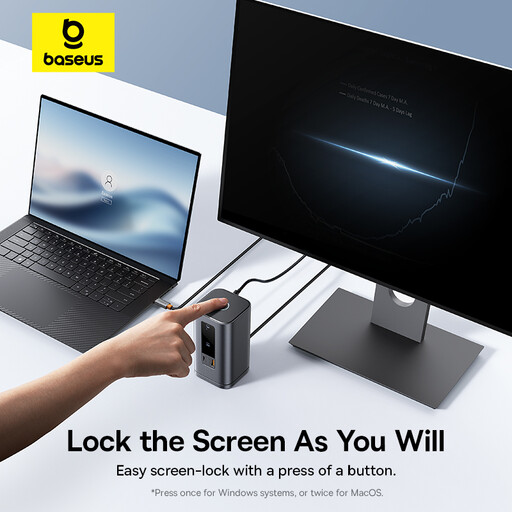
Baseus Wisdom Series 11-in-1 WIN Workstation
A larger fixed-desk hub for returning to one workstation with several displays and peripherals connected.
It states two HDMI and two DisplayPort outputs, 10Gbps USB ports, Gigabit Ethernet, audio, a magnetic stand and USB-C PD input up to 100W.
The supported number of external monitors depends on the laptop’s host port, graphics capability and operating system. Compare the laptop’s required charger wattage with the PD input arrangement.
Joybuy
 No image available
V7 USB-C Adapter with 4K HDMI, VGA and Ethernet
A lightweight single-display adapter for commuters or presenters who may need HDMI or VGA alongside Ethernet and USB ports.
It states HDMI up to 4K at 30Hz, VGA up to 1920 × 1200, Gigabit Ethernet, dual USB 3.2 Gen 1 ports and a 100W PD port.
This is a single-display SST adapter, so it does not suit a two-monitor setup from one dock. Check USB-C Alt Mode support, the required display mode and the charging arrangement.
Joybuy
Frequently asked questions
Is a USB-C port enough to guarantee that a dock or monitor will work?
No. USB-C describes the connector, not a guaranteed combination of video, data and charging features. Check the laptop documentation for USB-C DisplayPort Alt Mode, Thunderbolt, USB4 or any required DisplayLink support, then compare it with the dock or monitor’s compatibility statement.
How can I check whether a dock will charge my laptop adequately?
Compare the laptop manufacturer’s required charger wattage with the dock or monitor’s stated host power-delivery rating, and check any system-specific limits. Treat the accessory rating as maximum available power; a lower-power connection is not automatically suitable for sustained workloads.
Will a dual-display dock always run two external monitors?
No. The supported display count and resolution depend on the dock, the laptop host port, graphics capability and operating system. CalDigit, for example, notes that host-computer capabilities and port limitations can affect display support.
Does UK display screen equipment guidance mean I must buy an external monitor or dock?
No. Health and Safety Executive guidance says display screen equipment rules can apply when workers routinely split time between home and workplace, and relevant assessments should cover both workstations. The appropriate equipment depends on the assessed workstation and the work being done.
Are monitors, docks and hubs covered by UK WEEE rules?
UK WEEE guidance says electrical and electronic equipment is regulated to encourage recovery, reuse and recycling under the Waste Electrical and Electronic Equipment Regulations 2013 as amended. Check the retailer’s or local authority’s current collection route before disposal.


