Start with the exact work laptop and the tasks your desk needs to support. A direct monitor connection or compact adapter can cover one extra screen and a few connections; a dock is worth considering when you regularly reconnect displays and several peripherals. Before choosing, check the laptop’s display limits, video-capable ports and charging input, along with any software requirements for the equipment you plan to use.
Who is this setup for?
People working across several windows
If documents, spreadsheets and calls compete for laptop-screen space, decide whether you need one external display or more. Apple and Microsoft both tie display support to the exact laptop model and connection, so check those limits before choosing screens.
Hybrid workers with a fixed home desk
If you carry your laptop between locations, a dock may reduce the number of desk connections you make each time. It still needs to match your laptop’s video capabilities and charging input, as well as the devices you intend to leave at the desk.
People sharing a desk between two laptops
A dock that works with different laptop types does not necessarily switch a monitor, keyboard and mouse between two connected hosts. If you want that arrangement, look for an explicit switching method and check each laptop separately.
What should you check first?
List the screens and accessories you will actually connect, then compare that arrangement with the laptop’s model-specific specifications.
| Priority | What to check | Your needs |
|---|
| Display space |
Check the laptop’s supported external-display count, the video-capable port and the monitor input. Confirm resolution and refresh rate for the intended number of screens, not just a single-screen setting. |
I want room for documents and a meeting window, but only as many external screens as my laptop can run in the configuration I need. |
| Desk connections |
Count the required USB, audio and Ethernet connections. For a dock, check the host standard and the complete configuration with the intended displays and peripherals attached. |
When I bring the laptop home, I would rather reconnect my fixed desk equipment through one suitable connection than plug in each item separately. |
| Charging |
Compare the laptop’s accepted charging input with the power a dock or USB-C monitor delivers to the host. Do not treat an accessory’s power-supply rating as its laptop-charging output. |
A single cable would be useful if it can provide both the connections and the charging my laptop requires. |
| Calls and software |
Match headset and webcam connectors to available ports. Check whether a chosen dock needs software or accessory approval on the laptop’s operating system. |
My call equipment needs to connect to the work laptop I use, not merely fit an available socket. |
| Two-laptop sharing |
Look for an explicit host-switching method if both laptops must share peripherals. Check video, USB connections and charging for each laptop independently. |
I use work and personal laptops at the same desk and want to know whether switching devices requires moving cables. |
Connection mistakes to avoid
-
Treating every USB-C port alike
The connector shape alone does not establish video output, charging capability or support for a particular dock. Apple and Microsoft advise checking display connections against the device model.
Identify the laptop model and the capabilities of the specific port you plan to use before selecting a monitor, adapter or dock.
-
Buying for a dock’s headline display setting
A setting stated for one connection may not describe a setup with two displays and other devices attached. Microsoft notes that connection method can limit resolution or refresh rate and that a dock may not support every demanding connection at once.
Compare documentation for your intended display count, resolution, refresh rate and attached peripherals together.
-
Equating a power-supply rating with laptop charging
The power delivered to the host can differ from an accessory’s headline rating. Microsoft states that the host must also support the wattage it receives.
Check the documented host-charging output and the laptop’s accepted input before relying on a dock for charging.
-
Expecting a universal dock to switch laptops
Compatibility with different host types does not establish that a dock can switch shared desk devices between two laptops.
If switching matters, confirm an explicit two-host or KVM function in the exact product documentation, including how each laptop connects.
Relevant brand guidance
Use model-specific guidance for the laptop you own; a brand’s documentation for one device family does not set the limits for every laptop.
Apple
Apple’s Mac guidance is relevant when connecting external displays to a MacBook-based desk.
- Apple Support advises identifying the Mac’s video ports, supported display count and suitable cables.
- Apple says simultaneous display support depends on the Mac model and each display’s resolution and refresh rate. Multiple outputs on a dock do not establish what a particular Mac can drive.
Microsoft Surface
Microsoft’s Surface documentation can help Surface owners check external-display connections and dock charging.
- Microsoft publishes Surface model-specific display guidance and explains how connection method affects supported settings.
- Microsoft’s Surface dock guidance says the host must support the wattage received. Surface specifications should not be applied to a different laptop family.
StarTech.com
StarTech.com offers documentation for different dock approaches, including universal and driverless designs.
- StarTech.com positions some universal docks for mixed hardware and operating systems.
- That positioning does not confirm host switching or the display and charging configuration of a particular dock. Check its requirements against each laptop.
Joybuy desk-setup options
These options cover a portable or fixed external screen, a dock, a compact display adapter and a call headset. Choose by the connections your laptop supports and the equipment you need at your desk.
 No image available
ASUS ZenScreen MB166CR FHD
Consider this portable extra-screen option if you work across locations. Its listed connection requires USB-C DisplayPort Alternate Mode; HDMI is not supported, so confirm that the laptop can provide the required video output.
View on Joybuy
 No image available
Targus USB-C Universal Dual HDMI 4K Docking Station, 100W Power Delivery Pass-Thru, Retail Packaging
This dock is a route to consider when displays and fixed desk peripherals need reconnecting together. Check the exact laptop’s host connection, supported two-display configuration and accepted charging input before relying on the dock’s HDMI outputs or power pass-through.
View on Joybuy
 No image available
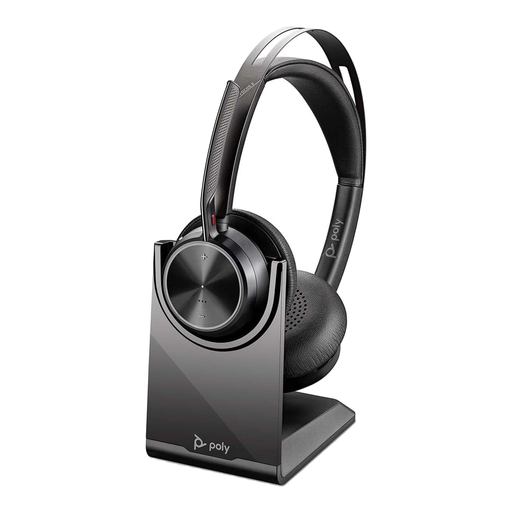
Poly Voyager Focus 2-M USB-C-C Headset, USB-C/A Adapter and Charging Stand
A headset is a separate choice from adding desk display space if calls are part of your working day. Confirm the exact headset variant, the included adapter and how it will connect to your work laptop.
View on Joybuy
 No image available
V7 V7UC-U3CRJ45HDVG-BLK USB-C Adapter, 4K HDMI, VGA, Gigabit Ethernet, 100W Power Delivery and Dual USB 3.0
This compact adapter may suit a desk needing one external display alongside USB and Ethernet connections. It is listed for SST single-display operation, not two independent external displays; check laptop USB-C video support and charging requirements.
View on Joybuy
 No image available
ASUS ProArt PA248CRV IPS WUXGA
Consider this fixed-desk monitor if you want an external screen with a USB-C connection. Check the laptop’s video and charging compatibility, and confirm the actual unit’s USB-hub configuration because that feature varies by region.
View on Joybuy
Common questions
Does USB-C guarantee that my laptop can use an external monitor or dual-monitor dock?
No. Apple Support says Mac display count depends on the model and display settings, while Microsoft says Surface display capability depends on the model and connection used. Check the exact laptop’s video-capable port and supported display configuration before choosing a monitor or dock.
What should I check before relying on a dock for charging?
Compare the dock’s documented power delivered to the host with the laptop’s accepted charging input. Microsoft’s Surface dock guidance notes that the host must support the wattage it receives; a headline power rating alone does not settle whether a particular laptop will charge as intended.
Why might a display work directly from a laptop but not at the same settings through a dock?
The dock adds another connection to check. Microsoft notes that connection method can limit resolution or refresh rate and that a dock with several attached devices may not support every demanding combination at once. Compare the host port, dock, cable and intended number of displays as one setup.
What should I check before using a software-dependent dock with a MacBook?
Check the exact dock’s operating-system and driver requirements, as well as whether the work laptop permits the required software. DisplayLink Support says Apple Silicon MacBooks running macOS Ventura can require user approval before USB or Thunderbolt data communication is allowed.


