Settled-desk multitaskers
If you regularly work across documents, messages and meetings at one desk, another display may give you more viewing area, provided your computer supports it.


Choose a desk monitor if you regularly need more viewing space at a fixed workstation; a portable display may suit a setup that must move or be put away. If your screen area is already sufficient, a dock, adapter or change to screen positioning may address the actual problem instead. Before buying, check your computer’s display limits, video output and operating-system requirements, along with power-delivery compatibility if you want to charge through one cable.
If you regularly work across documents, messages and meetings at one desk, another display may give you more viewing area, provided your computer supports it.
If your workspace needs to be cleared or used for other things, a portable display may be easier to put away than a permanent desk monitor. UCL research describes home working across dedicated offices and other domestic spaces.
If you already have a suitable screen but need to connect displays or accessories, check your laptop’s video output and the connection requirements of a dock or adapter before choosing one.
Start by identifying whether you need more viewing area, a setup that can move, or a better way to connect or position the screen you already have.
| Concern | What to check when buying | Who this matters to |
|---|---|---|
| Viewing area | Check screen size and resolution, adjustment options, available video outputs and your computer’s supported display count. | When I work at one desk across documents and messages, I want enough room to keep them visible; around 28% of consumers put viewing area first. |
| A setup that moves | Compare the display’s size and weight, and check its stand, cables, video input and power requirements. | If I share a room or move between work locations, I need a screen I can put away; around 22% of consumers prioritise a movable setup. |
| Connections and charging | Confirm your exact laptop’s display support, USB-C video capability, operating-system requirements and charging compatibility. | When I repeatedly connect a screen and other devices, I want to know whether one connection can handle my setup; around 22% of consumers focus on connections. |
| Screen positioning | For an arm, check the monitor’s VESA pattern and weight against the arm’s limits, plus the desk attachment. | If my current screen is large enough but awkwardly placed, I would look at repositioning it before adding another; around 17% of consumers prioritise screen positioning. |
| Connecting an existing screen | Check the computer’s video output, the screen’s input, adapter direction and whether the connection extends or mirrors the display. | When my existing screen still works but its connection does not match my computer, I want an adapter for the specific ports and display mode; around 11% of consumers prioritise this connection fix. |
A USB-C socket’s shape does not confirm video support. ASUS specifies DisplayPort Alt Mode for the ZenScreen MB166C, and HP lists USB-C DisplayPort Alt Mode and Power Delivery among the host requirements for its Dock G5.
Check the specifications for your exact computer model and the requirements of the display or dock before ordering.
A dock’s available outputs do not establish how many independent displays every computer can run. Apple says a supported hub does not increase the display maximum covered by its MacBook Air guidance; some adapters may also mirror instead of extending a display.
Confirm your computer’s supported display count and check whether each proposed output provides an extended or mirrored image.
If you already have enough screen area, repositioning the existing display may be the more relevant change. An arm also needs to match the monitor’s mounting pattern and weight, as well as the desk.
Assess your current setup first, then check screen position and any arm or stand compatibility requirements.
The P2425HE is a desk-monitor example combining a 23.8-inch FHD panel with USB-C hub functions.
The ZenScreen MB166C is a portable-display example for a setup that needs to move or be put away.
The ThinkVision M14t Gen 2 is a portable touch-display alternative.
The USB-C Dock G5 is a connection option for existing displays and peripherals; it does not add a screen.
The 122-USBC-HDMI-4K-VGA illustrates a narrower adapter option for connecting an existing display.
The LX desk arm is an example of repositioning a compatible monitor instead of adding another screen.
These options are desk monitors for a settled workstation that needs additional screen area.
 No image available
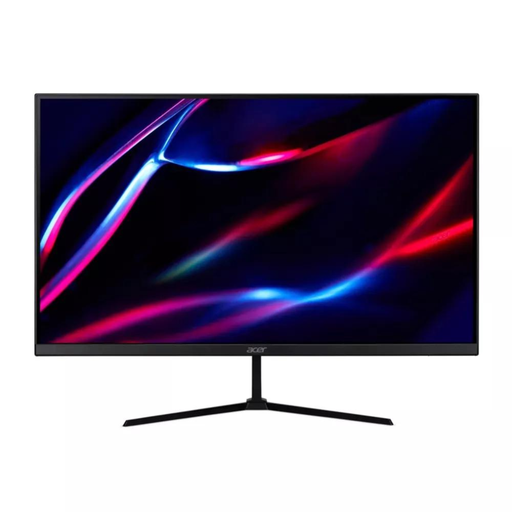
A 27-inch desktop display is an option to consider for a settled desk that needs more screen area.
QHD resolution; 180Hz refresh rate; HDMI and DisplayPort; one HDMI cable and one DisplayPort cable listed.
 No image available
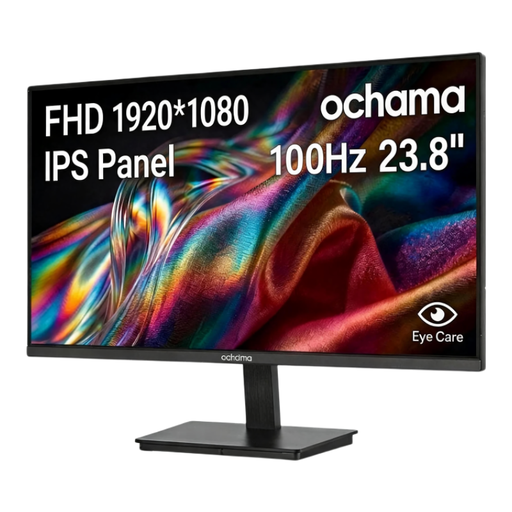
This 23.8-inch monitor is a desktop option for a fixed workstation needing an additional screen.
1080P resolution; 100Hz refresh rate.
 No image available
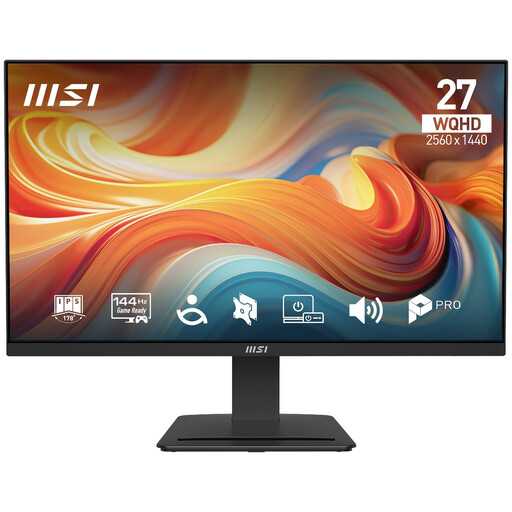
A 27-inch WQHD desktop display to consider if you need additional screen area at a settled workstation.
2560 × 1440 resolution; 144Hz refresh rate; IPS; HDMI and DisplayPort.
 No image available
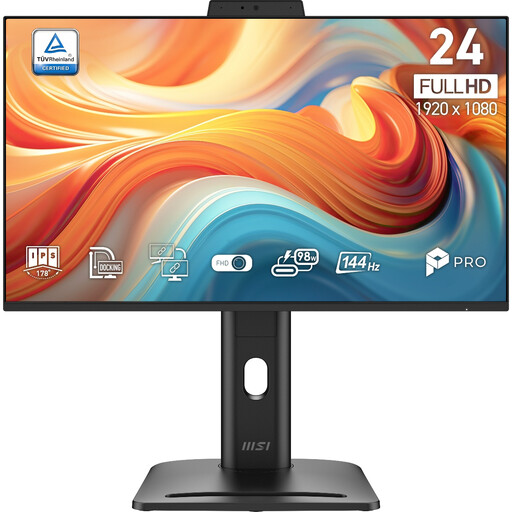
This 24-inch display is a desk-monitor option if you need another screen for a fixed setup.
1920 × 1080 resolution; 144Hz refresh rate.
 No image available
A 27-inch 4K UHD monitor to consider for a settled desk that needs an additional display.
USB-C with 65 W power delivery is listed; check compatibility with your connected device.
No; the computer’s supported display count and the dock’s host requirements both matter. Apple says a supported hub does not increase the maximum stated in its guidance for the MacBook Air models covered, while HP specifies USB-C Power Delivery and DisplayPort Alt Mode as minimum host requirements for its Dock G5.
In Windows, open Settings, then System and Display to identify and arrange detected screens. Microsoft also provides a Detect option if a connected display does not appear, but this cannot remedy unsupported hardware.
For products using DisplayLink technology, DisplayLink says its Manager software is required and macOS Screen Recording permission must be granted for operation. Check whether your chosen dock uses DisplayLink and whether your workplace permits the software and permission.
In Great Britain, the Health and Safety Executive says display screen equipment rules can apply to permanent, long-term and hybrid home workers who use display equipment daily for continuous periods of an hour or more. Where a workstation assessment identifies necessary display screen equipment, the worker cannot be charged for it. This does not mean every worker needs a second monitor or must buy one personally.
GOV.UK guidance says distance-selling customers generally have 14 days after receiving an item to notify the seller that they want to cancel, followed by another 14 days to return it; exceptions and handling conditions apply. Faulty or misdescribed goods have separate refund rights.
No. UK government guidance lists UKCA or CE for relevant electrical equipment placed on the Great Britain market, and CE, or UKNI together with CE, for Northern Ireland. Check the product scope and applicable rules; this distinction does not confirm that an individual listing has been checked.