Multi-window desk worker
If your home-working day moves between documents, meetings and reference material, consider whether one screen lets you keep the windows you need visible and whether the display can be positioned for your desk.


Keep a laptop-only setup if its screen, camera and connections suit your work; add a monitor when you regularly need documents and other windows visible together. Choose a dock or USB-C hub only after checking video output, external-display support and charging requirements for your exact laptop. For prolonged laptop use, Health and Safety Executive guidance describes using a separate keyboard and mouse so the screen can be positioned independently.
If your home-working day moves between documents, meetings and reference material, consider whether one screen lets you keep the windows you need visible and whether the display can be positioned for your desk.
If you move between locations, start with the laptop’s screen, camera and ports. Add home equipment when it solves a recurring desk need, and check that the exact laptop can connect to it.
If calls are a regular part of your day, check whether the built-in camera works for your screen position before adding a webcam. Separate input devices can also let you position a raised laptop screen independently.
Start with the recurring task your current setup does not handle comfortably, then check desk space, device compatibility and how often you will reconnect equipment.
| Concern | What to check when buying | Who this matters to |
|---|---|---|
| Visible workspace | Compare the desk space available with the screen size, resolution, inputs and stand adjustment you need. | If I regularly work with documents beside meetings or reference windows, I want enough visible workspace without choosing a display that does not suit my desk. About 29% of consumers put multi-window work first. |
| Portability | Check the exact laptop’s work-application requirements, camera and available display and charging connections. | If I carry my laptop between locations, I want a setup that remains useful on the move and only adds home equipment for a clear recurring need. About 22% of consumers put portability first. |
| Display and charging connections | Confirm that the laptop port supports video and that the dock, monitor and cable meet your display and charging requirements. | If I reconnect a screen and peripherals at home, I want to know that the complete combination will work rather than relying on the USB-C connector shape alone. About 21% of consumers put repeatable connections first. |
| Video-call setup | Check camera framing at your intended screen position, along with webcam connections and any software requirements. | If I spend much of my workday on calls, I want a camera position that suits the screen I am watching before adding another device. About 14% of consumers put video calls first. |
| Positioning for prolonged use | Consider how the screen, keyboard and mouse can be arranged at your workstation; DSE responsibilities depend on whether you are a covered user. | If I work at a desk for prolonged periods, I want to position the screen separately from the keyboard and mouse rather than relying on a fixed laptop layout. About 14% of consumers put prolonged-use positioning first. |
A USB-C socket does not by itself confirm video output. Dell notes that not every USB-C port supports video, and a hub’s charging and display limits depend on the specific model.
Before buying, match the laptop’s video output and charging requirements with the dock or monitor and the cable you plan to use.
A monitor may have the screen size you want but still lack the input or positioning options that suit your laptop and desk. A monitor with HDMI is not necessarily a one-cable charging hub.
Check the exact monitor inputs and stand alongside your laptop’s outputs, and consider how you will position the screen, keyboard and mouse.
Native external-display support varies by exact Mac model. A dock using DisplayLink on macOS also has a software and permission requirement: DisplayLink says its Manager needs Screen Recording permission to operate.
Check the Mac’s supported display arrangement and whether the dock relies on DisplayLink before choosing a connection method.
A DisplayLink-based setup on macOS requires installing DisplayLink Manager and granting the stated permission.
A MacBook Air is one laptop route to consider when portability matters and you want to check the built-in camera, ports and external-display support.
The UltraSharp U2723QE is a 27-inch 4K USB-C hub monitor to compare when you want a separate screen and monitor-based connections.
The ThinkVision T27h-30 variant with part number 63A3GAT1UK is a QHD monitor with USB-C and a USB hub for a home desk.
The GW2790 is a 27-inch Full HD monitor to compare when you want a separate screen and do not need QHD resolution.
The 341 USB-C Hub is one compact hub option for adding connections without choosing a monitor with a built-in hub.
The Brio 500 is an example of an optional external webcam for a call setup.
These Joybuy options cover a laptop, USB-C hub, monitor and separate keyboard-and-mouse choices for a home-work desk.
 No image available
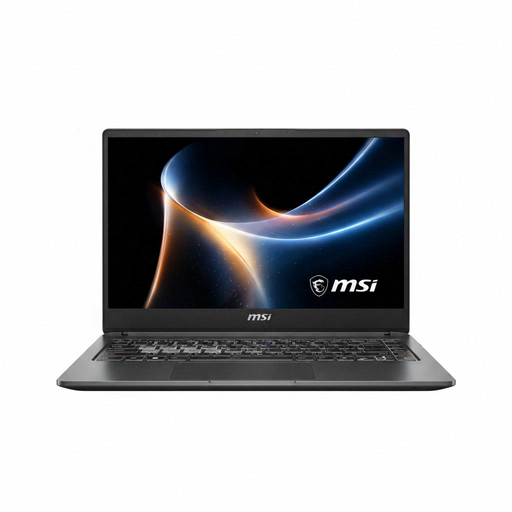
A laptop option to consider if you need one computer for work at home and while moving between locations.
The listed variant name specifies NVIDIA RTX Spark N1X, 32GB RAM, 1TB SSD, a 2.8K 120Hz OLED touchscreen and a UK keyboard.
 No image available
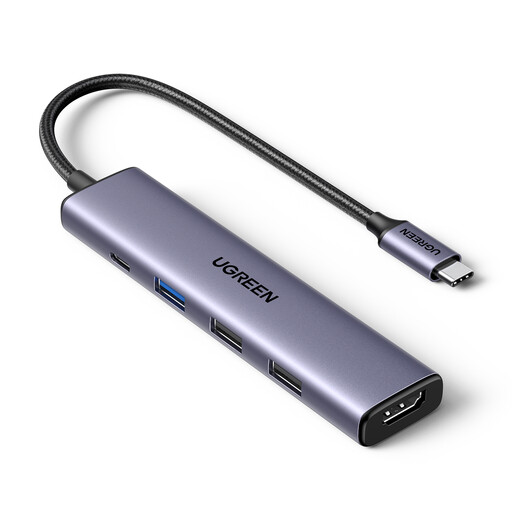
A hub option if you want to connect a display and peripherals through one accessory, subject to your laptop’s supported video output and charging needs.
The product name specifies up to 100 W PD input, 4K HDMI and three USB-A data ports. Check the laptop and display requirements before choosing it.
 No image available
A separate display option if you regularly need more than the laptop screen for documents and other work windows.
The product name specifies an IPS panel and USB-C 65 W. Check its connection and positioning against your laptop and desk.
 No image available
A separate keyboard and mouse may suit a desk arrangement where you want to position a laptop screen independently during prolonged use.
 No image available
A separate monitor option to compare if you want a desk display alongside your laptop.
The product name specifies an IPS WQHD display. Check the exact connections and stand adjustment against your setup.
No. Check the exact laptop port for supported video output, then compare it with the dock or monitor’s video and charging requirements. Dell notes that not every USB-C port supports video output.
For prolonged laptop use, Health and Safety Executive guidance describes using a separate keyboard and mouse so the screen can be elevated, or using a separate display. Arrange the equipment for your actual workstation; a monitor alone does not necessarily resolve positioning.
Check your exact laptop’s supported display arrangement and the dock’s connection method first. If a dock uses DisplayLink on macOS, DisplayLink says its Manager requires Screen Recording permission to operate; this does not apply to every dock.
For workers covered by the DSE rules, the employer has workstation-assessment and risk-reduction duties. Health and Safety Executive guidance says the rules can apply to regular home and hybrid workers who use DSE daily for continuous periods of an hour or more; Northern Ireland guidance from HSENI also describes assessments for covered home workers. This does not mean every occasional laptop user meets the DSE-user condition.
UK government guidance describes a limited cancellation right for online orders even when goods are not faulty; faulty-goods rights are a separate matter. Check the applicable seller return process and the item’s warranty terms before buying, rather than treating a manufacturer warranty as your only remedy.