A laptop-only setup keeps the carry kit small when you move often and mainly work in shorter sessions. A compact hub suits occasional expansion at different locations; for regular work at one home desk, a dock with a monitor and separate input devices may be worth leaving in place. Before buying, check your laptop’s display and charging capabilities, and find out what work equipment your employer supplies or approves.
Who is each setup for?
Regular laptop commuters
If you carry the same computer between home and another workplace, consider how much equipment you are willing to pack and reconnect each time. A laptop-only kit keeps that routine simpler, but leaves you using its built-in screen and controls unless other equipment is available.
Workers with a regular home desk
If you repeatedly work at the same desk, a monitor, keyboard and mouse can remain there while the laptop travels. Check your workstation needs and employer arrangements before buying work equipment yourself.
People adding a display or USB-C charging
If you plan to connect a hub, dock or USB-C monitor, match its video and charging requirements to your exact laptop. The shape of a USB-C port alone does not tell you which functions it supports.
What should you check before choosing?
Laptop-only kit
Consider it when: You change locations often and can use the laptop’s own screen and controls for your usual sessions.
Trade-off: There is less to carry, but no separate desk display or input devices in this kit.
Travel hub and accessories
Consider it when: You need ports or an additional screen at more than one location.
Trade-off: The setup can move with you, but adds items to pack and connect.
Dock at the home desk
Consider it when: You regularly return to one desk and want its display and input devices left connected.
Trade-off: The desk equipment stays in place rather than travelling with the laptop.
| Priority | What to check | Your needs |
|---|
| Carry kit |
List what must travel each day and what can stay at either desk. Include the charger, cables and any protective case in that plan. |
I move between locations often, so I want to know whether the extra screen or accessories will earn their place in my bag. |
| Workstation |
Check the screen position and whether separate input devices are needed for your regular work. The Health and Safety Executive says employers must assess workstations for workers using display screen equipment daily, as part of normal work, continuously for an hour or more. |
For regular home-desk sessions, I want a setup I can use comfortably without assuming that screen size alone settles the workstation question. |
| Display compatibility |
Confirm the exact laptop’s video-output protocol and the dock’s supported monitor arrangement. Match the number of screens, resolution and refresh rate to the host and cables you intend to use. |
If I add a monitor, I need to know that my particular laptop and connection can run the arrangement I have in mind. |
| Charging |
Compare the laptop maker’s charging requirement with the dock’s output to that host. Check the power capability of the cable and whether the required power supply is included. |
One cable would simplify my desk, provided the dock, power supply and cable meet my laptop’s requirements. |
Which buying mistakes are easy to make?
-
Assuming every USB-C port can drive a monitor
A dock can fit the port without delivering the display arrangement you expect. Video output depends on the laptop, dock and intended monitor connection.
Check your exact laptop model and port capabilities, then compare its supported display arrangement with the dock maker’s specifications.
-
Reading a dock’s headline wattage as laptop charging power
The power delivered to the host can depend on the connected laptop. Dell, for example, specifies different host Power Delivery figures for Dell and non-Dell systems on its Pro Thunderbolt 4 Dock WD25TB4.
Compare the host-specific output with your laptop’s charging requirement, and check the cable rating.
-
Buying work-desk equipment before checking employer arrangements
An employer assessment or approved-equipment arrangement may affect which monitor, keyboard, mouse or dock you should use for work. The Health and Safety Executive says display screen equipment requirements can apply to workers who routinely split their time between home and a workplace.
Ask what equipment is supplied or approved and whether a home-workstation assessment applies before making a personal purchase.
Which dock brands are relevant?
These manufacturer examples show why the exact dock and laptop matter; they do not establish that a brand’s entire range will suit your setup.
Dell
Relevant when comparing a fixed desk dock with charging requirements for a specific host laptop.
- Dell UK specifies 130W USB-C Power Delivery for Dell systems and 96W for non-Dell systems on the Pro Thunderbolt 4 Dock WD25TB4.
- Check the intended laptop and display arrangement; those figures describe this dock, not every Dell model.
Lenovo
Relevant to ThinkPad owners and buyers comparing laptop-specific and universal desk docks.
- Lenovo says its USB-C and Thunderbolt docks work with notebooks supporting the applicable industry-standard USB-C Alt Mode or Thunderbolt protocols.
- Confirm your laptop’s port and the exact dock’s display limits rather than treating protocol support as a guarantee for every configuration.
Kensington
Relevant when comparing docks that use different host-connection technologies.
- Kensington lists its SD4843P EQ dock as supporting Thunderbolt 5, Thunderbolt 4, USB4 and USB-C Alt Mode Windows laptops.
- That compatibility statement applies to the named model and stated hosts, not to every Kensington dock or monitor arrangement.
Joybuy options for a hybrid-work setup
These options cover a laptop to carry, a portable screen, a USB-C desk dock and separate input devices. Choose the part of the setup you need, then check it against your laptop and working arrangements.
 No image available
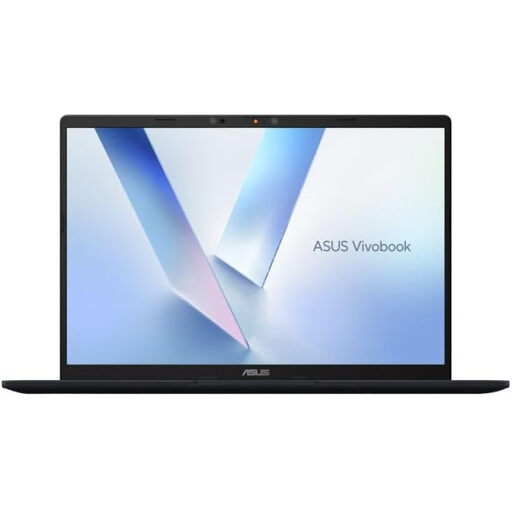
ASUS Vivobook 14 X1407QA-LY003W Copilot+ PC, Snapdragon X, 16GB RAM, 512GB SSD, Quiet Blue
A laptop option for carrying one computer between work locations. If you plan to add desk displays, confirm the supported arrangement for this exact model and your intended connection before buying.
View on Joybuy
 No image available
ASUS ZenScreen MB166CR Full HD portable monitor
Consider this additional screen when you need a display that travels with your laptop. It requires compatible USB-C DisplayPort Alt Mode video output from the host; check your laptop before choosing it.
View on Joybuy
 No image available
Targus USB-C Universal Dual HDMI 4K Dock, 100W PD Pass-Thru, Retail Packaging
A dock option for connecting a compatible laptop to desk displays and peripherals. Check the supported display configuration and power delivered to your particular laptop; also confirm whether the required external power adapter is supplied.
View on Joybuy
 No image available
HP 680 CFT Dual-Mode Keyboard and Mouse Combo
A separate keyboard-and-mouse option for a desk where the laptop is used regularly. Check the keyboard layout and your employer’s equipment arrangements before choosing it for work.
View on Joybuy
Common questions
Should I buy my own monitor, dock or keyboard for hybrid work?
Check what your employer supplies or approves before buying work equipment. The Health and Safety Executive says display screen equipment requirements can apply to people routinely working both at home and at a workplace; for workers using screens daily as part of normal work for continuous periods of an hour or more, it says employers must carry out a workstation assessment.
Will any USB-C laptop port run an external monitor through a dock?
No. Check the exact laptop’s video-output capability, then match the dock’s supported display configuration to your monitors and cables. Microsoft recommends DisplayPort over USB-C as an alternate mode for docks and displays, but a USB-C connector alone does not establish that your laptop provides it.
How do I check a dock’s laptop-charging capability?
Start with the laptop maker’s charging requirement, then check the dock’s host-specific Power Delivery output and the cable rating. A dock’s advertised maximum does not by itself tell you what power your particular laptop will receive.
Do the same product-marking rules apply in Great Britain and Northern Ireland?
No. For relevant products, UK government guidance says Great Britain continues to recognise CE marking alongside or in place of UKCA marking. Northern Ireland has a distinct framework under the Windsor Framework, so check product documentation against the guidance for your delivery region.


