Start with the laptop and software approved for work, then add home-desk equipment where your regular tasks call for it: a separate display and input devices for sustained desk work, or call peripherals when the laptop setup falls short. Check the exact computer, connections and workplace rules before buying a dock or personal accessory; a USB-C port alone does not establish display or charging compatibility.
Who needs which setup?
How often you work at a home desk, take calls and move between locations matters more than assembling the same set of accessories for every hybrid worker.
Workers with a regular home desk
If you carry a laptop to another workplace but spend sustained periods on documents at home, consider the portable computer and the home workstation separately. The Health and Safety Executive advises assessing the workstation and the work before deciding whether additional display-screen equipment is needed.
Frequent callers in shared homes
Household noise and a laptop camera’s position can shape the choice of headset or webcam. Check the connection and conferencing platform you use at work, as well as where the device will sit during calls.
Workers with employer-managed devices
If your laptop or software is managed by work, confirm which personal accessories, storage devices and software installations are permitted before building a home setup around them.
What should you check first?
Begin with the work computer and your recurring tasks. Add each desk device to solve a specific screen, call or connection problem, rather than assuming every hybrid setup needs the same equipment.
| Priority |
What to check |
Your needs |
| Home workstation |
Look at the work you do, how long you use the screen and the whole desk arrangement. Check display connections before choosing a monitor, keyboard or mouse. The Health and Safety Executive says additional equipment should follow an individual workstation assessment. |
I spend sustained periods on documents at home and need a workable screen and input arrangement there, not just a laptop that is easy to carry. |
| Video calls |
Check household noise, camera placement, headset connection and the required meeting platform. Microsoft says its Teams-certified peripherals are tested for platform functions, including call controls; certification does not establish workplace approval. |
Calls are a regular part of my day, and I need audio and camera placement that fit my shared workspace. |
| Desk connections |
Match the exact laptop and dock or display connections. Check the supported video protocol, intended monitor arrangement and charging requirements; Lenovo’s USB-C dock guidance makes host-protocol support a condition of compatibility. |
At home, I want to reconnect a display and peripherals without discovering that my laptop cannot drive or charge through the planned connection. |
| Workplace restrictions |
Ask which computers, accessories, storage devices and software your employer approves before connecting them to work systems. The Information Commissioner’s Office distinguishes company-issued devices from personal-device arrangements in its homeworking guidance. |
My work device is managed, or other people use the same home space, so the setup must fit my employer’s rules for devices and data. |
Buying mistakes to avoid
-
Assuming every USB-C port will run a dock
A connector’s shape does not establish the display protocol or charging arrangement available from the laptop. Lenovo specifies host-protocol conditions for its USB-C docks, while Dell lists different power delivery for Dell and non-Dell systems on its Pro Smart Dock SD25.
Check the exact laptop model, its supported connection and charging requirements, then compare them with the dock’s stated monitor configuration and power delivery.
-
Buying desk accessories as a universal ergonomic fix
A monitor, keyboard or mouse addresses a particular workstation arrangement; it does not replace assessing the task and the desk as a whole. The Health and Safety Executive says hybrid workers’ home and workplace setups can fall within display-screen equipment assessment requirements.
Consider your work duration, screen position and input-device placement before deciding which adjustment is needed at home.
-
Assuming personal equipment is approved for work
A device that connects to the laptop may still conflict with workplace rules for accessories, software or data. The Information Commissioner’s Office treats personal-device use as a distinct security decision from using company-issued equipment.
Confirm approval for the specific computer, dock, storage device or call peripheral before using it with employer systems.
Relevant brand references
These manufacturer examples show why exact-model specifications and compatibility conditions matter; they do not describe every product from each brand.
Lenovo
Lenovo’s ThinkPad USB-C docks are relevant when a laptop returns to a desk with displays and peripherals.
- Lenovo UK lists up to three 4K monitors and over 11 ports for the ThinkPad Universal USB-C Smart Dock.
- Lenovo’s USB-C and Thunderbolt dock guidance requires a suitable protocol through the laptop’s Type-C port. Check the exact dock and computer rather than applying one dock’s specifications to another.
Dell
Dell’s dock specifications illustrate why charging must be checked against both the dock and the host computer.
- Dell UK lists 130W power delivery for Dell systems and 96W for non-Dell systems on the Pro Smart Dock SD25.
- Those figures belong to the SD25 under Dell’s stated system conditions; they do not establish the charging output of other Dell docks or the requirements of your laptop.
Logitech
The Logitech C920e is a reference point for checking a webcam against the meeting services used at work.
- Logitech states that the C920e is certified for Microsoft Teams, Zoom and Google Meet.
- Certification for those services does not mean an employer has approved the webcam or that other Logitech models carry the same claims.
Joybuy options for hybrid work
These options cover a portable computer, call audio, a dock and two ways to add a display. Choose the equipment that addresses your recurring home-work task, then check it against your computer and workplace requirements.
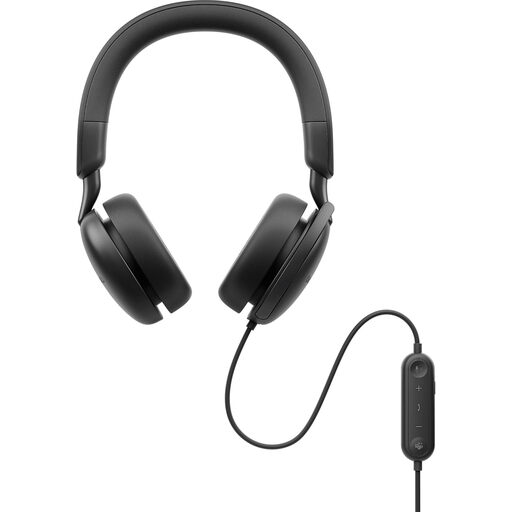 Image unavailable
Dell Pro Plus Wired ANC Headset WH5024
A wired headset to consider if regular calls in a shared space make laptop audio impractical. Check the connection, meeting software and employer’s accessory rules before using it for work.
View on Joybuy
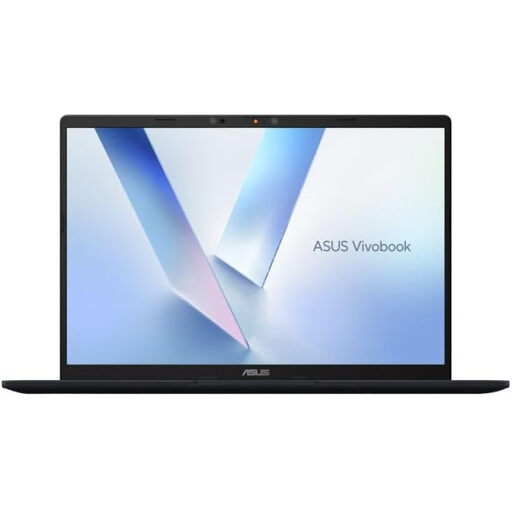 Image unavailable
ASUS Vivobook 14 X1407QA-LY003W, Snapdragon X, 16GB RAM, 512GB SSD, Quiet Blue
A laptop option for work that moves between home and another location. Check that required work applications and employer device rules accommodate this Snapdragon X configuration; confirm weight and battery runtime if you carry it regularly.
View on Joybuy
 Image unavailable
Targus USB-C Universal Dual HDMI 4K Docking Station, 100W Power Delivery Pass-Thru
A dock option for a home desk that repeatedly connects displays and peripherals. Confirm the laptop’s video and charging support, the intended monitor arrangement and whether the required external power adapter is in the package.
View on Joybuy
 Image unavailable
ASUS ZenScreen MB166CR FHD
A portable display to consider when a second screen needs to travel with the laptop. Check the computer’s video connection and how the monitor will be supported on each desk, including any accessories in the package.
View on Joybuy
 Image unavailable
AOC Q32V4 IPS monitor
A fixed-display option for a recurring home desk rather than a screen to carry between locations. Confirm its exact screen dimensions, connection to your computer and stand or mounting arrangement against the available desk space.
View on Joybuy
Common questions
Do I need an external monitor for hybrid work?
Not automatically. The Health and Safety Executive says employers must assess the workstation of workers who use display-screen equipment daily for continuous periods of an hour or more; hybrid workers’ home and workplace settings can both be relevant. Use the work and the individual assessment to decide whether a monitor or another adjustment is needed.
Will any USB-C dock run my monitor and charge my laptop?
No: a USB-C connector alone does not establish those functions. Lenovo’s USB-C dock guidance specifies compatible host protocols, so check the exact laptop’s video output and charging requirements against the dock and intended display arrangement.
Is a Teams-certified headset or webcam worth checking?
Yes, if Microsoft Teams is the meeting platform you must use. Microsoft says certified personal peripherals are tested for platform functions, including call controls, but you still need to check your employer’s approved-device rules and the connection available on your computer.
Can I use my own computer or accessories for work?
Confirm the specific device with your employer before connecting it to work systems. The Information Commissioner’s Office treats company-issued and personal devices differently in its homeworking guidance; approval for an accessory should not be assumed to extend to a personal computer or storage device.


