What should you check first?
Name the problem before choosing the accessory, then check the space, laptop and work-device rules that could affect it.
| Priority | What to check | Your needs |
|---|
| Screen setup |
Check desk space, screen position and the laptop’s video output. Consider a separate keyboard and mouse as part of the whole workstation, rather than assuming a monitor alone will resolve discomfort. |
I work at the same desk most days and need more room to view documents alongside calls or messages. |
| Calls |
Decide whether the difficulty is camera framing, microphone pickup, listening or call controls. Check the exact device and variant against the work computer and meeting platform. |
Colleagues need to hear me clearly in a shared room, or I need a better camera position for regular meetings. |
| Display and charging connections |
Check the laptop’s supported USB-C display mode, number of external displays and charging input. Compare those requirements with the dock, hub or portable monitor, including its charger and cable requirements. |
I want to connect a second screen or several desk devices without buying something my laptop cannot use. |
| Moving between locations |
Compare the equipment’s size and connections with the workspaces you use. For a portable monitor, verify video output and power support on the exact laptop port. |
My kitchen table has to be cleared after work, or I need to carry a second screen between home and office. |
| Work-device rules |
Ask IT about approved peripherals, drivers and meeting software before choosing equipment for a managed laptop. The National Cyber Security Centre advises organisations to test remote-working software. |
I use an employer-managed device and need an accessory that fits its permitted setup. |
| Powered accessories |
Match the adaptor and cable to the equipment’s stated requirements and keep the model identifiable for recall checks. The UK Office for Product Safety and Standards has reported a serious fire risk involving an AC adaptor with an insufficient fuse. |
I need a charger or powered hub whose identity and electrical requirements I can check before use. |
Joybuy product options
These options address call audio, a fixed second screen, a portable second screen and desk connections. Choose the type that matches your workspace, then check compatibility with your laptop and any employer-managed setup.
 No image available
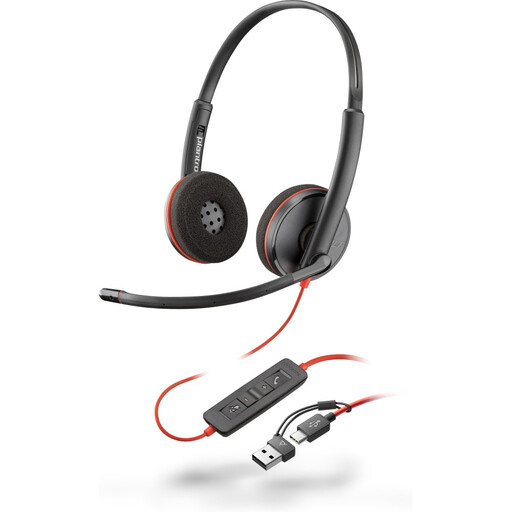
Poly Blackwire 3220 Stereo USB-C Headset with USB-C/A Adapter
A wired headset option for regular work calls where you can manage the cable at your desk. Check that your work device permits the connection and headset use.
View on Joybuy
 No image available
Targus USB-C Universal Dual HDMI 4K Docking Station, 100W PD Pass-Thru
For a desk where connecting displays and other devices is the main difficulty. Check your laptop’s USB-C display mode and charging input against the dock, and confirm the adaptor and cable needed for your setup.
View on Joybuy
 No image available
ASUS ZenScreen MB166CR FHD Portable Monitor
A second-screen option for a workspace that cannot keep a fixed monitor in place. Before choosing it, confirm that the exact laptop port supports the display connection you need.
View on Joybuy
 No image available
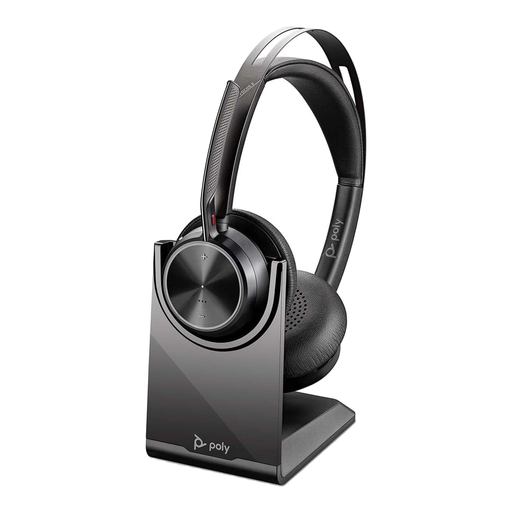
Poly Voyager Focus 2-M USB-C-C Headset
A headset option to consider if you move between work locations or calling devices. Confirm compatibility with your employer’s device and meeting software, and check the package contents if you need the charging stand named in the product title.
View on Joybuy
 No image available
AOC Q32V4 31.5-inch IPS Monitor
A fixed-screen option for regular work at a desk. Measure the available space, check the laptop’s display connection and consider the screen position as part of the whole workstation.
View on Joybuy
Frequently asked questions
Should I assess my workstation before buying a monitor?
Yes, if regular screen work is the reason for the purchase, identify what needs changing in the whole setup first. The Health and Safety Executive says display screen equipment rules can apply to routine home and hybrid work; use your employer’s assessment process where applicable rather than assuming a larger screen alone will address the issue.
Should I check my laptop before choosing a dock?
Yes. Check its supported display connections, intended number of screens and charging input against the exact dock. Dell UK lists different WD25 power-delivery figures for Dell and non-Dell systems, while Anker advises checking laptop DisplayPort support for its 565 hub.
Can any USB-C laptop run a portable monitor?
No: a USB-C connector alone does not establish display compatibility. Lenovo says its ThinkVision M14 requires a notebook port supporting DP1.2 Alt Mode and PD2.0, so check the requirements of both the monitor you choose and your exact laptop.
Do I need a Teams-certified headset?
Choose a Teams-certified variant when your organisation requires it or you need that model’s Teams-specific integration. Jabra says its Teams-certified devices offer a plug-and-play experience that differs from using a UC variant with Teams; check the exact variant and your employer’s requirements.
Can I connect a personal accessory to a work laptop?
Check your employer’s IT policy before buying an accessory that needs a driver, software installation or a particular connection. The National Cyber Security Centre advises organisations to test remote-working software, and your managed laptop may have its own permitted configuration.


