Who needs which setup?
The useful addition depends on what interrupts your work when you change location.
Frequent desk switchers
If you carry the same computer between home and office, a repeatable way to connect displays, networking and peripherals may matter more than adding another device. Check what each desk already provides before choosing a dock or hub.
Call-dependent hybrid workers
If meetings and voice calls occupy much of your week, consider the network connection, microphone, camera and meeting-platform requirements together. More ports alone will not settle whether your call equipment works with your computer.
Portable second-screen users
If you need documents or calls visible alongside other work away from a fixed desk, a portable display may be worth considering. Apple Support advises checking the exact computer’s ports and display-support specification before planning additional screens.
What should you check before buying?
Identify the computer and the connections available at both desks first. Then prioritise the one part of the setup that most often prevents you from working as intended.
| Concern |
What to check |
Who this matters to |
| Computer, dock and display compatibility |
Check the exact computer’s video protocol and supported external-display arrangement, then match them to the dock and monitor connections. Confirm charging separately. |
When I reconnect at either desk, I need my existing computer to work with its displays and peripherals without rebuilding the setup. Around 33% of consumers put that compatibility need first. |
| Calls and network access |
Check for an accessible wired network connection where needed, plus headset connectors and webcam support for the computer and meeting platforms you use. |
If calls are central to my working day, I need to join them dependably from both locations. For around 27% of consumers, call and connection reliability is the primary concern. |
| Transport and power |
Compare what you must carry each day and whether a charger’s connector, power delivery and simultaneous-use arrangement suit your devices. |
I want a setup I can pack without depending on a charger or cable I might leave at the other desk. Around 20% of consumers chiefly prioritise easier transport and usable power. |
| Screen workspace |
Confirm the computer’s display-support specification, the monitor input and cable, and whether the intended connection allows an extended desktop. |
When I work across documents or keep a call beside my main task, I need more usable screen space. That is the first priority for around 20% of consumers. |
Joybuy products for moving between desks
These docks, display and call accessories, and charger address different parts of a home-and-office setup. Choose for the connection or carrying problem you have, and check each item against your computer and both workspaces.
 No image available
Targus USB-C Universal Dual HDMI 4K Docking Station, 100W Power Delivery Pass-Thru, Retail Packaging
Consider this for a desk where you want to reconnect HDMI displays through a dock. Its title specifies dual HDMI 4K output and 100W Power Delivery pass-through; confirm the computer’s video support, accepted charging power and package contents before relying on either function.
View on Joybuy
 No image available
ASUS ZenScreen MB166CR FHD Portable Monitor
Consider a portable screen if you need additional workspace at changing locations. Before choosing the MB166CR, confirm that your computer supports its required video connection and the external-display arrangement you intend to use.
View on Joybuy
 No image available
Targus 2K Webcam with Auto Focus
A separate webcam is worth considering if the built-in camera does not suit your regular meeting setup. Check the required computer connection and confirm this model’s resolution before buying: its product title and technical details give different resolution descriptions.
View on Joybuy
 No image available
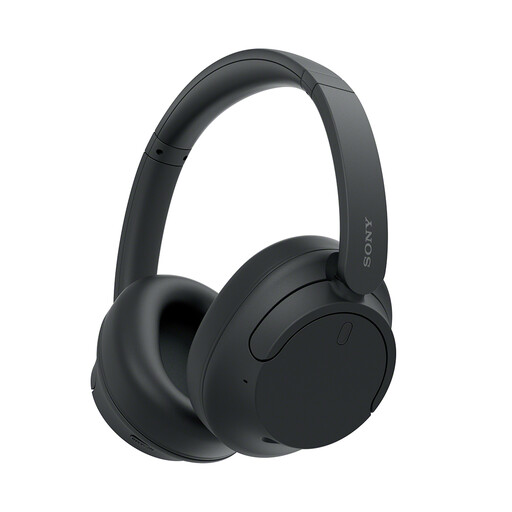
Sony WH-CH720N Noise-Cancelling Over-Ear Headphones, Black
These over-ear headphones are a call-accessory option if you move between work locations. Check Bluetooth calling and microphone behaviour with your computer and meeting platform; do not use noise cancellation where you need to remain aware of your surroundings.
View on Joybuy
 No image available
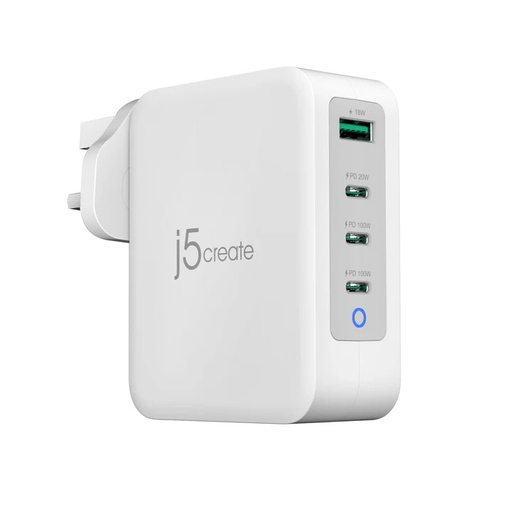
j5create JUP43130F 130W GaN USB-C 4-Port Charger, UK, White & Grey
A multi-port charger may reduce the number of charging accessories you carry. The 130W figure identifies the charger, not a promise that one connected laptop receives that power; check its USB-C power delivery and output when your intended devices charge together.
View on Joybuy
Frequently asked questions
Will any USB-C dock work with my laptop?
No: a USB-C connector alone does not confirm video, charging or every dock function. Lenovo says its USB-C and Thunderbolt docks require the relevant host capability, such as USB-C Alt-Mode, DisplayLink or Thunderbolt, and notes possible feature limits with non-Lenovo computers. Check the exact laptop-and-dock combination.
Will a dual-monitor dock give me two extended screens?
Only if the computer supports the intended external-display arrangement and the dock, cables and monitors can connect accordingly. Apple Support advises checking the computer’s Display Support or Video Support specification; a dock’s output count does not replace that check.
Is Ethernet worth considering for calls at home?
Yes, if your work position can reach a router or suitable network point and connection reliability is a concern. Ofcom advises that connecting a computer directly to a router with Ethernet can provide a faster, more reliable broadband connection than Wi-Fi; it is not a requirement for every desk.
Should I buy equipment myself to address discomfort at a hybrid-work desk?
Use your employer’s workstation assessment process before assuming a particular purchase will address the issue. The Health and Safety Executive says display screen equipment regulations can apply to workers who routinely split their time between home and workplace; the appropriate arrangement depends on the worker and both workspaces.
What should I check when replacing a laptop charger?
Match the connector and power specification to the laptop, then check the power available if you charge through a dock or share a multi-port charger. Microsoft warns that inadequate dock power can limit functions or prevent host charging. Use an identifiable, correctly specified replacement and check relevant safety notices rather than judging compatibility by connector shape alone.


