Choose equipment around the task that makes your current laptop setup difficult: an external display and separate input devices for sustained desk work, a compact hub for occasional reconnection, or a desktop dock if you repeatedly connect several peripherals and charging at one desk. Before buying a video-capable hub or dock, check the exact laptop model, its display-output limits and its charging requirements; the shape of a USB-C port does not establish what it can do.
Who needs which setup?
Workers who reconnect a laptop in two places
If you carry one laptop between home and office, the useful purchase is the one that makes your usual display, power and peripherals straightforward to reconnect. A compact hub may be easier to carry; a desktop dock makes more sense when the connections stay at one desk.
People working across documents and windows
For sustained spreadsheet, document and browser work, consider usable screen space alongside the position of the laptop, keyboard and mouse. The Health and Safety Executive advises considering the whole workstation rather than treating one accessory as a complete answer.
People taking frequent calls in shared homes
If being seen or heard is the main difficulty, a webcam or headset is more directly relevant than extra display sockets. Match the accessory to the particular camera, microphone or listening problem and to the laptop connection you use.
What should you check before buying?
Start with the work you do most often, then check whether your exact laptop and connection path can support the equipment you are considering.
| Priority | What to check | Your needs |
|---|
| Screen space |
Check the display size and mode you want, the monitor input, and the cable or adapter connecting it. Apple Support notes that a cable or adapter can limit resolution or refresh rate. |
I work across documents or several windows for long periods and want more room than my laptop screen offers. |
| Desk layout |
Consider where the screen, laptop, keyboard and mouse will sit together. For employee setups, use the applicable workstation assessment to address the whole arrangement, as the Health and Safety Executive advises. |
Raising or moving my laptop would help my desk arrangement, but I still need a practical way to type and navigate. |
| Ports and charging |
List the devices you actually reconnect. Check the laptop port’s video support, the hub or dock’s required host connection, its laptop-side power output and any required power supply. |
I regularly reconnect a display, power and other peripherals and want to avoid plugging each one into the laptop separately. |
| External displays |
Check the laptop model’s supported screen count, resolution and refresh rate, then compare the dock’s required video mode and operating-system conditions. Apple Support says Mac display limits depend on the model and display modes; StarTech.com specifies additional host conditions for its triple-display dock. |
Two display sockets on a dock are useful to me only if my laptop can run the screens in the modes I plan to use. |
| Calls |
Identify whether the problem is camera framing, lighting, microphone pickup or listening. Check the accessory’s connection type and compatibility with your laptop and meeting software. |
In a shared home, I would rather address the part of a call that is difficult than add more desk connections I will not use. |
Common setup mistakes
-
Assuming every USB-C port can drive a display
A USB-C-shaped connector does not, by itself, establish that the laptop supports the video mode required by a particular hub or dock.
Look up the exact laptop model and port, then match its display-output support to the accessory’s host requirements before ordering.
-
Counting dock display sockets instead of supported screens
The laptop, cable and video mode can limit the screen count, resolution or refresh rate available through a dock. Apple Support says supported external displays depend on the Mac model and display modes; StarTech.com specifies host conditions for its advertised multi-display modes.
Check your intended screens against the precise laptop model and every stated dock condition, including DisplayPort Alt Mode or Display Stream Compression where required.
-
Using pass-through wattage as the laptop charging figure
Some power is used by the accessory itself. StarTech.com states that one of its docks reserves 15W from a 100W Power Delivery pass-through input, leaving the remainder for charging.
Compare the stated laptop-side output with your laptop’s charging requirement, and check whether the required external power supply comes with the model you choose.
-
Treating an accessory as a whole-workstation fix
A monitor or stand changes part of the desk arrangement, but it does not address every aspect of positioning, equipment and working conditions. The Health and Safety Executive advises assessing the workstation as a whole.
For an employee setup, use the employer’s display-screen-equipment assessment process and raise discomfort or an identified setup problem rather than copying someone else’s desk layout.
Relevant brand references
StarTech.com
A reference for comparing USB-C docks and multiport adapters when the laptop’s connection specifications are known.
- StarTech.com specifies host requirements for particular multi-display dock modes, making it possible to check a model against the intended laptop.
- Its stated dual- or triple-display modes have conditions; a dock’s connector count does not establish that every laptop can use those modes.
Anker
A brand to consider when comparing USB-C hubs and desktop docks for a laptop setup.
- Compare the ports and charging arrangement of the particular model with the devices you use at home.
- Check host-video requirements and laptop-side charging output for the exact model rather than assuming specifications are shared across a range.
Logitech
A reference for call equipment when a camera or other peripheral, rather than a dock, addresses the immediate need.
- Logitech lists webcam options at 720p, 1080p and 4K, allowing resolution to be considered alongside the intended meeting setup.
- A webcam does not change the laptop’s external-display or charging capabilities.
Joybuy options for hybrid work
These options address different parts of a laptop setup: a display for a fixed desk or travel, adapters for reconnecting peripherals, and headphones for calls. Choose by the task and connection you need rather than treating the products as interchangeable.
 No image available
ASUS ProArt PA278CV IPS WQHD monitor
Consider this external monitor if screen space is the main constraint at a regular home desk. Its name identifies an IPS WQHD display; check that your laptop, chosen port and cable can deliver the display mode you intend to use. If you plan to charge the laptop through the monitor, confirm the laptop-side power output against its requirements.
View on Joybuy
 No image available
Targus USB-C Universal Dual HDMI 4K Docking Station, 100W PD pass-through
This dock is relevant if you repeatedly reconnect displays and desk peripherals. Its named configuration includes dual HDMI and 100W Power Delivery pass-through, but neither establishes how many screens your laptop can run or the power it will receive. Check the laptop’s video mode and display limits, the actual laptop-side charging output, and the external adapter requirement and inclusion.
View on Joybuy
 No image available
V7 V7UC-U3CRJ45HDVG-BLK USB-C adapter
For a setup needing a display connection and wired network access, this model’s name specifies 4K HDMI, VGA, Gigabit Ethernet, dual USB 3.0 ports and 100W Power Delivery. It is described as a single-display adapter, so do not choose it for two simultaneous external screens without confirming an alternative arrangement. Check your laptop’s USB-C video support and the actual charging output; the stated HDMI mode is up to 4K at 30Hz.
View on Joybuy
 No image available
ASUS ZenScreen MB166CR FHD portable monitor
This portable display is relevant if you want another screen away from a permanent desk. The stated connection uses USB-C DisplayPort Alternate Mode, so confirm that the exact laptop port supports it before choosing the monitor. It is not a substitute for an HDMI-connected display if HDMI is required by your setup.
View on Joybuy
 No image available
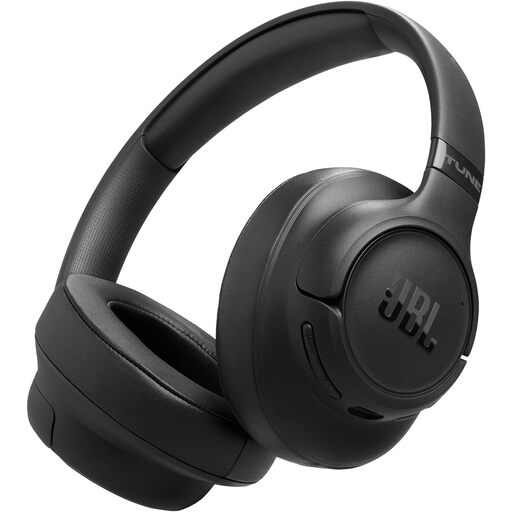
JBL Tune 780NC wireless over-ear noise-cancelling headphones, black
Consider these headphones if listening and microphone use during calls are the main concern, rather than screen space or laptop ports. The product name identifies a wireless over-ear noise-cancelling model; check Bluetooth and microphone behaviour with your laptop and meeting software before relying on it for work calls.
View on Joybuy
Frequently asked questions
How do I check whether a USB-C dock will run my monitor and charge my laptop?
Start with the exact laptop model: check its USB-C display-output and charging support, plus its external-display limits. Then compare those specifications with the dock’s required host video mode, your intended resolution and refresh rate, and its stated laptop-side power output. Check any power supply the dock requires as well.
Will two or three display outputs on a dock work with any laptop?
No. The laptop must support the intended number of external screens and their display modes. Apple Support says a Mac’s supported display count depends on its model and the displays’ resolution and refresh rate; StarTech.com states specific host-video conditions for its advertised multi-display dock modes. Match the dock to your exact laptop before buying.
Should a hybrid worker consider both home and office workstations?
Yes, where display-screen equipment is used in both places. The Health and Safety Executive says the assessment should cover both situations, so consider the complete workstation in each location rather than assuming that moving the same laptop makes the arrangements equivalent.


