Workers who take calls at both locations
If meetings move between home and a shared workplace, microphone and camera access matter alongside compatibility with your employer’s conferencing platform.


Build a carryable kit around the work you do at both desks: prioritise call equipment for frequent meetings, a compatible connection setup for repeated laptop reconnection, or a second screen when you need one in each location. Before buying, check your employer’s accessory rules, the laptop’s ports and charging requirements, and the whole workstation setup; a connector that fits does not establish that every function will work.
If meetings move between home and a shared workplace, microphone and camera access matter alongside compatibility with your employer’s conferencing platform.
A hub, dock or portable display may simplify repeated setup, provided the laptop supports the required video, charging and peripheral connections.
Bag size and carry weight matter, but so does the desk you assemble on arrival. The Health and Safety Executive says employers must assess workstations where workers use display screen equipment daily as part of normal work for continuous periods of an hour or more.
Start with the task you repeat at both locations, then check the laptop, meeting software and workplace rules that the accessory must work with.
| Priority | What to check | Your needs |
|---|---|---|
| Workplace approval | Ask IT about personal USB devices, Bluetooth pairing, card readers and any required vendor software. Check the rules for the employer-issued laptop before choosing a connection method. | I want to use the same accessories at both desks without choosing something my employer will not permit. |
| Calls and video | Match the headset or webcam variant to the meeting platform and operating system. Check microphone and camera permissions in the app or browser; Microsoft notes that Teams on the web may require permission for these devices. | When meetings follow me between locations, I need a microphone and camera I can set up and use with my work software. |
| Display connections | Check the exact laptop port for video output, the monitor’s input and any required cable. ASUS specifies USB-C DisplayPort Alt Mode for the USB-C video connection on its ZenScreen MB16AHG; other models need their own checks. | A second screen is useful to me at both desks, but I need to know that my laptop can drive the one I carry. |
| Charging and peripherals | Compare the laptop’s charging requirements with a hub or dock’s pass-through rating. Check the ports needed at each desk and whether external power equipment is required. | I regularly reconnect charging and other devices, so I want a setup that works with my actual laptop and desk equipment. |
| Workstation and carrying | Check the size and weight of what you will carry, plus stand limits and keyboard placement. The Health and Safety Executive’s workstation assessment concerns the whole setup, not just screen height. | I need equipment that fits my journey and lets me arrange a workable desk at each location. |
A hub’s connections do not establish what the laptop’s USB-C port can send. A portable monitor may also require a particular video mode.
Check the exact laptop model’s video-output specification against the hub or monitor input before buying.
A platform-oriented variant does not guarantee every control will work with your employer’s app, operating system and device settings.
Confirm the meeting platform, connection type and required headset variant with IT.
Raising the screen also changes where you use the keyboard and pointing device. The Health and Safety Executive says an applicable display screen equipment assessment must consider the whole workstation.
Review the screen, keyboard, mouse, chair, desk and working conditions at both locations rather than selecting a stand in isolation.
Wireless pairing, removable storage or accessory software may be subject to employer controls. The National Cyber Security Centre’s bring-your-own-device guidance emphasises device management alongside usability and security.
Ask IT which personal peripherals and associated software are allowed before purchasing them for an employer-issued laptop.
These examples illustrate equipment types and checks; a brand’s inclusion does not establish that every model suits your laptop or workplace.
The Evolve2 65 Flex is a foldable headset offered in Microsoft Teams and Unified Communications variants.
Brio 505 is a business webcam; MX Keys Mini for Business is a compact keyboard with an English UK QWERTY variant.
ZenScreen MB16AHG is a portable-display example for workers considering a second screen at both locations.
Anker’s cited 7-in-1 USB-C hub combines display, USB, charging and card-reader connections.
The Easy Riser Aluminium is a fold-flat laptop riser for a desk setup that may need to travel.
These options cover webcams, a laptop dock, portable monitors and a headset for work across two locations. Choose by the connection and task you need, rather than treating them as interchangeable parts of one kit.
 No image available
Consider this for video calls at both locations. The name says 2K, while the supplied detailed specification lists 1080p at 30 fps; confirm the recording resolution you need, along with employer approval and camera permissions.
 No image available
For reconnecting displays and peripherals at different desks, check the laptop’s USB-C video output and charging requirements first. The listing says an external 100W+ adapter is required; confirm whether it is included and whether the dock’s connections are permitted at work.
 No image available
A second-screen option for more than one desk, with an IPS panel stated in the product name. Check that the intended laptop can send video through its USB-C port; do not assume the connections specified for another ZenScreen model apply here.
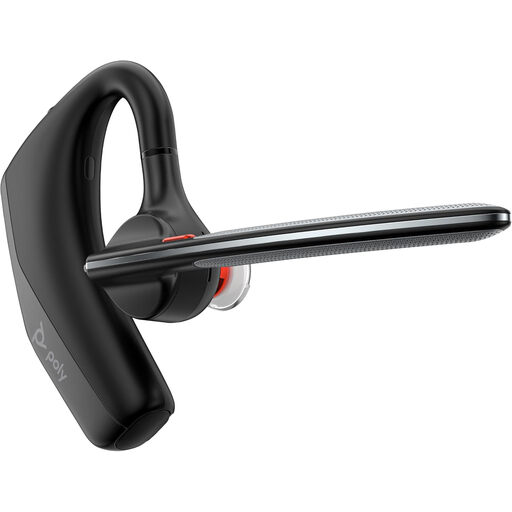 No image available
A headset option for calls across locations. Before relying on wireless pairing or meeting controls, confirm the employer’s Bluetooth rules and compatibility with its operating system and conferencing platform.
 No image available
Consider this if touch input matters in a carried second screen; the product name also specifies 100% sRGB and a 180° adjustable stand. Check laptop video and touch compatibility, and confirm the carry weight if it will travel regularly.
Ask your employer’s IT team before buying. The National Cyber Security Centre’s bring-your-own-device guidance highlights the need to balance device management, usability and security; check the rules for USB peripherals, Bluetooth, storage functions and vendor software.
No: the laptop port must support the monitor’s required video connection. For example, ASUS specifies DisplayPort Alt Mode for USB-C video on the ZenScreen MB16AHG, so check the exact laptop and monitor models rather than relying on the USB-C connector shape.
No. Microsoft suggests Teams-certified models for optimum performance, but you should confirm the headset variant, operating system, installed meeting app and employer device requirements before purchase.
No. The Health and Safety Executive says employers must carry out a workstation assessment for workers who use display screen equipment daily as part of normal work for continuous periods of an hour or more. A stand addresses only part of the setup; the assessment considers the workstation and how it is used.
Camera or microphone permission may need to be allowed for Teams on the web. Microsoft advises checking device permissions; if a workplace setting prevents you from changing them, contact IT.