Who this set-up is for
The right starting point depends on whether your main difficulty is desk space, work-device compatibility or taking calls at home.
Regular home-working laptop users
If you work from home repeatedly, choose connections and screen placement that suit your usual desk rather than a temporary arrangement. The Office for National Statistics reported that 28% of working adults in Great Britain hybrid worked between January and March 2025; that figure describes working patterns, not accessory purchases.
Users of managed work laptops
If your employer manages your Windows or Mac laptop, check its rules before buying a dock, webcam or wired-network accessory. Microsoft documents controls that organisations can use to restrict USB devices and device installation.
Video-call workers with limited desk space
If calls are frequent but space is tight, consider whether raising the laptop and using separate input devices solves the immediate problem. Check camera position, household noise and connection stability separately before adding call equipment.
What to check before buying
Check laptop and work-device compatibility before planning a dock or display. Then decide which single change would make the biggest difference at your home desk.
| Concern |
What to check |
Who this matters to |
| Screen space and desk fit |
Measure the available desk space; check the laptop’s video output, monitor input and supported external-display count. |
If I need documents and meeting windows visible together, I want more screen space without crowding my desk. Around 34% of consumers put screen space and practical desk fit first. |
| Laptop and dock compatibility |
Match the exact laptop model and port capabilities to the dock’s display, charging and software requirements; ask IT about managed-device restrictions. |
When I reconnect several devices for each home-working day, I need a dock that my work laptop can actually use. Compatibility comes first for around 33% of consumers. |
| Calls and home noise |
Check camera position, audio connection and whether the work laptop permits the chosen webcam or headset. |
For frequent calls in a shared home, I need a workable camera position and a way to manage my audio. Around 20% of consumers make call clarity and privacy their primary concern. |
| Network reliability |
Test the connection at the intended desk; if considering Ethernet, check router access, cable routing and adapter compatibility. |
If calls freeze or my laptop disconnects at home, I want to find out whether Wi-Fi is the cause before changing call equipment. A reliable connection is the first concern for around 13% of consumers. |
Joybuy product choices
These choices cover docks and adapters for a connected desk, monitors for extra screen space, and a wired call headset. Pick the accessory for your main need, then check it against your laptop and available space.
 No image available
Targus USB-C Universal Dual HDMI 4K Docking Station with 100W Power Delivery Pass-Thru
Consider a dock if you regularly reconnect a display and other desk devices. This model is named for dual HDMI connections and 100W Power Delivery pass-through; check the laptop’s video and charging capabilities, supported display arrangement and whether the required power adapter is included.
View on Joybuy
 No image available
V7 V7UC-U3CRJ45HDVG-BLK USB-C Adapter
Consider this adapter when your desk needs wired networking alongside a single external display. Its name specifies 4K HDMI, VGA, Gigabit Ethernet, 100W Power Delivery and two USB 3.0 ports. Check USB-C video and charging compatibility; this adapter is described for single-display use, not two independent external displays.
View on Joybuy
 No image available
ASUS ZENSCREEN MB166CR FHD Monitor
Consider a separate screen if you need more room for work windows and want to move the display between locations. For the stated single-cable connection, check that your laptop supports USB-C DisplayPort Alternate Mode; also check the package contents and how the screen will sit on your desk.
View on Joybuy
 No image available
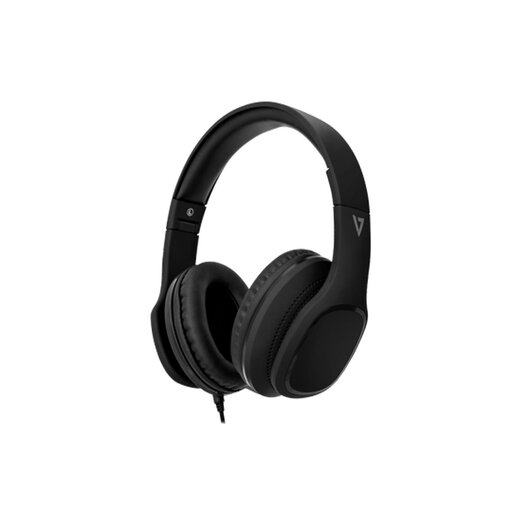
V7 HA701-3EP Wired Over-Ear Headphones with MEMS Microphone
Consider a wired headset when calls in a shared home make personal audio important. The name specifies 40mm drivers and an in-line microphone; check that your work device accepts its audio and microphone connection. Its noise isolation is passive, not active noise cancellation.
View on Joybuy
 No image available
AOC Q32V4 31.5-inch IPS Monitor
Consider a stationary monitor when your home desk has room for a 31.5-inch screen. The product name specifies an IPS panel and built-in speakers. Check the monitor and stand dimensions against your desk, and confirm that your laptop supports the intended video connection and display setting.
View on Joybuy
Frequently asked questions
Should I buy a dock before checking my laptop ports?
No: identify the exact laptop model, video-capable ports, external-display support and charging requirement first. USB-C describes the connector, not every feature a dock needs; Apple also notes that Mac external-display support depends on the model.
Will a display splitter give me two extended desktops?
A simple display splitter duplicates a signal rather than creating two independent desktops, according to Microsoft. If you need extension, check the laptop’s display limit and the exact dock or adapter arrangement before buying.
Can I use a DisplayLink dock with a managed work laptop?
Possibly, if the employer permits the named dock and its required software. DisplayLink provides tools for corporate software deployment, while Microsoft documents device-installation and USB restrictions that organisations can apply; ask IT before purchasing.
When should I consider an Ethernet adapter?
Consider one when Wi-Fi at your home desk repeatedly disrupts work and a router or network switch is reachable by cable. Test the connection first: Ethernet cannot resolve every broadband-line, provider or VPN problem.
Should electrical workstation accessories in Great Britain have UKCA marking?
UKCA is not the only recognised marking under relevant product regulations in Great Britain: GOV.UK guidance says CE marking continues to be recognised alongside or in place of UKCA marking. The applicable requirements depend on the product; a marking alone does not establish laptop compatibility, so check the accessory’s identity and power specifications separately.


