What should you check first?
Decide whether an item addresses an assessed work need, then match each possible addition to your desk, laptop and daily tasks.
| Priority | What to check | Your needs |
|---|
| Workstation assessment |
For daily display screen equipment work involving continuous periods of an hour or more, the Health and Safety Executive says employers in Great Britain must assess the workstation. Ask whether the home setup and any proposed equipment need assessment. |
I regularly work from home and want to establish which changes are work requirements before choosing a personal upgrade. The Health and Safety Executive and its Northern Ireland counterpart say workers cannot be charged for equipment an assessment indicates must be provided. |
| Screen and desk fit |
Measure the usable desk area; check monitor inputs against the laptop or dock, and review stand adjustment. Which? identifies size, ports and adjustment as factors in choosing a home-office monitor. |
More room for documents or multiple windows would help me, but the display still has to fit beside the laptop and leave space for how I work. |
| Connections and charging |
Check the exact laptop’s video output, supported display count and charging requirement against the hub or dock’s host requirements and outputs. DisplayPort guidance distinguishes supported video over USB-C from the connector shape alone. |
I reconnect several devices at home and would value fewer cable changes, provided the chosen connection handles the displays and charging my laptop needs. |
| Typing and pointing |
Check where the laptop screen and separate keyboard and mouse will sit, plus the connection each input device needs. Include the whole workstation when discussing assessed needs, as the Health and Safety Executive advises. |
I use the home desk for long enough to want the screen positioned separately from where I type and point. |
| Meetings |
Check webcam mounting and connector type, or headset connection and microphone arrangement. Confirm operating-system and calling-platform support for the exact model. |
On frequent calls, I may need a different camera position or a dedicated microphone rather than another display accessory. |
Joybuy options for a home laptop setup
These options cover calls, a single-display adapter, a separate monitor and keyboard-and-mouse input for a laptop-based home desk. Choose by the task and connections you actually need; the items need not all be used together.
 No image available
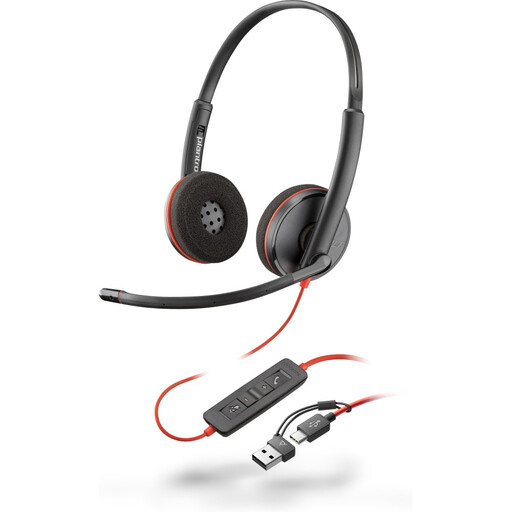
Poly Blackwire 3220 Stereo USB-C Headset + USB-C/A Adapter
Consider this wired headset for frequent work calls when you want a separate audio device. The product name identifies a USB-C headset and USB-C/A adapter; confirm that its connection and call controls suit your work device and calling application.
View on Joybuy
 No image available
V7 V7UC-U3CRJ45HDVG-BLK USB-C Adapter
This adapter is an option when a compatible laptop needs a display connection, wired networking and USB ports at the desk. Its name specifies 4K HDMI, VGA, Gigabit Ethernet, 100W Power Delivery and dual USB 3.0 ports; the stated display operation is limited to one external display. Check the laptop’s video and charging support before relying on those connections.
View on Joybuy
 No image available
Samsung 22-inch S40GD LS22D400GAUXXU Full HD Monitor
A separate 22-inch Full HD screen is worth considering when the laptop display feels restrictive at a fixed desk. Measure the available space and confirm the connection from your laptop or dock, including any cable you will need.
View on Joybuy
 No image available
Targus Webcam with Auto Focus
A separate webcam may help when you need a camera position away from the laptop screen. Confirm its mounting, connection and calling-platform fit. Check the stated resolution before ordering, as the product information gives conflicting resolution descriptions.
View on Joybuy
 No image available
Philips SPT6318B/05 3000 Series Wireless Keyboard and Mouse, UK English, Black
A separate keyboard and mouse suit a home desk where you want to position the laptop screen independently of where you type. This is the UK English variant; check that your laptop can use the required wireless receiver connection.
View on Joybuy
Questions about home laptop equipment
Do display screen equipment rules apply when I work from home?
They can apply to long-term home workers and people who routinely split work between home and their workplace. The Health and Safety Executive says that, in Great Britain, employers must assess workstations for workers who use display screen equipment daily as part of normal work for continuous periods of an hour or more. The Health and Safety Executive for Northern Ireland also identifies permanent home and routine hybrid workers in its guidance; raise your particular setup with your employer.
Should I ask my employer before buying equipment for home work?
Yes, if the equipment may address a workstation need covered by display screen equipment rules, raise it through the employer’s assessment process first. The Health and Safety Executive and the Health and Safety Executive for Northern Ireland say workers cannot be charged where an assessment indicates that equipment must be provided. That does not mean every independently chosen upgrade is an assessed requirement.
Will any USB-C dock run a monitor and charge my laptop?
No. DisplayPort guidance says USB-C can carry video in supported configurations, but the connector alone does not establish what your laptop and dock can do. Check the exact laptop’s display output and charging requirements, then match them to the dock, cable and monitor specifications.
What matters if I want two external monitors?
Check the exact laptop’s supported external-display count and resolutions alongside the dock’s host requirements and display modes. Confirm each monitor input and the required cables too; a dock’s stated multi-display capability may depend on the laptop’s DisplayPort or Thunderbolt support.
When should I add a webcam or headset?
Consider a webcam when regular calls require a different camera position from the laptop’s built-in camera, or a headset when you need a dedicated microphone and call audio. Check the exact device’s connector, operating-system requirements and compatibility with the calling application used for work.


