What should you check before buying?
Choose the main computer around where it must be used, then assess the desk, connections and calls that make up the home setup.
Portable laptop
Consider it when: the same computer must travel between home and the workplace.
Trade-off: a comfortable fixed home desk may still call for separate input devices or a display.
Fixed desktop
Consider it when: the computer will normally stay at home and your employer permits the intended work access.
Trade-off: it cannot serve as the computer you carry to workplace days.
| Priority | What to check | Your needs |
|---|
| Main computer |
Check which work applications and files it must handle. Decide whether that computer needs to travel or can remain at home. |
I need one computer for both locations, or a fixed home computer if my workplace arrangements allow it. |
| Work access |
Confirm employer permission for a personally owned device and the approved way to access or store work information. |
A computer is only useful for my job if I can use it with the services and files I need. |
| Desk position |
Check screen position and whether separate input devices would help. For prolonged laptop use, the Health and Safety Executive advises a separate keyboard and mouse so the screen can be raised, or a separate display. |
When I work at home for long stretches, I want to position the screen and keyboard without being constrained by the laptop hinge. |
| Display and dock |
Match monitor inputs, cables and positioning to the desk. For a dock, verify the exact laptop’s video protocol, intended display configuration and charging requirements; a USB-C plug alone does not establish compatibility. |
My laptop already handles the work, but I want a practical way to connect the home screen and other desk equipment. |
| Meeting devices |
Test the selected microphone, speakers and camera in the work meeting app. Microsoft Teams and Zoom provide device tests; also check permissions and the exact peripheral model’s compatibility. |
Calls are the problem I need to address, rather than the computer I use for files. |
| Home connection |
Check where Wi-Fi is weak, what else is using the connection and whether there is a provider fault. Ofcom advises checking household data use when diagnosing broadband and Wi-Fi problems. |
Calls drop in my work area, and I need to know whether coverage, shared use or the broadband service is responsible. |
Joybuy options for a home-work setup
These options cover a portable main computer, home-desk connections and displays, and a separate meeting camera. Choose a route based on the part of your setup that needs attention.
 No image available
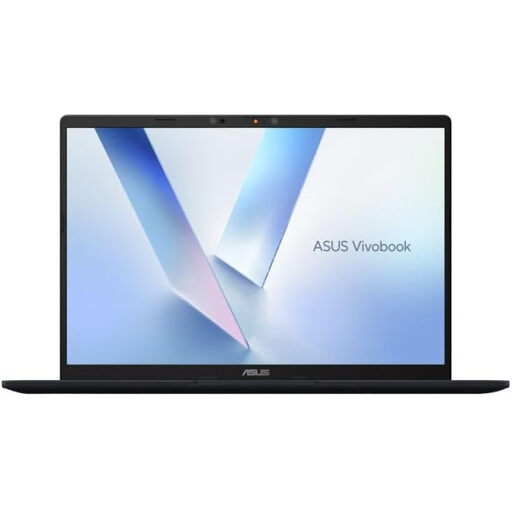
ASUS Vivobook 14 X1407QA-LY003W Copilot+ PC — Snapdragon X, 16GB RAM, 512GB SSD, Quiet Blue
Consider this portable-computer option if one device needs to move between home and the workplace.
The product name specifies a 14-inch Vivobook with Snapdragon X, 16GB RAM and a 512GB SSD. Check your required applications and your employer’s rules for work access before choosing a personal laptop.
View on Joybuy
 No image available
Targus USB-C Universal Dual HDMI 4K Dock — 100W PD Pass-Thru, Retail Packaging
Consider a dock when a laptop already meets your work needs but connecting the home desk takes several separate steps.
The product name specifies dual HDMI outputs and 100W Power Delivery pass-through. Confirm the laptop’s supported display modes and charging requirement, and check which power adaptor and cables come with the retail package; the dock’s stated capability does not establish what the laptop can use.
View on Joybuy
 No image available
ASUS ZENSCREEN MB166CR FHD monitor
This is an external-screen option for someone who wants to assess a second display alongside a laptop.
Check how the MB166CR connects to your exact computer, which accessories are included and how it can be positioned at the home desk.
View on Joybuy
 No image available
AOC Q32V4 31.5-inch IPS monitor with built-in speakers
Consider this larger external display if the home desk has room for a separate screen.
The product name identifies a 31.5-inch IPS monitor with built-in speakers. Check its connections against your computer and confirm whether its stand or a suitable mount can place the screen where you need it.
View on Joybuy
 No image available
EMEET All-in-One 4K Webcam — Sony Sensor, 4-Mic Array, 98° Adjustable FOV
Consider a separate camera when the computer handles work files but the meeting setup needs attention.
The product name specifies fixed focus, a four-microphone array and dual speakers. Test camera permissions and the selected microphone and speakers in your actual work meeting app before relying on the setup for calls.
View on Joybuy
Frequently asked questions
Should I speak to my employer before buying equipment for home working?
Yes, ask what equipment and work-access arrangements your employer has approved. The Health and Safety Executive says display screen equipment rules can apply to workers who routinely split their time between home and a workplace; discuss your workstation assessment and equipment needs before paying for a change yourself.
Can I use my own laptop or desktop for work files?
Only if your employer permits the intended device and access method. The National Cyber Security Centre’s guidance on personally owned work devices identifies security and management risks that an individual hardware purchase cannot settle.
How can I tell whether a dock will run my monitor and charge my laptop?
Check the exact laptop and dock models, the intended display configuration and the laptop’s charging requirement. Lenovo’s dock guidance identifies host support for USB-C Alt-Mode, DisplayLink or Thunderbolt as relevant; a matching connector shape alone is not enough.
Should I buy mesh Wi-Fi when video calls keep dropping?
Check the cause first. Ofcom advises looking at other household data use when diagnosing connection problems; also check equipment and provider status. Consider mesh if coverage remains weak in the work area, rather than assuming it will fix a provider fault.
How should I check a new webcam or headset before a work call?
Test it in the meeting service you use for work. Microsoft Teams offers a test call for the microphone, speaker and camera, while Zoom lets you test and select audio devices. Check camera permissions and device selection as part of the same test.


