Who is this setup for?
A regular home desk calls for different equipment depending on whether screen work, laptop connections or online meetings are the main difficulty.
Hybrid workers with a regular home desk
If you routinely work both at home and at an employer location, focus on a usable desk arrangement rather than a travel kit. The Office for National Statistics reported that 28% of working adults in Great Britain hybrid worked between January and March 2025; that figure describes working arrangements, not demand for particular devices. The Health and Safety Executive says its home display screen equipment guidance can apply to workers who routinely split their time between home and the workplace.
Laptop users who need more screen space or connections
A monitor, docking monitor and separate dock solve different problems. Check what your laptop can output through its ports, whether you want charging through the same connection and which desk peripherals need to stay connected.
People who spend time on video calls
Decide whether camera position, voice pickup or private listening needs attention. A webcam and a headset serve different parts of a call, so check their mounting, connectors and meeting-software requirements separately.
What should you check first?
Look at your current desk and laptop before choosing a device. The Health and Safety Executive’s workstation checklist covers the display, keyboard, pointing device, furniture and work environment together.
| Priority |
What to check |
Your needs |
| Screen and desk layout |
Check available desk space, screen position and whether the stand offers the adjustments you need. Consider where the keyboard and mouse will sit when the laptop or display is raised. |
I need more room for screen work without leaving the keyboard or mouse awkwardly placed. A monitor is one part of that desk arrangement, not a complete posture fix. |
| Dock and display connections |
Check the laptop’s supported display output, the dock or monitor inputs, the intended number of displays and the required cable. Confirm the peripheral ports you will actually use. |
Several devices will stay at my desk, so I want a connection routine that suits my laptop. A USB-C-shaped port alone does not confirm every display or docking function. |
| Laptop charging |
If you want one cable for charging as well as display and data, compare the laptop’s requirements with the dock or monitor’s stated power delivery. Check any required external power adapter. |
Can the desk connection charge my laptop, or will I still use its charger? The answer depends on the exact laptop and dock or monitor configuration. |
| Video meetings |
Check whether a webcam can sit where you want it, and confirm its mount, connector and cable reach. Check that the intended meeting application recognises it. |
My laptop camera is poorly placed when I use the home screen. A separate webcam may let me position the camera independently. |
| Call audio and input devices |
For a headset, check connector, microphone arrangement, controls and fit for the intended call duration. For a separate keyboard and mouse, check their connection options and the keyboard layout. |
I need private listening or a microphone positioned for regular calls; alternatively, I need to type and point comfortably while the screen sits elsewhere. |
Which brands are relevant?
These brands provide examples across displays, docking and meeting peripherals; features depend on the particular model, and brand inclusion does not indicate that a product is in the Joybuy selection below.
Dell
Dell’s UK USB-C monitor range is relevant if you want to compare a conventional external display with a monitor that also connects desk peripherals.
- Dell UK lists model-specific USB-C display and power-delivery features; its Pro P 34 USB-C Hub Conferencing Monitor, for example, specifies power delivery up to 90 W.
- Check the exact monitor’s ports and charging output against your laptop rather than assuming every Dell monitor has the same hub functions.
Lenovo
Lenovo’s docking-monitor range is relevant when you want a display to form part of a fixed laptop connection at home.
- Lenovo describes USB-C and Thunderbolt connectivity options in its docking-monitor range.
- Confirm the selected monitor’s ports, charging specification and compatibility with the laptop and intended display setup.
Logitech
Logitech offers keyboard, mouse, webcam and headset options for assembling a home desk around an existing computer.
- Its work-from-home collection includes input devices and call peripherals; Logitech describes USB-A connectivity for its H390 headset.
- Connection and microphone-performance descriptions are model-specific manufacturer claims. Check the chosen device against your ports and desk layout.
Jabra
Jabra’s business range is relevant when calls are the main reason for adding a headset or speakerphone.
- Jabra lists headsets, speakerphones and video-conferencing equipment for business calls.
- Its noise and collaboration descriptions are brand claims; check the exact model’s connector, fit and any meeting-platform requirements.
AnkerWork
AnkerWork’s catalogue is relevant if the main addition to your desk is video or audio equipment for meetings.
- The brand lists webcam and speakerphone options for home video conferences.
- The catalogue’s image and sound descriptions do not establish how a particular device will perform in your room or meeting application.
Joybuy options for a home desk
These options cover separate additions to a regular home workstation: a monitor, a dock, a headset, a keyboard-and-mouse set and a webcam. Choose according to the gap you have identified, then check the relevant laptop and desk compatibility.
 No image available
ASUS ProArt PA278CV IPS WQHD monitor
Consider this 27-inch external monitor if screen space and independent display positioning are the main needs at your home desk.
The listing specifies 2560 × 1440 resolution, height, tilt, swivel and pivot adjustment, USB-C power delivery and a USB hub. Check the required charging wattage and display connection against your laptop, and allow room for the keyboard and mouse in the overall desk layout.
View on Joybuy
 No image available
Targus USB-C Universal Dual HDMI 4K Docking Station, 100W Power Delivery Pass-Thru (Retail Packaging)
This separate dock is an option when displays and other desk peripherals need to connect to a laptop used regularly at home.
The listing specifies two HDMI 2.0 outputs, USB-A ports, card readers, Gigabit Ethernet and up to 100W power-delivery pass-through. Confirm the laptop’s USB-C display support and intended dual-display configuration. The listing describes use with an external adapter rated at 100W or higher; check the package contents before purchase.
View on Joybuy
 No image available
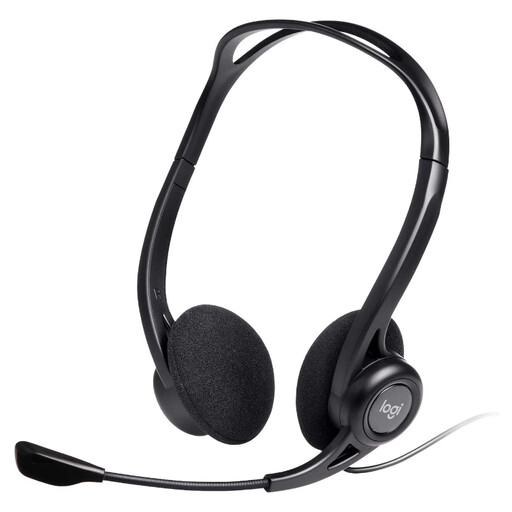
Logitech 960 Wired USB Headset, Black
A wired headset addresses private listening and microphone positioning for recurring computer calls.
The listing specifies USB-A connection, an adjustable microphone boom, inline mute and volume controls, and an approximately 2.4 m cable. Check for an available USB-A port and a comfortable fit for your intended call duration; microphone noise-cancellation descriptions are listing claims, not a guarantee of call quality.
View on Joybuy
 No image available
HP 680 CFT Dual-Mode Keyboard and Mouse Combo
Separate input devices let you position the keyboard and mouse independently when a laptop is raised or an external screen is in use.
The listing describes Bluetooth or USB-receiver connectivity and connection to up to three devices. Check which connection suits your computer and confirm the keyboard layout is suitable for UK typing before buying.
View on Joybuy
 No image available
Targus 2K Webcam with Auto Focus
A separate webcam may help when the laptop sits away from you or you want the camera mounted by an external display.
The listing describes a monitor or laptop clip, tripod thread, built-in microphone, privacy slider and USB-C-to-A cable and adapter. Confirm the connection and meeting-application compatibility. Check the exact video resolution before buying: the product title says 2K, while its technical details state Full HD 1080p.
View on Joybuy
Home-workstation questions
Does hybrid work mean I need a complete home-office bundle?
No particular bundle follows from hybrid working alone. The Health and Safety Executive says its home display screen equipment guidance can apply to people who routinely split work between home and the workplace; its workstation checklist considers the screen, input devices, furniture and environment together. Identify the part of your arrangement that needs attention before adding equipment.
What should I check before buying a USB-C dock or docking monitor?
Check the exact laptop port’s display capability, the intended monitor connections, peripheral ports, charging requirements and cable. Microsoft Learn describes how USB-C docking can combine displays, data devices and power on supported systems; a shared connector shape does not establish that your particular laptop and dock provide every function you need.
Will a USB-C dock drive two monitors and charge my laptop?
That depends on the laptop, dock, displays, power arrangement and cables. Compare their specifications for the intended two-display configuration and charging output rather than relying on the dock’s port count or a USB-C label alone.
When is a separate webcam worth considering?
Consider one when you need to position the camera away from the laptop, such as beside an external screen or when the laptop sits farther back on the desk. Check the mount, connector, cable reach and recognition by your meeting application before choosing a model.


