What should you check first?
Start with the workstation issue and your employer’s equipment arrangements, then check the fit of any accessory you intend to buy. Each concern below describes consumers for whom that need takes priority over the others.
| Concern |
What to check |
Who this matters to |
| Screen and input position |
Check whether a raised laptop can be used with a separate keyboard and mouse, or whether a separate display fits the desk. |
If I work on a laptop for long stretches, I need to position the screen without having to type on a raised keyboard. About 36% of consumers put screen and input position first. |
| Moving between desks |
Compare the equipment at home and in the office; ask what your employer supplies and supports before duplicating it. |
When I move the same laptop between home and office, I want a workable arrangement at both desks without carrying or buying unnecessary equipment. Maintaining that arrangement comes first for about 29% of consumers. |
| Display and accessory connections |
Match the laptop’s video, data and charging capabilities to the intended hub or dock and display arrangement. |
If I need a monitor and wired accessories at my desk, I want to know that my laptop can run the connections I plan to use. For about 21% of consumers, connection compatibility is the primary need. |
| Call equipment |
Check the meeting software, connection type and employer rules before adding a webcam or headset. |
With regular work calls, I would address a specific audio or camera limitation rather than add peripherals indiscriminately. Call equipment is the first concern for about 14% of consumers. |
Brands to consider
These brands provide relevant product categories or compatibility guidance; choose by the requirements of a particular model and laptop, not by brand name alone.
Kensington
Kensington is relevant when comparing laptop docks and desk accessories.
- Its dock guidance distinguishes USB connector types and the capabilities a laptop may implement.
- That manufacturer guidance does not establish compatibility for a particular laptop, display arrangement or power requirement; check the exact models.
Logitech
Logitech’s UK work range includes keyboards, mice, webcams and headsets for buyers assembling separate peripherals.
- The range lets you look at input and call equipment as distinct purchases.
- Its catalogue does not establish that every model suits your layout, operating system or employer’s device rules; check the individual product.
Anker
Anker is relevant when considering a compact USB-C hub for a laptop desk.
- Specifications for its 565 USB-C Hub distinguish display modes according to the host laptop’s DisplayPort version.
- Those are 565-specific details, not capabilities of every Anker hub. Check the exact host, model and included accessories.
Joybuy products for displays and connections
These products address a separate screen or additional laptop connections for a home or hybrid desk. Check your employer’s equipment arrangements and your laptop’s outputs before choosing among them; a display or adapter does not resolve every workstation issue.
 No image available
ASUS ZenScreen MB166CR FHD
Consider this separate display if you move your laptop between desks. Check whether the exact laptop can provide the required video connection, and plan separately for keyboard and mouse position.
View on Joybuy
 No image available
AOC Q32V4 31.5-inch IPS monitor
This separate display is an option for a fixed home desk. Its product name specifies a 31.5-inch IPS screen and built-in speakers; check desk space, the screen position you need and your laptop’s video output before choosing it.
View on Joybuy
 No image available
V7 V7UC-U3CRJ45HDVG-BLK USB-C adapter
Consider this adapter when your desk needs display and wired-network connections. The product name specifies HDMI, VGA, Gigabit Ethernet, 100 W Power Delivery and two USB 3.0 ports; check which of those functions your laptop’s USB-C port supports and whether its display arrangement matches your needs.
View on Joybuy
 No image available
CRUA 32-inch 1500R curved QHD monitor
This is another separate-display option for a fixed desk. Its product name specifies 2560 × 1440 resolution, 165 Hz, HDMI, DisplayPort and VESA 100 × 100 mm mounting; check desk fit, viewing position and the laptop output and cable needed for your intended display mode.
View on Joybuy
 No image available
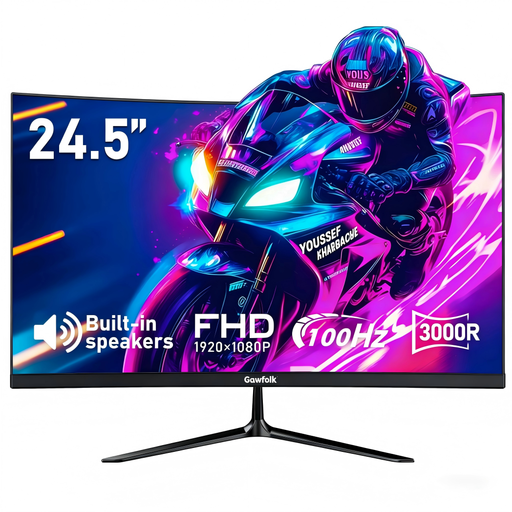
Gawfolk 24.5-inch curved FHD monitor
Consider this separate display when its screen size and positioning suit your desk. The product name specifies a 24.5-inch curved screen, 100 Hz, HDMI and VESA 75 × 75 mm mounting; confirm your laptop’s video output and the connection you intend to use.
View on Joybuy
Common questions
Should I ask my employer before buying home-work equipment?
Yes, if the purchase is intended to resolve a work-related workstation issue, ask about the applicable assessment and equipment arrangements first. In Great Britain, the Health and Safety Executive says employers must assess workers using display screen equipment daily for continuous periods of an hour or more, and workers cannot be charged for equipment an assessment identifies as necessary. Northern Ireland has its own display screen equipment regulations and regulator.
Does prolonged laptop work mean I need an external monitor?
Not necessarily. The Health and Safety Executive describes a separate keyboard and mouse with an elevated laptop screen, or a separate display, for prolonged laptop use. The choice should reflect the individual workstation and any applicable assessment rather than an assumption that every home worker needs a monitor.
Should a workstation assessment consider both my home and office desks?
Yes, where display screen equipment is used in both places, the Health and Safety Executive says the assessment should cover both situations. Compare the available screens, input devices and desk layouts before deciding what needs to move with you or remain at either location.
Will any USB-C dock connect my monitor and charge my laptop?
No: the USB-C connector alone does not establish those capabilities. Kensington advises that video and power-delivery support depend on the implementation; check the exact laptop’s port specification and the dock’s stated display, charging and accessory requirements.
What should I agree with my employer before adding call equipment?
Agree what equipment is needed for the job and what technical support and information-security arrangements apply, especially when a personal webcam or headset connects to a work laptop. Acas advises employers and staff to review home-working equipment and technology together.


