Choose the device that addresses your main difficulty: a monitor and separate input devices for screen position or desk tasks, a compatible hub or dock for repeated connections, or a webcam or headset for calls. Before buying a USB-C accessory, check the exact laptop’s video, charging and external-display support; the connector alone does not establish what the setup can do.
Who is this setup for?
Hybrid workers with a regular home desk
If you move between home and office but regularly work at one home desk, focus on the screen, connections or call equipment that limits your work there. The Health and Safety Executive’s display-screen guidance addresses home and hybrid workers as well as office workers.
People who spend much of the day on calls
If meetings drive the decision, consider camera position, microphone and headphone connections, and whether the exact device works with your workplace meeting software. An extra display or more ports will not, by itself, address a call-equipment problem.
People who need different input devices
If a laptop keyboard or trackpad is awkward to reach or use, a separate or alternative device may be worth considering. AbilityNet discusses keyboard and mouse adaptations for individual needs; no single shape suits everyone.
What should you check first?
Identify whether screen position, connections, calls or input comfort is the immediate problem. Then check the laptop and work-software requirements for the device you are considering.
| Priority |
What to check |
Your needs |
| Screen and desk work |
Check the laptop’s video output and the monitor’s connection path. If raising the laptop screen, consider where a separate keyboard and mouse will sit. For independent external displays, confirm the laptop’s supported display count; Microsoft Support says an HDMI splitter duplicates a signal rather than creating two separate displays. |
I need more viewing space or a different screen position for focused work, and I have room for the display I choose. |
| Ports and charging |
Match the hub or dock to the exact laptop’s video, charging and external-display capabilities. Check the required charger, cable and any workplace restrictions on drivers or software. Apple Support says a Mac’s supported display count also depends on its model and the displays’ resolution and refresh rate. |
Repeatedly reconnecting peripherals gets in the way, so I want a connection arrangement that works with my laptop—not just a plug that fits. |
| Calls |
Decide whether camera position, microphone use or listening is the issue. Check the exact webcam or headset’s connection, mounting or wearing arrangement, and stated compatibility with your meeting platform. |
Video meetings are a regular part of my day, and I want to address the part of the call setup that is causing difficulty. |
| Input comfort |
Check keyboard size and layout, pointing-device shape, desk reach and connection method. AbilityNet notes that standard keyboards and mice can be difficult for some users; choose an alternative around individual needs rather than an ergonomic label alone. |
My laptop’s built-in input devices are awkward when its screen is raised, or I need a different way to type and point. |
What buying mistakes should you avoid?
-
Treating every USB-C port as equivalent
A dock may connect physically without providing the intended video, charging or display arrangement. Microsoft Support warns that USB-C hardware and software combinations can cause problems.
Find the exact laptop model and host-port specification, then compare its supported displays and charging with the hub or dock documentation, required cable and power adapter.
-
Buying a dock to solve a screen or call problem
Extra ports do not change the position of a laptop screen or provide a separate keyboard, camera or headset.
Start with the task that is difficult: consider display and input changes for desk work, a compatible connection device for repeated cable swapping, or call equipment for meetings.
-
Expecting an HDMI splitter to extend two desktops
Microsoft Support explains that a splitter duplicates the same signal rather than creating two independent external displays.
If you need separate extended screens, check the laptop’s supported external-display count and the dock or connection method’s stated multi-monitor mode.
-
Checking only the marking on a powered accessory
A marking does not tell you whether the charger, cable, plug arrangement and power-delivery level fit your planned setup.
Identify the supplier and exact model, read its documentation and safety notices, and check which power equipment the manufacturer specifies.
Which brands are relevant?
These brand ranges offer different starting points; check the exact model rather than assuming that every device in a range has the same connections or software support.
Logitech
Logitech’s business range spans keyboards, mice, webcams and headsets for different desk and mobile arrangements.
- Logitech lists compact, Bluetooth, multi-device and alternative keyboard and mouse designs.
- Check the exact device’s operating-system, connection and meeting-platform support; range-level descriptions do not establish compatibility.
Jabra
Jabra focuses on business headsets, personal video equipment and speakerphones for calls and meetings.
- Jabra describes products in its range with unified-communications certification.
- Confirm certification, connection type and wearing style for the exact model and software you use.
Anker
Anker offers USB-C hubs and docks for adding connections to a laptop.
- Its range includes portable hubs and larger multi-port desk devices.
- Anker’s guidance for the 565 USB-C Hub directs buyers to check their laptop’s DisplayPort version. That model-specific check should not be replaced by a general assumption about USB-C.
Dell
Dell’s business docks are relevant to a fixed desk where laptop charging and display connections need close comparison.
- Dell UK lists power delivery of 130W for Dell systems and 96W for non-Dell systems for its Pro Thunderbolt 4 Smart Dock SD25TB4.
- Those figures belong to that dock, not every Dell model. Check the host laptop, cable and displays against the chosen dock’s requirements.
Joybuy desk-device options
These options cover fixed and portable external displays, a USB-C dock, a webcam and wired call headphones. Choose the type that addresses your setup, then check its connection requirements against your laptop and work software.
 No image available
AOC Q32V4 31.5-inch 2K IPS monitor
Consider this fixed display if your home desk has space for a separate screen during focused work. The title lists a 31.5-inch 2K IPS panel, 4 ms response time, AdaptiveSync and built-in speakers. Check your laptop’s video connection and the screen position you can achieve at your desk.
Joybuy
 No image available
Targus USB-C Universal Dual HDMI 4K dock, 100W PD pass-through
Consider a dock when your desk repeatedly needs display and peripheral connections. This model’s title specifies dual HDMI 4K and 100W Power Delivery pass-through; those labels do not establish what your laptop can support. Check its video and charging capabilities and whether the required external power adapter is included.
Joybuy
 No image available
EMEET all-in-one 4K webcam with Sony sensor
This combines camera and call-audio functions for someone considering a separate meeting device. Its title lists a four-microphone array, dual speakers, fixed focus and a 98° adjustable field of view. Check its mounting position and compatibility with your workplace meeting platform.
Joybuy
 No image available
ASUS ZenScreen MB166C 15.6-inch Full HD portable monitor
A portable second screen may fit work that moves between locations. The title identifies a 15.6-inch Full HD IPS display with USB Type-C and an anti-glare surface. Confirm that your laptop’s USB-C port can provide the video and power this monitor requires.
Joybuy
 No image available
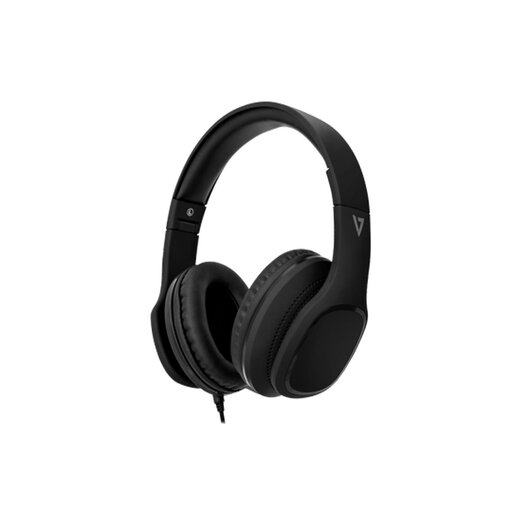
V7 HA701-3EP wired over-ear headphones with microphone
These are an option if you prefer a wired device for listening and calls. The title lists 40 mm drivers, passive noise isolation and an inline MEMS microphone; passive isolation is not active noise cancellation. Check that your laptop or adapter accepts the required 3.5 mm microphone connection and that the device suits your call software.
Joybuy
Frequently asked questions
Does a USB-C port guarantee monitor output, dock charging and two external displays?
No. USB-C describes the connector, not every function the laptop supports. Check the exact laptop model’s video output, charging and external-display specifications against the dock’s requirements. Microsoft Support notes that USB-C hardware and software combinations can cause problems; Apple Support says a Mac’s display count depends on its model and the displays’ resolution and refresh rate.
Can an HDMI splitter give me two separate extended screens?
An HDMI splitter duplicates a signal rather than creating two independent displays, according to Microsoft Support. For an extended desktop across separate screens, confirm that the laptop and chosen connection method support the required external-display arrangement.
When does a laptop stand call for a separate keyboard and mouse?
Consider separate input devices if raising the laptop screen leaves its keyboard or trackpad awkward to use. AbilityNet identifies screen raisers and alternative input devices as workstation options; choose the keyboard and pointing device around your reach, desk space and individual needs rather than assuming one ergonomic design suits everyone.


