Who each set-up suits
How often your equipment travels matters as much as what it can connect at home.
Workers returning to the same home desk
If you repeatedly connect a monitor, charging and desk peripherals, a dock may reduce cable swapping. Check the exact laptop and intended connections before choosing one: Microsoft Support and Lenovo UK describe how host and connection capabilities affect dock functions.
Frequent home-to-office commuters
If a second screen needs to travel with you, consider the display, its cable and power arrangement, and how you will protect them in transit. Check the laptop’s supported display configuration first; Apple Support notes that supported display numbers depend on the Mac model and the displays’ resolution and refresh rate.
Workers with restrictions on personal accessories
Before connecting a personal drive or other USB peripheral to a work device, establish what your employer allows. The National Cyber Security Centre identifies peripheral and removable-media use as potential routes for security and data-loss risks.
What to check before buying
Check the laptop and workplace rules first, then decide which equipment needs to stay on a desk and which needs to travel.
| Concern |
What to check |
Who this matters to |
| Laptop and accessory compatibility |
Check the exact laptop model, its USB-C, USB4 or Thunderbolt capabilities, and its supported display configuration. Compare those details with the dock and cable requirements. |
If a dock cannot provide the screens or charging I need, extra ports alone will not fix my set-up. About 36% of consumers put compatibility first. |
| A repeatable home desk |
Match the planned monitor arrangement to the laptop’s display support. If the dock will provide power, check both its output and the laptop’s accepted charging power. |
When I return to the same desk, I want to reconnect my screen and peripherals without rebuilding the workspace each day. For about 29% of consumers, that fixed-desk routine is the primary need. |
| Portability and protection |
Check a portable screen’s video and power connections, then its packed size and the protection offered by the carrying gear. |
A second screen helps me on office days only if I can carry and connect it comfortably. Portability comes first for about 21% of consumers. |
| Approved peripherals and file handling |
Ask whether personal USB devices and removable storage are allowed, and what approved storage or protection measures work files require. |
Before I move work files onto a drive, I need to know that the method is permitted and meets workplace rules. About 14% of consumers make approved data handling their primary concern. |
Brands to consider for docking
These examples illustrate dock and hub specifications to compare against your laptop; the stated capabilities are manufacturer specifications, not results guaranteed for every host device.
Dell
Dell’s WD25TB4 is a reference point for a fixed Thunderbolt desk set-up where host charging and display connections matter.
- Dell UK lists power delivery of up to 130W for Dell systems and 96W for non-Dell systems.
- Those figures do not establish what a particular laptop will accept or which display arrangement it supports; check the host and dock specifications together.
Lenovo
Lenovo’s ThinkPad Universal Thunderbolt 4 Dock is relevant when comparing a dock’s listed display modes with a laptop’s supported connection protocol.
- Lenovo UK lists support for one 8K display at 30Hz or up to four 4K displays at 60Hz for this dock.
- Lenovo says USB-C and Thunderbolt dock functions depend on the laptop’s supported protocols; the listed display modes are not a promise for every laptop.
CalDigit
CalDigit’s Element Hub offers a compact hub format to consider when a full desk dock is unnecessary.
- CalDigit lists Thunderbolt 4/USB4 and USB-A connections for the Element Hub.
- CalDigit says full functionality depends on the host computer. Confirm the laptop’s display and charging support before relying on the hub for either.
Joybuy products for different needs
These products address separate parts of a laptop-centred routine: carrying a laptop, connecting a home desk, taking a second screen between locations, and storing work files where permitted. Choose by the need you actually have, rather than treating them as interchangeable upgrades.
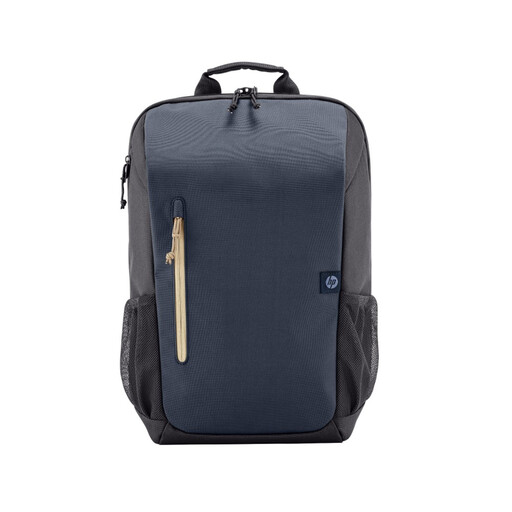 Image unavailable
HP Travel 18L 15.6 laptop backpack
Consider this backpack if your laptop and essentials regularly travel between home and office. Its name specifies an 18L bag and a 15.6-inch laptop size; check your device’s dimensions and the full load before choosing it.
If wet-weather protection matters, check the bag’s stated water resistance rather than assuming the laptop compartment is waterproof.
View on Joybuy
 Image unavailable
Targus USB-C Universal Dual HDMI 4K dock, 100W pass-through
This dock is for a recurring desk arrangement where you want to connect HDMI displays and other desk equipment through a laptop connection. The product name identifies dual HDMI 4K connections and 100W power pass-through; neither confirms the display modes or charging power your laptop can use.
Check the exact laptop’s video and charging support, the dock’s host-cable requirements, and whether the external power adapter required for your intended set-up is included.
View on Joybuy
 Image unavailable
UPERFECT 14-inch 60Hz touchscreen portable monitor
Consider a portable second screen if you need display space away from a fixed home desk. This model’s name specifies a 14-inch touchscreen, 60Hz refresh rate, VESA mounting and a 180° adjustable stand.
Confirm that your laptop can output video through the planned connection and check how the monitor will receive power. Check its packed dimensions against your bag if you will carry it regularly.
View on Joybuy
 Image unavailable
Samsung T7 Shield 1 TB USB 3.2 Gen.2 SSD, blue
This 1 TB external SSD is an option for a local file-storage task only if your employer permits removable storage for the intended work files. Its USB 3.2 Gen.2 designation does not establish permission to connect it to a managed laptop.
Confirm the approved connection, storage and protection requirements before using any personal drive for work data.
View on Joybuy
Common questions
Will any USB-C dock work fully with my laptop?
No: the connector alone does not establish support for every dock function. Microsoft Support notes that hardware, software and connection combinations can limit USB-C and USB4 functionality. Check your exact laptop, the dock’s compatibility information, the required cable and the display arrangement you intend to use.
How can I check whether my laptop supports two external monitors?
Look up the exact laptop model’s supported display count, resolution and refresh rate, then check the proposed connection path. Apple Support says these limits depend on the Mac model and the displays being used; a dock’s output count cannot override the laptop’s limit.
Will a dock charge my work laptop at its advertised wattage?
Not necessarily. Compare the dock’s host power output with the laptop’s accepted charging power and the power arrangement required by the dock. Microsoft Support states that a host PC must support the wattage it receives and that insufficient power can affect dock functions.
Should I ask before connecting my own dock or external drive at work?
Yes, confirm your employer’s rules before connecting personal peripherals or storing work files on removable media. The National Cyber Security Centre identifies security and data-loss risks associated with peripheral access. Ask which devices and storage methods are permitted and what protection is required.


