Buying priorities
Work out whether the issue is with the broadband service or in-home Wi-Fi first, then assess coverage, connection paths and setup requirements for the household.
| Priority |
What to check |
Your needs |
| Identify the bottleneck |
Compare a wired connection with Wi-Fi in the same home; check provider service status and fault guidance; confirm the replacement router can use the required broadband connection method. |
I want to avoid buying new Wi-Fi hardware when a service fault, outage or slow broadband connection is the real problem. |
| Coverage around the home |
Check router placement, distance, floors and internal walls; consider a multi-node mesh system for persistent weak rooms; confirm whether compatible extra nodes can be added. |
I need a usable signal beyond the room containing the router, including rooms separated by walls or floors. |
| Several connected devices |
Compare the exact model's Wi-Fi generation and band configuration; check Ethernet ports for fixed devices; treat device-capacity claims as model-specific rather than a guarantee of broadband speed. |
Work, learning, entertainment and connected-home devices may all be active together, so local Wi-Fi capacity matters as well as the broadband plan. |
| Provider compatibility |
Confirm WAN, modem or protocol requirements; check whether bridge mode, access-point mode or double NAT is needed; establish whether provider phone or TV services require the original hub. |
I need a setup that keeps essential provider services working and remains manageable if a fault needs diagnosing. |
| Features after purchase |
Check the exact model's included parental controls and security features; compare any optional plan terms; confirm whether management is through an app, browser or both. |
I want to know which controls are part of the hardware and which may depend on an ongoing plan. |
Joybuy product options
Joybuy product options for homes considering a multi-node mesh system for room-to-room coverage, or a replacement router where provider compatibility has been confirmed.
 No image available
TP-Link Deco BE22 BE3600 Mesh Wi-Fi 7 System (3-Pack)
A three-unit mesh option for persistent weak signal across rooms or floors, including homes with practical Ethernet runs between nodes.
Stated Wi-Fi 7, BE3600 and three-pack configuration. Check the supplied plug, UK warranty, provider setup requirements and exact HomeShield plan features before purchase.
Joybuy
 No image available
TP-Link Deco BE65 BE9300 Tri-Band Mesh Wi-Fi 7 System (3-Pack)
A three-unit mesh route for households with weak coverage in several rooms and many simultaneously connected devices.
Stated Wi-Fi 7, BE9300, tri-band operation and three-pack configuration. Confirm Ethernet-port details, wired-backhaul capability, provider compatibility and included HomeShield features for this model.
Joybuy
 No image available
NETGEAR Orbi 370 RBE373 Wi-Fi 7 Mesh System (3-Pack)
A router-and-two-satellite mesh option for wider home coverage, with wired connection points near satellites for fixed devices.
Stated dual-band BE3600, three-pack format and 2.5Gbps Ethernet. Actual coverage varies with building construction, network traffic and connected devices; check the preferred backhaul setup and provider requirements.
Joybuy
 No image available
TP-Link Deco BE25 Mesh Wi-Fi 7 System (3-Pack)
A three-node mesh option for extending one home network beyond a single router location.
Stated Wi-Fi 7 and three-pack configuration. Verify the Ethernet-port count, wired-backhaul support, provider setup and any subscription-based parental-control features before relying on them.
Joybuy
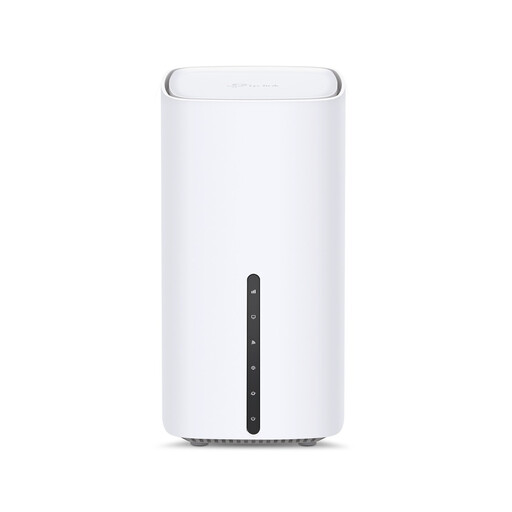 No image available
TP-Link Archer NX500 5G AX3000 Dual-Band Gigabit Router
A single-router route for replacing an ageing provider hub where the broadband connection method has been checked; compatible expansion hardware is needed for multi-node coverage.
Stated 5G, AX3000, dual-band and Gigabit router configuration. Check provider WAN requirements and, if using mobile broadband, confirm carrier, SIM-plan and band compatibility.
Joybuy
Frequently asked questions
How can I tell whether I need better broadband or better Wi-Fi coverage?
Compare Wi-Fi with a device connected directly to the router by Ethernet where possible. Ofcom says Wi-Fi cannot outperform the broadband service, so poor performance on both connections can point to the service, a fault or the provider rather than room-to-room Wi-Fi coverage.
Should I try moving the router before buying mesh Wi-Fi?
Yes. Put the router centrally and off the floor where practical, away from obstructions and likely interference. Ofcom notes that brick walls, water, metal, glass and some electrical devices can weaken or interfere with Wi-Fi.
When is mesh more suitable than a single replacement router?
Mesh is usually the more direct route when broadband is satisfactory near the main router but Wi-Fi weakens across several rooms or floors. Ofcom says two or three mesh units can help reach more rooms, but adding too many can worsen issues; a single router may suit a home where the existing hub is the limiting device.
What should I check before using a third-party router with a UK broadband provider?
Confirm the required connection method, the router's WAN or modem capability, whether the provider hub must remain connected for phone or TV services, and who supports fault diagnosis. BT and eero guidance show that provider-specific requirements can include PPPoE, Ethernet WAN, bridge mode or double NAT.
Does Ethernet backhaul need every mesh unit to be wired?
Not necessarily. TP-Link's UK Deco guidance says wired and wireless backhaul can be mixed in one network, but wiring rules depend on the operating mode. Check the exact system documentation before connecting satellite units through a switch or planning cable routes.


