Staff printing recurring form batches
If enrolment, trips or activities bring repeated print runs, check paper-tray capacity and how the printer is refilled. Automatic duplex is useful when the form issuer permits two-sided copies.


For recurring batches of A4 application forms, start with an ink-tank all-in-one that supports automatic two-sided printing, then choose its paper tray and document feeder around how often staff print and scan in batches. A larger tray means fewer paper-loading pauses, while an automatic document feeder matters most if completed multi-page forms also need copying or scanning. Check the form issuer's printing instructions before relying on duplex.
If enrolment, trips or activities bring repeated print runs, check paper-tray capacity and how the printer is refilled. Automatic duplex is useful when the form issuer permits two-sided copies.
If signed forms must be copied or scanned in sets, an all-in-one with an automatic document feeder may save staff from placing each sheet on the scanner glass. Check its stated capacity against a typical set of forms.
For ordinary A4 form runs from several permitted devices, check the printer's dimensions and connection options before choosing a place for it. A larger paper tray or document feeder is less useful if those workflows are rare.
Decide how large a typical form run is, whether completed forms need scanning, and whether the issuer allows two-sided output. Those answers make tray, feeder and duplex specifications more useful than an ink-yield figure alone.
| Concern | What to check | Who this matters to |
|---|---|---|
| Batch printing and refills | Compare A4 tray capacity and the ink system with the size and frequency of your form runs. | When forms are due together, I want to finish a batch without repeatedly loading paper or replacing ink. Around 36% of consumers would put avoiding those interruptions first. |
| Two-sided forms | Check the issuer's instructions, then confirm automatic A4 duplex support for the paper you intend to use. | I would rather not turn every sheet by hand, but only if the completed form remains acceptable when printed on both sides. Roughly 29% of consumers would make permitted two-sided printing their main concern. |
| Completed paperwork | Check whether an automatic document feeder suits the usual number and size of pages scanned or copied together. | After collecting signed forms, I need to copy or scan a set without placing each page on the glass. For about 21% of consumers, processing completed paperwork would come first. |
| Shared classroom setup | Measure the available space and check device compatibility, school network policy and connection options. | I need the printer to fit where staff can use it and connect through an approved method. Around 14% of consumers would prioritise that shared setup. |
Manufacturer page yields depend on stated test conditions; a classroom's mix of text, colour elements and print settings can differ. The yield figure also says nothing about how often you must refill the paper tray.
Check the applicable yield conditions and refill-bottle availability alongside your expected print pattern and the printer's tray capacity.
Two-sided output is useful only when the issuing organisation accepts it and signatures, return pages and scanning instructions still work as intended.
Read the form instructions before making automatic duplex a deciding feature; use one-sided printing when required.
An automatic document feeder helps with sets of pages, but offers little benefit if staff only print blank forms or scan an occasional single sheet.
Compare the typical number of completed pages in a set with the feeder's stated capacity, supported paper sizes and available scan destinations.
A shared printer must work with the school's permitted devices and managed network, as well as have suitable software support.
Ask the IT administrator which connections and printing methods are allowed, and check the manufacturer's driver and security-update information for the exact model.
Canon's MAXIFY MegaTank GX2051 illustrates a refillable-ink workflow for recurring forms that also need copying or scanning.
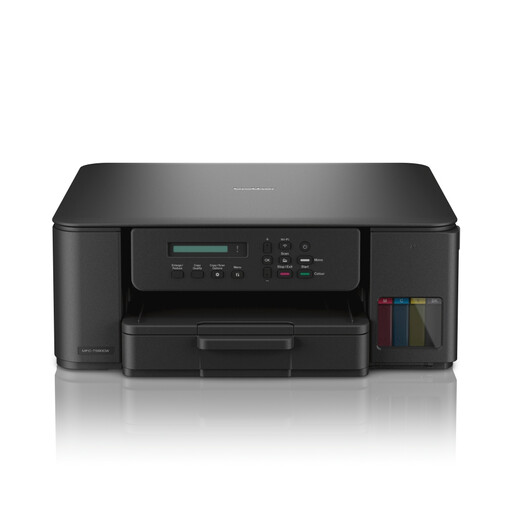
Brother's tankbenefit DCP-T780DW is another A4 ink-tank all-in-one to assess for shared printing and paperwork handling.
Epson's EcoTank ET-2950 is relevant where refillable ink and automatic two-sided A4 printing matter, with print, copy and scan functions in one device.
HP's Smart Tank 7305 is worth assessing for a small shared print, scan and copy workflow that also calls for a document feeder.
These inkjet models provide different starting points for classroom form printing. For each one, check the exact listing against your batch size, scanning needs, available space and the school's connection policy before choosing.
 No image available
Consider this model if recurring form batches and processing completed paperwork are both priorities. Check its paper handling, scanning functions and dimensions against your actual workflow before choosing it.
 No image available
This A4 print, scan and copy model is a candidate where one device must handle blank forms and completed paperwork. Its product name also specifies Wi-Fi; check that connection method against school policy, and confirm the paper and scanning capacity you need.
 No image available
Its ink-tank design makes this a model to consider for recurring forms where refilling is part of the decision. Check the tray against a typical batch and confirm its scanning arrangement before relying on it for sets of completed forms.
 No image available
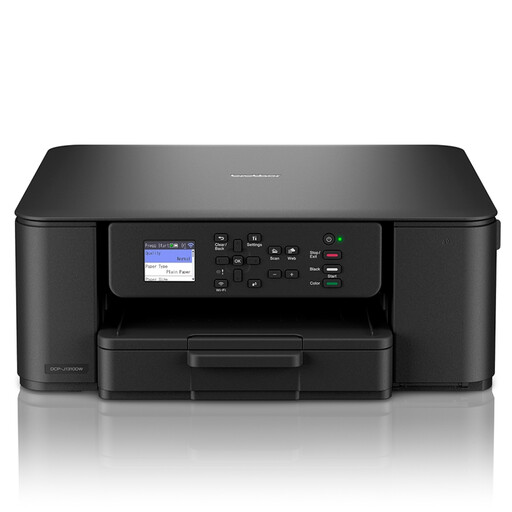
This wireless inkjet is a candidate if you are comparing form-printing workflows rather than choosing an ink-tank model by default. Check its ink supplies and paper handling for repeated batches, and confirm any document-feeder capacity needed for scanning.
Start with a paper tray that suits a typical batch and an ink system you are prepared to replenish regularly. Automatic A4 duplex is useful if the issuer accepts two-sided forms; add a document feeder if staff also copy or scan completed sets.
An automatic document feeder is useful when staff regularly copy or scan multi-page completed forms, but it may offer little value for printing blank forms alone. For reference, Canon UK specifies a 35-sheet feeder for the MAXIFY GX2051, while Brother UK specifies a 20-sheet feeder for the DCP-T780DW; check the capacity of the exact model you intend to buy.
Check the school's IT policy, permitted devices and manufacturer software support before setting up wireless printing. If the network is managed, ask the IT administrator which connection method and updates are appropriate for the exact printer.
Arrange disposal through the school's approved electrical-equipment route rather than putting the printer in general waste. GOV.UK explains that waste electrical and electronic equipment rules support the recovery, reuse and recycling of electrical equipment.