For occasional or modest batches of A4 room schedules, a refillable inkjet all-in-one with Wi-Fi and automatic two-sided printing is a practical starting point. If staff also copy or scan multi-page documents regularly, look for an automatic document feeder (ADF) and enough paper capacity for those batches; check the exact model’s features rather than assuming every ink-tank printer has them.
Who needs which features?
Classrooms that reprint schedules regularly
When timetable or room changes mean printing fresh schedules repeatedly, a refillable ink-tank model is worth considering. Compare the supplied ink and compatible replacement bottles for the exact printer, rather than treating a stated page yield as a promise for classroom documents.
Staff sharing a printer with administration
If the same device also handles multi-page notices or forms, an ADF can save staff placing each original on the scanner glass. Automatic two-sided printing and a larger paper tray are separate features to check.
Teachers with limited classroom space
An A4 print, copy and scan device with Wi-Fi may cover schedule printing and occasional paperwork without a larger-format machine. Measure the space needed to use its trays and scanner, and confirm that staff devices can connect through the school’s approved setup.
What matters when choosing?
Start with how often schedules change, then consider whether the printer will also handle batches of originals. Check placement and staff access before settling on a model.
| Concern |
What to check |
Who this matters to |
| Ink interruptions |
Compare the exact model’s supplied-ink and replacement-bottle yields on the same stated basis; check compatible bottle codes. |
If room changes mean reprinting schedules regularly, I want to spend less time dealing with ink changes. Around 42% of consumers may put fewer ink interruptions first. |
| Document batches |
Check whether two-sided printing is automatic, plus the ADF and paper-tray capacities; confirm the scanning method separately. |
When the printer also copies or scans multi-page paperwork, I need to avoid placing originals one at a time. For around 33% of consumers, that shared-document workflow may be the primary concern. |
| Space and access |
Measure operating space around the trays and scanner; confirm approved Wi-Fi setup and compatibility with staff devices. |
With little surface space and several staff devices, I need a printer that fits and can be connected as the school permits. Compact placement and straightforward access may come first for around 25% of consumers. |
Mistakes to avoid
-
Assuming an ink-tank printer turns pages automatically
Canon lists manual two-sided printing for the PIXMA G3570 and G4570. That means staff must handle the sheets when making double-sided documents.
Look for automatic duplex printing in the specification of the exact model if schedules or supporting documents regularly use both sides of A4 paper.
Manual page-turning adds staff time to each double-sided batch.
-
Choosing a compact printer for a batch-copying workload
A small A4 all-in-one may suit printing schedules from files but be less convenient when staff often copy or scan sets of originals.
Check the largest typical batch and whether the chosen model has an ADF and sufficient paper input for it.
Without an ADF, multi-page originals may need to be placed on the scanner individually.
-
Treating a stated ink yield as a fixed classroom page count
Manufacturer yields depend on stated test conditions; the number of room schedules printed will vary with the documents and how the printer is used.
Compare yield figures on a like-for-like basis and check the compatible replacement bottles for the model under consideration.
-
Ordering a Wi-Fi printer before checking school access
A printer’s wireless feature does not establish that staff may connect it to the school network or use it from every device.
Confirm the approved connection method, supported staff devices, administrator access and update arrangements before ordering.
Brands to consider for this workload
Epson
Epson’s EcoTank line includes the A4 ET-2950 for print, copy and scan tasks and the ET-5150 for workflows needing an ADF and more paper capacity.
- Epson lists refillable tanks and automatic two-sided printing for the ET-2950; its stated supplied-ink yields are manufacturer figures, not guaranteed classroom output.
- Features differ by model: Epson lists a 250-sheet front tray and 35-page ADF for the ET-5150, so do not assume those features apply to a smaller EcoTank.
Canon
Canon offers compact PIXMA MegaTank models and MAXIFY ink-tank models aimed at heavier shared-document tasks.
- Canon lists a 100-sheet rear tray for the PIXMA G3570; the MAXIFY GX6150 specification lists a 50-sheet ADF, 350-sheet paper capacity and Ethernet.
- Canon lists manual two-sided printing for the PIXMA G3570 and G4570. Check the exact model if unattended double-sided printing matters.
HP
HP Smart Tank models offer another refillable-ink route for wireless classroom printing, copying and scanning.
- HP lists automatic two-sided printing and wireless connectivity for its Smart Tank 7000 Series.
- HP describes a flatbed scanner for that series; check the exact model for an ADF if staff routinely copy or scan multi-page originals.
Joybuy product choices
These printers cover shared A4 schedule printing with different document-handling and placement considerations. The Canon and Epson models are refillable ink-tank options with ADFs; the Brother is an A3-capable cartridge-ink alternative to assess if the same device must handle other classroom paperwork.
 No image available
Canon MAXIFY GX6150
Consider this model when one shared printer will handle room schedules alongside regular multi-page copying or scanning.
- Canon lists refillable ink tanks, automatic A4 two-sided printing, a 50-sheet ADF and 350-sheet total paper capacity.
- Check the space needed to operate its trays and scanner before placing it in a small classroom.
View on Joybuy
 No image available
Epson EcoTank ET-5150 +Ink
This refillable A4 all-in-one suits staff who print schedules and also handle multi-page originals.
- Epson lists automatic two-sided printing, a 250-sheet front tray and a 35-page ADF for the ET-5150.
- Measure the intended location and allow room to load paper and use the scanner.
View on Joybuy
 No image available
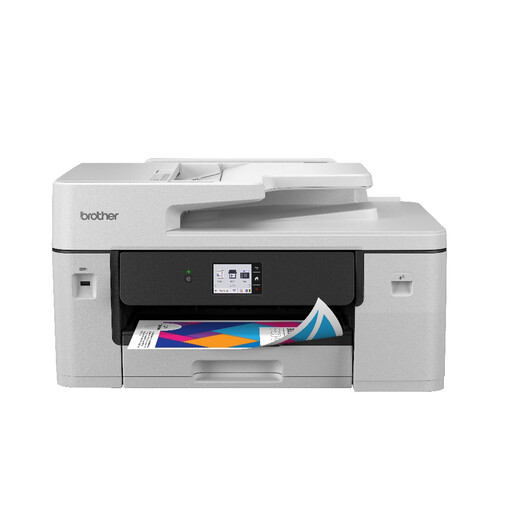
Brother MFC-J6760DW inkjet all-in-one
Consider this cartridge-ink model if A4 schedules are part of a broader shared-paperwork workload and an A3-capable printer fits the intended location.
- Check cartridge availability and the required placement space before choosing it instead of a refillable ink-tank model.
- Its listed weight is 20.2 kg; ensure the placement surface can support it.
View on Joybuy
Common questions
Do I need an ADF to print room schedules?
No, an ADF is not needed to print schedules from digital files. It becomes useful if staff also copy or scan multi-page originals; check separately whether the model can scan both sides automatically if that is part of the task.
Should classroom schedules use automatic two-sided printing?
Choose automatic two-sided printing if staff regularly print documents designed for both sides of A4 paper and want to avoid turning sheets manually. Canon lists manual two-sided printing for the PIXMA G3570 and G4570, while Epson lists automatic two-sided printing for the ET-2950 and ET-5150.
What should we check before connecting a printer to the school network?
Confirm the school’s approved connection method and administrator arrangements before setting up a Wi-Fi printer. Check compatibility with staff devices and how the exact model receives software and security updates.
What should we do with an old classroom printer?
Follow the school’s approved process for disposing of electrical equipment, rather than placing the printer in general waste. Ask the responsible staff member how any stored network settings or scan data should be handled before the device leaves the classroom.


