Choose a photo-oriented ink-tank printer if your display captions rely on photographs, colour artwork or borderless A4 layouts. For frequent, mainly text-led updates, a business-oriented pigment-ink tank model offers a different workflow, but neither route guarantees a result on your chosen card. Check the exact printer’s supported stock, feed path, printable margins and duplex conditions before committing to a batch.
Who is printing the captions?
Creative caption makers
If your captions combine type with photographs or coloured artwork, the finish, layout and supported paper matter alongside readable text. Epson’s ET-8500 and Canon’s PIXMA G650 illustrate photo-oriented A4 options, but their media limits differ.
Frequent text-caption updaters
If you regularly replace information cards, look closely at text output, paper handling and the time needed for repeat jobs. Canon’s MAXIFY GX6150 is an example of a document-led ink-tank model; check its media conditions against your caption stock.
Occasional home-office caption printers
If captions are one task among ordinary documents, scans and copies, an all-in-one workflow may matter more to you than specialist photo features. Brother’s MFC-J4540DW illustrates this multifunction approach.
What matters when choosing?
Photo-oriented ink tank
Choose it when: photographs, colour artwork or borderless A4 presentation are central to the captions. Epson specifies six-colour printing for the ET-8500, while Canon specifies six dye inks for the PIXMA G650.
Trade-off: media support and batch workflow depend on the model; Canon specifies manual duplex and approximately 3.9 images per minute for the PIXMA G650.
Business-oriented pigment-ink tank
Choose it when: text-led captions change frequently and scanning or copying is also part of your work. Canon specifies a 50-sheet automatic document feeder and a 350-sheet total plain-paper capacity for the MAXIFY GX6150.
Trade-off: confirm the appearance you want on your chosen caption paper; the GX6150’s automatic duplex specification applies to listed media, not every card.
| Concern |
What to check |
Who this matters to |
| Presentation and stock handling |
Match your caption size and finish to the model’s supported paper, feed route and printable margins; check borderless options if needed. |
If my captions include images or need a particular card finish, I want the finished sheet to suit the display rather than choosing on resolution alone. Around 42% of consumers put presentation and stock handling first. |
| Text and repeat printing |
Check the ink type, stated print-speed conditions and whether duplex printing works with your intended paper. |
When information cards change regularly, I need readable text without making every revision a slow manual job. For around 33% of consumers, repeat text printing is the main priority. |
| Everyday office use |
Confirm the scanning and copying functions you need, device compatibility and the model’s maintenance routine. |
I print captions occasionally but also rely on the same machine for routine office tasks, so an uncomplicated shared workflow matters most. That is the primary concern for around 25% of consumers. |
Mistakes to avoid
-
Choosing on resolution alone
A resolution figure does not establish whether the printer can feed your caption card or produce the intended border treatment on its coating.
Choose the paper first. Check the exact model’s supported size, weight or thickness, feed path and margins, then proof a caption on that stock before printing a batch. Epson advises checking model-specific paper compatibility.
-
Treating page yield as a caption-sheet count
Manufacturer yield figures use stated test conditions; they are not a count of finished borderless, image-heavy or card captions.
Compare yields only with their test basis in mind, then assess your own print volume using a representative caption layout and the applicable replacement ink.
-
Assuming a photo printer will handle revisions quickly
Canon specifies approximately 3.9 images per minute and manual duplex for the PIXMA G650. Its MAXIFY GX6150 has different stated speeds and automatic duplex on listed media, though those figures do not promise the same pace on card.
If captions change often, compare the models’ speed and two-sided printing conditions for the media you intend to use.
-
Overlooking maintenance parts
Epson explains that head cleaning uses ink and that a full maintenance box can interrupt printing on models that use one.
Check the chosen model’s maintenance instructions and whether it has a replaceable box or cartridge. Diagnose print-quality problems using the model’s guidance rather than repeatedly running cleaning cycles.
A replacement maintenance part, where applicable, and time spent on cleaning can add to the routine of keeping captions ready to print.
Relevant brands for reference
Epson
Epson’s EcoTank ET-8500 is a photo-oriented A4 ink-tank option for captions that combine text and creative output.
- Epson specifies six-colour printing, borderless A4 output and a straight feed for media up to 1.3 mm thick on the ET-8500.
- That thickness figure is specific to the ET-8500’s stated feed path; check its manual for your exact card, particularly third-party stock.
Canon
Canon’s PIXMA G650 and MAXIFY GX6150 illustrate distinct photo-led and document-led ink-tank approaches.
- Canon specifies six dye inks and borderless A4 output for the G650; the GX6150 specifies automatic duplex on listed media and a 50-sheet automatic document feeder.
- The G650 uses manual duplex, while the GX6150’s paper and duplex conditions need checking against the intended caption stock.
Brother
Brother’s MFC-J4540DW represents a multifunction home-office route for captions alongside other document tasks.
- Brother specifies 400-sheet paper capacity and automatic A4 two-sided printing for the MFC-J4540DW.
- Its stated tray media range should not be taken as confirmation that a particular thick caption card or specialist fine-art paper is compatible.
Joybuy product choices
These inkjet choices suit different parts of a home-office caption workflow: multifunction printing, repeated text-led work or captions alongside everyday documents. Match any candidate to your actual paper before choosing it for display cards.
 No image available
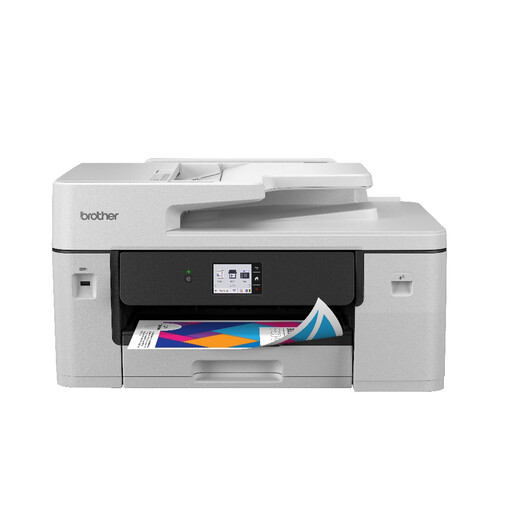
Brother MFC-J6760DW all-in-one inkjet printer
Consider this all-in-one if caption printing needs to share a device with other home-office work. Before using card, check the MFC-J6760DW’s supported stock, feed route and printable margins against your intended layout.
View on Joybuy
 No image available
Canon MAXIFY GX6150
This document-led ink-tank model is worth considering for frequent, mainly text-led caption updates alongside scanning and copying. Canon specifies 24.0 images per minute for mono printing, 15.5 for colour, a 350-sheet total plain-paper capacity and automatic duplex on specified media. Check the exact caption stock and duplex conditions; stated speeds do not establish printing speed on card.
View on Joybuy
 No image available
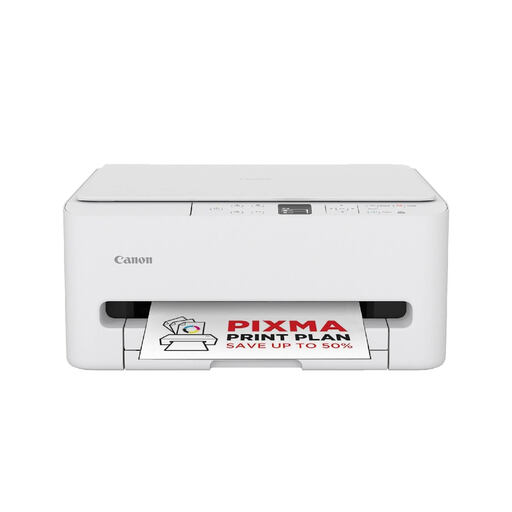
Canon PIXMA TS6550i
Consider this model if captions are part of a mixed home-office printing routine. Check its documented card support, feed path and printable margins for your layout, along with the applicable cartridges if you expect to print frequently.
View on Joybuy
Common questions
Will any inkjet print on heavyweight caption card?
No: card compatibility depends on the exact printer and paper. Epson advises checking the model’s supported paper weights and types; also check the feed path and printable area before making a batch on your chosen stock.
What should I do if an Epson caption print has faint text or missing colour?
Follow that Epson model’s print-quality instructions before printing the full batch. Epson advises checking ink levels, then using a nozzle check and, where indicated, head cleaning; its guidance warns against cleaning with low ink. Other brands may have different procedures.
Could a maintenance box interrupt caption printing?
Yes, on a printer that uses one: Epson says a full maintenance box can stop printing until it is replaced. Canon lists user-replaceable maintenance cartridges for the PIXMA G650 and MAXIFY GX6150. Check the part and replacement procedure for the exact model you choose.
How can I dispose of an old printer when replacing it?
Check the retailer’s electrical-waste take-back route and your local authority’s collection options. GOV.UK guidance describes retailer take-back for waste electrical equipment of the same type as an item being purchased; confirm how the service works with the retailer before handing over the old printer.


