What matters when choosing?
Start with a typical newsletter session: how many sheets need printing, whether members bring multi-page originals, and how they will connect to the printer. Then compare ink arrangements and the paper each model supports.
| Concern |
What to check |
Who this matters to |
| Ink and paper interruptions |
Compare included and replacement ink on a like-for-like yield basis; check tray capacity against a usual run. |
For recurring colour newsletters, I want the group to finish a batch without repeatedly stopping for ink or paper. Around 36% of consumers put fewer replenishment interruptions first. |
| Shared workflow |
Check paper input, document-feeder capacity and connections permitted by the studio network. |
When members also bring pages to scan or copy, I need the machine to handle those tasks alongside newsletter printing. Roughly 29% of consumers prioritise that shared workflow. |
| Occasional runs |
Check the printer’s dimensions, stated colour speed and automatic duplex support for the intended paper. |
If newsletters are only printed periodically, I would rather check that a compact A4 machine handles the run than choose capacity I may not use. Around 21% of consumers make occasional-run suitability their primary concern. |
| Setup and upkeep |
Check the exact model’s firmware and support route, administrator controls and connection options. |
For a printer used by several members, I need someone to manage access and keep the device maintained. Approximately 14% of consumers place that responsibility first. |
Joybuy products for shared-studio printing
These inkjet multifunction models are relevant to A4 newsletter production and shared print or scan sessions. Compare each exact model against the club’s paper, connection and consumable requirements rather than treating the selection as a ranking.
 No image available
Canon MAXIFY GX6150
Consider this model for recurring shared print sessions where the club wants to assess a refillable-ink workflow.
Confirm its paper capacity, document-feeder and connection options against a typical session, along with support for the intended newsletter paper and the space available in the studio.
View on Joybuy
 No image available
Epson EcoTank ET-5150 +Ink
For regular A4 newsletter sessions that also involve multi-page originals, the ET-5150 offers refillable ink tanks and automatic two-sided printing.
Epson United Kingdom lists a 250-sheet front tray and 35-page automatic document feeder for the ET-5150. Check the intended paper, tray access and replacement ink before choosing it for the studio.
View on Joybuy
 No image available
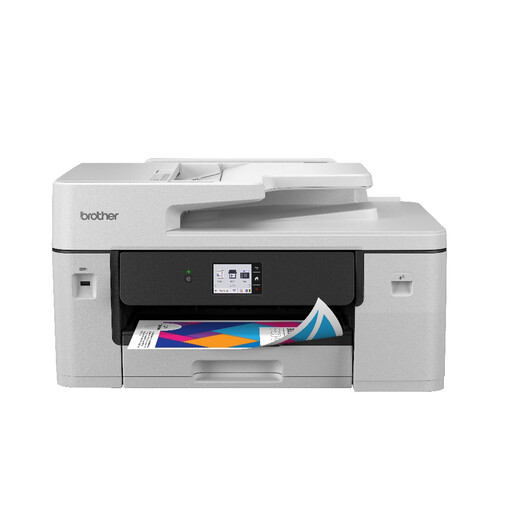
Brother MFC-J6760DW All-in-One Inkjet
This cartridge-based all-in-one is worth assessing if members need to handle print and scan tasks during the same session.
Check this model’s paper input, document feeder, supported formats and connection options against the club’s workflow. Compare cartridge supplies and any optional plan terms separately.
View on Joybuy
Questions about shared-studio printers
Should we choose automatic duplex printing for newsletters?
Automatic duplexing is useful if the club prints on both sides of supported paper, because members do not have to turn each batch by hand. Confirm that the chosen printer supports duplexing with the newsletter’s intended paper type and layout.
When does an automatic document feeder matter?
An automatic document feeder matters when members regularly scan or copy multi-page originals; it does not make newsletter printing itself faster. Canon UK lists a 35-sheet feeder for the MAXIFY GX2051, Epson United Kingdom a 35-page feeder for the EcoTank ET-5150, and Brother UK a 20-sheet feeder for the MFC-J4550DW.
Can advertised ink yields tell us how many newsletters we will print?
No: use them as manufacturer figures with their stated bundle and test conditions, not as a promised number of newsletters. Canon UK Store ties the MAXIFY GX2051’s quoted 17,000 black pages to three included black bottles, while Epson United Kingdom describes the ET-5150’s included-ink yields as “up to”; the club’s pages, colour coverage and settings will affect consumption.
What should we check before connecting a printer to the studio network?
Confirm that the exact model offers a connection method the studio permits, then decide who will manage printer access and updates. Check the manufacturer’s firmware and support instructions for that model rather than assuming Wi-Fi alone provides a complete shared setup.
What should we do with the old shared printer?
Reset it according to the manufacturer’s instructions and remove stored accounts, network settings and documents before handover. Arrange an appropriate electrical-equipment reuse or recycling route; GOV.UK provides guidance on the UK waste electrical and electronic equipment framework.


