Shared-desk quotation teams
Several colleagues send A4 quotations to one printer and want to avoid print queues, frequent paper reloads and connection problems.


For a shared quotation desk, look for an A4 multifunction inkjet with automatic double-sided printing, enough paper capacity for the team’s busy periods and a connection method that fits the office network. A refillable-tank model is worth considering when regular colour printing makes ink replacement a priority; give greater weight to the document feeder only if the desk also scans or copies customer paperwork.
Several colleagues send A4 quotations to one printer and want to avoid print queues, frequent paper reloads and connection problems.
Businesses regularly print quotations with colour logos, tables or product visuals and need to consider how the ink system fits that workload.
The same desk prints quotations and scans or copies signed customer documents, order forms or multi-page paperwork.
Decide how the desk will handle busy print periods, ink replacement and incoming paperwork before comparing individual models.
| Concern | What to check | Who this matters to |
|---|---|---|
| Keeping quotations moving | Check A4 automatic duplex support and how the stated paper capacity is divided between trays or feeds. | When several colleagues print during a busy period, I want fewer paper reloads and less manual page handling; around 42% of consumers put this workflow need first. |
| Ink replacement | Compare the exact bottles or cartridges and their stated black and colour yield conditions, including print mode. | If I print branded quotations regularly, I need an ink system whose replacement routine suits that workload; roughly 33% of consumers prioritise this need. |
| Desk and document fit | Measure loading and output clearance, confirm the required network connection and check whether two-sided documents need a duplex feeder. | My printer also needs to fit the shared space and handle incoming customer paperwork without creating another bottleneck; about 25% of consumers make that their primary concern. |
Canon lists different standard and economy-mode yields for the MAXIFY GX6150 under stated paper conditions. Neither figure promises the same output from every quotation layout.
Consider your usual mix of text and colour pages, compare yields only under their stated conditions, and check the required ink supplies and maintenance parts.
Greater colour coverage or a different print mode can mean more frequent ink replenishment than the quoted yield suggests.
A larger paper supply helps with printing, but it does not establish whether a model can scan batches of two-sided forms or use the desk’s required connection.
List the tasks performed at this desk. If two-sided customer paperwork is scanned regularly, check for duplex scanning rather than assuming any automatic document feeder provides it.
A documented Wi-Fi option does not, by itself, show that a printer fits the organisation’s network setup or support requirements. Epson states a seven-year security-update period from purchase for the WF-C4810DTWF; that statement applies to that model, not every printer.
Check the specific model’s update information and use a connection method approved for the workplace.
Specifications can help you assess a model even when a particular seller is not offering it. Epson’s own UK listing showed the WF-C4810DTWF as out of stock when the product information was gathered.
Before settling on an exact model, check a current seller listing for availability, delivery, warranty terms and the supplies you intend to use.
The MAXIFY MegaTank GX6150 illustrates a refillable-ink approach to regular A4 quotation printing.
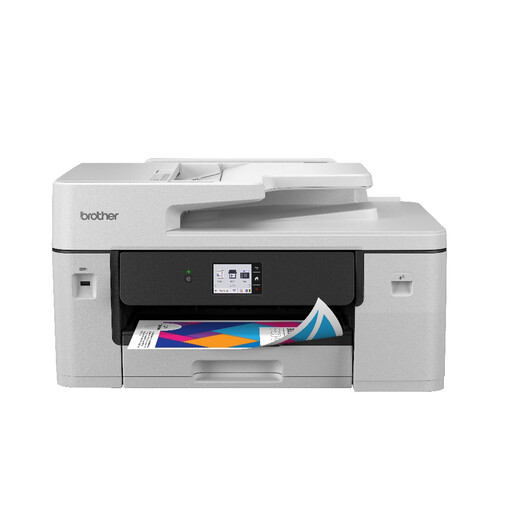
The cartridge-based MFC-J4550DW is a separate option for a shared A4 desk that also prints, scans and copies.
The WorkForce Pro WF-C4810DTWF is relevant when the shared desk also handles two-sided customer paperwork.
These multifunction inkjets are relevant to shared quotation printing. Compare their paper handling, ink supplies and document-handling requirements against the work your desk actually does.
 No image available
Consider this model for regular A4 quotations when refillable ink and shared network access matter. Canon specifies automatic A4 duplex printing, up to 350 sheets of input across two feeds, Ethernet, Wi-Fi and a 50-sheet document feeder. Check whether its scanning functions meet your needs if you routinely receive two-sided paperwork.
 No image available
Consider this all-in-one if the quotation desk also handles customer documents. Check the exact model’s A4 paper handling, connection options, desk clearance and scanning functions against your workflow, particularly if documents need to be scanned on both sides.
No, an automatic document feeder is for handling documents you scan or copy, not for feeding quotation print jobs. If the shared desk regularly scans two-sided forms or signed paperwork, check specifically for duplex scanning: Epson specifies a 50-page duplex feeder on the WF-C4810DTWF, while Canon lists a 50-sheet feeder on the GX6150 without that alone establishing duplex scanning.
Wi-Fi may be enough if all required devices can use the organisation’s approved network setup. If the desk uses a managed wired connection, check Ethernet support too; Canon lists both Ethernet and Wi-Fi for the GX6150, as Brother does for the MFC-J4550DW and Epson for the WF-C4810DTWF.
Not necessarily: a manufacturer’s page yield applies to its stated test conditions, not every quotation layout. Canon distinguishes standard and economy-mode yields for the GX6150, so compare the relevant mode and paper conditions with your usual mix of text, logos and colour content.
Check the exact model’s security-update information and follow the organisation’s approved setup process. The National Cyber Security Centre advises checking the stated minimum security-update period for in-scope consumer smart devices; Epson states seven years of security updates from purchase for the WF-C4810DTWF, but that period should not be assumed for another model.
Use an appropriate electrical-equipment collection or recycling route rather than ordinary residual waste. GOV.UK describes the UK WEEE regime as encouraging recovery, reuse and recycling; check the workplace waste arrangements or a suitable seller, manufacturer or local-authority route.