What matters when choosing?
Choose the panel type around the scenes and desktop use you care about, then check whether the stand and your connections let you use the monitor as intended. The groups below describe consumers by their primary concern when choosing for long tactical-gaming sessions.
27-inch QHD IPS
Consider it when: you want QHD detail for maps and interfaces and expect substantial mixed desktop use.
Check: the advertised refresh rate may depend on the input or an overclocked mode, and an HDR label alone does not establish dark-scene performance.
27-inch QHD OLED
Consider it when: dark-scene contrast and the fast pixel-response specifications of the models under consideration matter most to you.
Check: prolonged static-content habits, model-specific care and warranty terms, and whether the screen surface suits your room's lighting.
| Concern |
What to check |
Who this matters to |
| Movement and interface detail |
Compare native resolution and VRR support, then check the refresh rate available through your intended input. |
When I follow movement while reading maps and game information, I want a clear picture without assuming the headline Hz will work with my PC. Around 36% of consumers put movement and detail first. |
| Screen positioning |
Check stand adjustment; if you plan to use an arm, confirm the mounting pattern and weight compatibility. |
A long session makes it important for me to position the screen to suit my desk and chair. For around 29% of consumers, adjustability is the primary concern. |
| Dark-scene contrast |
Check the exact VESA DisplayHDR tier, if applicable; for OLED, consider reflections and static-image care. |
I spend time in darker game scenes and care more about how they appear than chasing another refresh-rate figure. Dark-scene contrast comes first for around 21% of consumers. |
| Device connections |
Match each device to the monitor's ports and supported modes; check whether USB-C or switching features meet your setup needs. |
If I switch between a gaming PC and another device, awkward connections could outweigh a panel specification I like. Around 14% of consumers place connection flexibility first. |
Joybuy product choices
These gaming monitors cover standard QHD, higher-resolution dual-mode and ultrawide setups for tactical play. Compare screen size and format as well as panel type: a 34-inch ultrawide or a 32-inch 4K model is a different desk decision from the 27-inch QHD IPS-versus-OLED choice above.
 No image available
LG UltraGear G8 27G850A, 27-inch 4K dual-mode IPS
Consider this model if you want a 27-inch higher-resolution option rather than standard QHD. Its title specifies a 4K UHD Nano IPS panel, 240Hz/480Hz dual-mode operation, AMD FreeSync Premium Pro, DisplayPort 2.1 and HDMI 2.1; check the resolution and connection required for the mode you intend to use.
View on Joybuy
 No image available
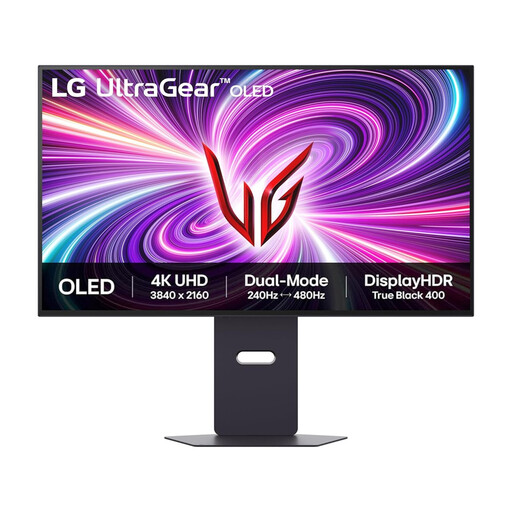
LG UltraGear OLED 32GS95UV-B, 32-inch 4K dual-mode
This larger OLED option suits a desk where a 32-inch screen is appropriate. Its title specifies 4K at 240Hz and a separate FHD 480Hz mode, plus G-SYNC and FreeSync Premium Pro support. Check your device and connection for the mode you want, and read the model's static-image care and warranty terms.
View on Joybuy
 No image available
Samsung Odyssey G6 S27DG612, 27-inch QHD OLED 240Hz
If you want to stay with the 27-inch QHD format while considering OLED, this model fits that comparison. Check which input, graphics output and cable can deliver its stated 240Hz, and review care and warranty guidance if static interfaces will remain on screen for long periods.
View on Joybuy
 No image available
LG UltraGear 34GX900A-B, 34-inch OLED WQHD 240Hz
Consider the 34-inch ultrawide format only if it suits your desk and the tactical games you play; it is not the same 16:9 QHD layout as a 27-inch model. Confirm your device's support for the stated 240Hz mode and read the OLED care and warranty guidance for prolonged static content.
View on Joybuy
 No image available
Philips Evnia 6000 34M2C6500, 34-inch WQHD
This ultrawide option is worth assessing if a 34-inch screen fits your desk and your games suit the format. The product name specifies 3440 × 1440 resolution, height, swivel and tilt adjustment, and different maximum rates by input: 175Hz through DisplayPort and 100Hz through HDMI.
View on Joybuy
Frequently asked questions
Is 27-inch QHD a sensible starting point for tactical games?
Yes, if your PC can run the games you play at QHD and the screen size suits your desk. The manufacturer-specified 27-inch QHD examples here include both IPS and OLED models; choose between them by your priorities for mixed use, dark scenes and static-content care rather than resolution alone.
How can I tell whether I will get the advertised refresh rate?
Check the rate listed for the exact monitor input, resolution and mode you plan to use, then match your graphics output and cable. LG says the 27GS85Q-B needs a DisplayPort 1.4-capable graphics card and cable for its optional 200Hz overclock, while BenQ lists 180Hz through DisplayPort and 144Hz through HDMI for the EX271Q.
What matters for comfort during a long session?
Choose a screen you can position for your desk and take breaks from screen work. The Health and Safety Executive advises putting the screen directly in front of you, with its top around eye level and the display about an arm's length away; refresh rate does not replace workstation setup.
Do OLED care features remove burn-in risk?
No. ASUS says the OLED Care features on its XG27AQDMG reduce burn-in risk, not eliminate it. If you often leave a static game interface or desktop windows visible for long periods, check the care instructions and warranty terms for the exact OLED model you are considering.


