Choose a keyboard whose physical layout suits your usual typing and whose connection works with your device; Windows and macOS handle the second language through configured input sources, so bilingual keycaps are not necessarily required. For repeated glossary entry, weigh desk space, the keys you use often and typing comfort against device-switching needs. Position the screen to manage window reflections rather than relying on keyboard lighting to address glare.
Who is this for?
Bilingual glossary builders
If you repeatedly enter translations, accents or characters from another script, you need a physical layout you can use accurately and a reliable way to change input sources. Microsoft Support and Apple Support explain how to configure language input in Windows and macOS respectively.
Long-session desk typists
If glossary entry occupies long stretches at a desk, keyboard position and hand comfort matter alongside the chair, display and lighting. The Health and Safety Executive advises assessing the whole workstation rather than one piece of equipment in isolation.
Small-desk, multi-device users
If a computer shares limited desk space with a tablet or phone used for references, consider the keyboard’s footprint and how it changes between devices. Logitech describes its compact K780 as having an integrated device cradle and switching for up to three devices.
What matters when choosing?
For a glossary desk beside a bright window, establish how you will enter both languages before choosing a layout. Then check whether the keyboard and reference materials leave you enough room to position the screen away from reflections.
| Concern |
What to check |
Who this matters to |
| Language switching |
Set up both input sources on your device and try the switching shortcut with real glossary entries. Check whether the printed layout helps you find characters you use often. |
If I change languages throughout an entry session, I need to know which layout is active so that terms and special characters come out correctly. Around 36% of consumers put accurate bilingual input first. |
| Desk space and glare |
Measure the usable desk area and leave space to position the display, pointing device and reference material. Address screen reflections separately from key lighting. |
With source material open beside my screen, I need the keyboard to fit without forcing the display into a position that catches the window. A compact, glare-aware setup comes first for around 21% of consumers. |
| Typing comfort |
Consider keyboard shape and position alongside your chair, display, lighting and work routine. Allow for an unfamiliar shape to take getting used to. |
When I enter terms for long periods, I care more about how the keyboard fits my hands and workstation than an extra connection feature. Around 29% of consumers make long-session comfort their primary concern. |
| Device switching |
Count the devices you will actually type on, then check their connection methods and the keyboard’s switching controls. |
If I type on both a computer and a reference device, I want to change devices without repeatedly setting up the connection. That workflow is the leading need for around 14% of consumers. |
Buying pitfalls
-
Assuming bilingual legends control language entry
Printed keys can help you find characters, but the active input source determines what the device enters. A mismatch between the printed and configured layouts can make repeated entry harder.
Configure both languages on the intended device, practise the switching shortcut and test the accents or script used in your glossary. Microsoft Support and Apple Support describe these input settings for Windows and macOS.
-
Choosing illuminated keys to fix screen glare
Lighting on a keyboard does not remove a reflection from the display. At a bright-window desk, screen and lighting positions remain separate decisions.
Arrange the screen and desk to reduce reflections first. Consider illuminated legends only if seeing the keys is still a problem in your working light.
-
Expecting a shaped keyboard to fix the whole workstation
A different keyboard shape or palm rest cannot address every issue involving furniture, screen position, lighting or working routine. The Health and Safety Executive treats these as parts of the wider workstation assessment.
If long sessions are uncomfortable, review where the keyboard, display and chair sit as well as the keyboard itself; assess your working routine too.
-
Reading “ISO” as a guarantee of UK key placement
ISO describes a physical-layout family, not a single set of printed legends. The chosen variant may differ from the UK layout you expect.
Check the exact UK-ISO or British English variant, its product images and its switch option before ordering a mechanical keyboard.
Brands to consider
Logitech
Logitech offers relevant examples for a compact multi-device desk and for a shaped keyboard used during longer typing sessions.
- Logitech lists an integrated cradle, number pad and switching for up to three devices on the K780. It describes Wave Keys as wave-shaped, with a cushioned palm rest and Bluetooth or Logi Bolt connectivity.
- Check the exact layout and device compatibility. Logitech’s comfort description for Wave Keys does not establish how its shape will suit an individual user.
Keychron
The K10 UK-ISO is a reference point if you want a full-size mechanical layout with a number pad and both wireless and wired connection options.
- Keychron lists Windows and macOS keycaps, switching among up to three Bluetooth devices and USB-C wired use for the K10 UK-ISO.
- Check the selected switch and version: hot-swappable capability varies by variant. Confirm that the exact UK-ISO configuration is available before ordering.
Apple
Apple’s British English Magic Keyboard is an option to examine for a compatible Mac-centred setup.
- Apple lists a rechargeable Bluetooth Magic Keyboard with USB-C charging. Apple Support explains how Mac users can add and switch input sources for writing in another language.
- Check the compatibility list against the intended device and confirm that its physical layout suits your typing; bilingual input alone does not require an Apple keyboard.
Joybuy keyboard choices
These keyboards cover compact wireless, full-size, split-layout and mechanical options for glossary work. Compare each physical layout and connection with your own device and available desk space.
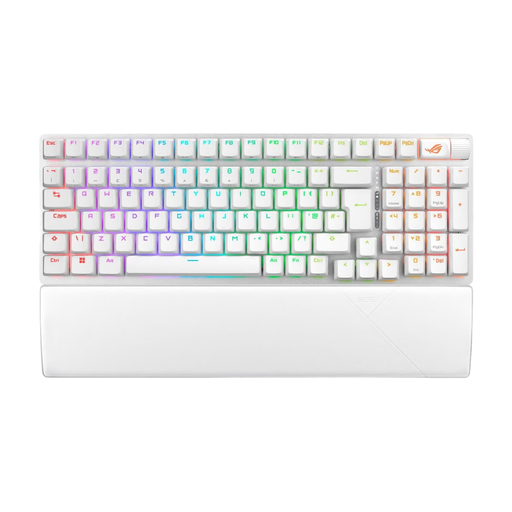 Image unavailable
ASUS ROG Strix Scope II 96 Wireless, White, UK layout
Consider this wireless UK-layout model if familiar English key placement is important to your glossary work. Confirm the selected switch version and compatibility with the device on which you will configure bilingual input.
View on Joybuy
 Image unavailable
HyperX Alloy Rise 75 Wireless, UK
This wireless UK-labelled model is worth checking if you want an alternative to a full-size keyboard at your glossary desk. Inspect the exact variant’s physical keys and legends before relying on its UK designation.
View on Joybuy
 Image unavailable
Targus EcoSmart™ Full Size Wireless Keyboard, UK
Consider the full-size layout if you use a wider set of keys during glossary entry and have room for the keyboard beside your references. Check the exact UK key arrangement and whether it includes the number pad you need.
View on Joybuy
 Image unavailable
HP 960 Ergonomic Split Layout Wireless Keyboard with Padded Wrist Rest
The split layout and padded wrist rest make this a shape to consider for frequent desk typing, provided it fits your workstation and feels suitable to you. Confirm its physical key layout and legends for your usual language.
View on Joybuy
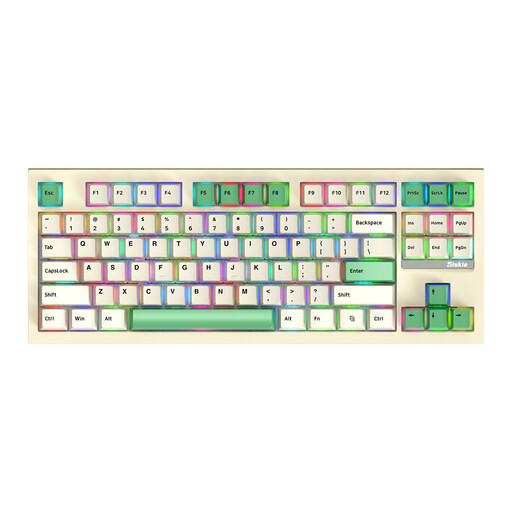 Image unavailable
Siukie PL87W 87-Key Three-Mode RGB Mechanical Keyboard
Consider this 87-key mechanical model if its layout and connection options suit your glossary setup. Check which three modes the selected version provides, along with its key legends and compatibility with your device.
View on Joybuy
Frequently asked questions
Do I need a keyboard with bilingual keycaps?
Not necessarily: Windows and macOS can use configured input layouts or sources to enter another language. Microsoft Support and Apple Support explain those settings; printed bilingual legends may still help if you rely on seeing where characters sit, particularly for an unfamiliar script.
Will backlit keys help with a bright window?
Backlit keys will not remove reflections from the screen. Arrange the display and lighting to reduce glare first; consider key lighting separately if the legends are difficult to see.
Is a number pad necessary for glossary work?
A number pad is useful if your entries frequently include numerical identifiers or spreadsheet-style data, but it is not required for bilingual text entry. If desk space matters more, compare compact layouts carefully: Logitech’s K780 shows that a compact design can still include a number pad.


