Deal with reflections on the display before choosing a keyboard: the Health and Safety Executive advises arranging the desk and screen to avoid glare and bright reflections. Then choose keys and a layout that fit your slide-editing work, whether that means familiar navigation keys, switching between devices or a more comfortable position for long preparation sessions. Keyboard backlighting can help you see the keys, but it will not remove window reflections from the screen.
Who is this for?
Slide editors using several devices
If lesson preparation moves between a school computer and a personal device, consider how readily a keyboard switches between them and whether your usual shortcuts can be configured. Logitech and HP describe these features for particular models; check compatibility with each device you intend to use.
Teachers preparing lessons for long sessions
If you spend extended periods typing slide text and lesson resources, assess the keyboard as part of the whole desk setup. The Health and Safety Executive advises positioning the keyboard just below elbow height; the fit of a palm rest or a different key layout remains a personal consideration.
Teachers working at shared or crowded desks
A compact keyboard may leave more room on a classroom or shared desk. Before changing layouts, check where the navigation and shortcut keys you use for slides are placed; Keychron’s K3 Version 3 is one UK-ISO 75% option to compare.
What matters when choosing?
Start with screen position and window light, then decide which keyboard task matters most at your desk. The Health and Safety Executive’s glare and keyboard-position guidance concerns the workstation, not a particular keyboard model.
| Concern |
What to check |
Who this matters to |
| Screen glare |
Check whether you can move the display away from window reflections or control the light with blinds or curtains. |
If bright reflections obscure slide text, I need to fix the view of the screen before considering illuminated keys. Around 28% of consumers put this workstation issue first. |
| Slide and presentation controls |
Confirm the supplied key layout, the shortcuts you need and whether any configurable or meeting controls work with your device and platform. |
When I repeatedly navigate slides or present live, I want the commands I use within easy reach. For around 22% of consumers, those controls are the primary concern. |
| Long-session comfort |
Check desk depth and keyboard height, then consider whether a palm rest or different layout fits your typing position. |
During extended lesson preparation, I need a typing position I can maintain without crowding the desk. Around 28% of consumers chiefly prioritise that fit. |
| Devices and desk space |
Count the devices you switch between and check their connection options; compare compact layouts against your regular navigation keys. |
If I move between computers or have little desk room, switching and keyboard footprint matter more to me. They come first for around 22% of consumers. |
Choices to check carefully
-
Expecting backlit keys to fix screen reflections
Key illumination affects what you can see on the keyboard, not reflected window light on the display. The Health and Safety Executive advises arranging the desk and screen to avoid glare.
Adjust the screen position and available blinds or curtains first. Consider backlighting separately if the keys themselves are difficult to see.
-
Choosing meeting controls for an unsupported platform
Dell states that Microsoft Teams support for collaboration touch controls on the KB900 and KB525C ended on 30 June 2026.
Check support for your exact keyboard and meeting platform before making those controls a reason to buy.
-
Treating an ergonomic keyboard as the whole desk setup
A different keyboard shape cannot by itself correct screen placement or keyboard height. The Health and Safety Executive considers posture and the wider display-screen workstation together.
Set up the display, chair, keyboard and mouse together. For prolonged laptop work, a separate keyboard can allow the screen to be raised while the keys stay at a suitable height.
-
Changing to a compact layout without checking your commands
A compact arrangement can move or alter access to keys you use while editing slides. Keychron’s K3 Version 3, for example, has a 75% layout.
List your regular navigation and shortcut commands, check the exact key arrangement and confirm how any remapping tool works before switching layouts.
Relevant brands to consider
Logitech
Its Signature Slim K950 and MX Keys S are relevant if you want low-profile productivity keyboards with device switching and configurable keys.
- Logitech says the K950 pairs with three devices; it describes the MX Keys S as having programmable keys and illumination that responds when hands approach.
- Those model features do not establish faster slide editing, and illuminated keys do not correct glare on the display.
Keychron
The K3 Version 3 is a compact UK-ISO mechanical option for readers considering remapping and a choice of wired or Bluetooth connection.
- Keychron describes a 75% layout and QMK/Launcher remapping for this model.
- Check that the compact key arrangement suits your slide shortcuts. Its web configurator requires a wired connection and a supported browser; check current availability of the UK-ISO version.
Dell
The UK QWERTY KB900 is relevant to slide presenters who regularly use Zoom and want dedicated collaboration controls.
- Dell describes the KB900 as Zoom-certified, with wireless connectivity, a numeric keypad and collaboration controls.
- Dell states that Microsoft Teams support for collaboration touch controls on the KB900 and KB525C ended on 30 June 2026.
HP
The HP 585 is relevant to readers comparing quiet keys, device switching and a palm rest for lesson preparation.
- HP describes a magnetic palm rest, pairing with up to three devices and more than 20 programmable keys on the 585.
- Confirm the supplied layout, device compatibility and how the keyboard fits your desk; these model details are not a promise of individual comfort.
Joybuy keyboard choices
These keyboards cover different ways to work at a classroom desk, from full-size and split layouts to compact options. Compare the exact key arrangement and compatibility you need; none replaces positioning the screen to manage window glare.
 No image available
HP 960 Ergonomic Split Layout Wireless Keyboard with padded wrist rest
Consider the split layout if you are comparing typing positions for longer lesson-preparation sessions; check how it fits your own desk and hands.
Joybuy describes a separate numeric keypad that can be repositioned or stored. Confirm the supplied keyboard layout and whether any shortcut software works on your school-managed device.
View on Joybuy
 No image available
Targus EcoSmart full-size wireless keyboard (UK)
A full-size layout is worth considering if you want familiar key positions while editing slides at a regular desk.
Check its connection options against your school and personal devices, and confirm whether the keys can be customised if that matters to your workflow.
View on Joybuy
 No image available
Hyper HyperSpace Next Bluetooth wireless keyboard (UK), white
Consider this Bluetooth option if you want to check how one keyboard would fit a workflow spanning several devices.
Confirm its key arrangement and support for your slide-editing shortcuts. If key illumination matters to you, assess it separately from glare on the display.
View on Joybuy
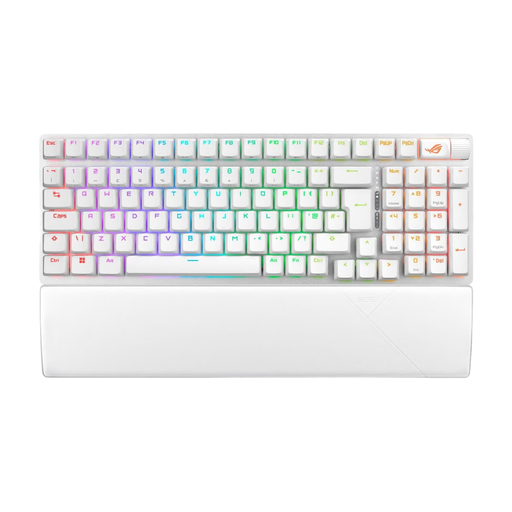 No image available
ASUS ROG Strix Scope II 96 Wireless, white, UK layout
The 96 variant is one to examine if you want a different desk footprint without overlooking the keys used for slide navigation and number entry.
Check the exact switch variant supplied and whether its configurable controls work for the slide-editing commands you need.
View on Joybuy
 No image available
HyperX Alloy Rise 75 Wireless Keyboard UK
Consider the 75 variant when a compact desk setup matters, provided its key arrangement suits the navigation and shortcuts you use in slides.
Confirm the physical UK layout before ordering and check whether any required NGENUITY customisation works on your school-managed device.
View on Joybuy
Common questions
Will a backlit keyboard solve glare from a classroom window?
No: lighting the keys does not remove reflections from the display. The Health and Safety Executive advises arranging the desk and screen to avoid glare and bright reflections; adjust the screen position or available window coverings to address that problem.
When is a separate keyboard useful for laptop-based lesson preparation?
For prolonged laptop work, a separate keyboard lets you raise the screen without raising the keys with it. The Health and Safety Executive advises using a separate keyboard and mouse in this situation and positioning the keyboard just below elbow height.
Can I rely on Dell collaboration touch controls for Microsoft Teams?
Do not choose the Dell KB900 or KB525C for those Teams touch controls: Dell states that their Microsoft Teams support ended on 30 June 2026. Check current support for your exact model and meeting platform; Dell’s stated Zoom certification for the KB900 is a separate, model-specific feature.
What should I check before using a 75% keyboard for slide editing?
Check that its key arrangement gives you practical access to your regular navigation and shortcut commands. If you are considering the Keychron K3 Version 3, Keychron says its Launcher web configurator requires a wired connection and a supported browser, so check that setup against the device you will use.


