Shared-office slide editors
If you revise classroom slides beside colleagues, typing sound and a familiar key layout may matter as much as access to your usual editing commands.


Start with a keyboard whose particular keys or switch variant are described as quiet, and whose layout suits the commands you use to edit slides. If you move between devices, check connection permissions before prioritising switching features; for long preparation sessions, consider keyboard shape alongside the whole workstation setup.
If you revise classroom slides beside colleagues, typing sound and a familiar key layout may matter as much as access to your usual editing commands.
If slides move between a work computer and a classroom device, check whether a keyboard can connect to both using methods your workplace permits.
If you spend extended periods at a screen, assess keyboard shape and position as part of the desk setup. The Health and Safety Executive advises placing the keyboard just below elbow height.
For a shared slide-editing desk, settle typing sound and key layout first. Then decide whether device switching, workstation fit or direct access to particular keys matters most to you.
| Concern | What to check | Who this matters to |
|---|---|---|
| Typing sound | Look for a quiet-key or reduced-noise description for the exact model and switch variant; do not assume every mechanical option sounds alike. | When colleagues work nearby, I want to revise slides without a distracting click from each keystroke. Roughly 36% of consumers put low-distraction typing first. |
| Device switching | Check supported devices and operating systems, plus whether office IT permits the required wireless connection. | If I prepare slides on one computer and use another device in class, changing connections needs to fit my routine. For around 29% of consumers, moving between devices is the primary need. |
| Workstation fit | Check keyboard shape and desk position together; the Health and Safety Executive advises keeping the keyboard just below elbow height. | During a long preparation session, I need a keyboard position that works with the rest of my desk rather than relying on a palm rest alone. Prolonged-use comfort comes first for roughly 21% of consumers. |
| Keys and layout | Check the exact UK or US layout, the presence of a numpad and access to the shortcuts you use. | If I enter figures or use frequent editing commands, missing keys could interrupt my workflow even if a smaller board frees desk space. Around 14% of consumers primarily want direct access to their preferred keys. |
Logitech offers Clicky, Tactile Quiet and Linear variants of MX Mechanical. The family name alone does not tell you how a particular variant will sound beside colleagues.
Check the switch named on the exact product before choosing a mechanical keyboard for a shared desk.
Multi-device switching is useful only if the work computer supports the keyboard’s connection method and any required customisation software is permitted.
Confirm the computer’s operating system, available ports and rules for Bluetooth, receivers and software before buying.
A palm rest does not determine screen height, keyboard position or how the rest of the desk is arranged. The Health and Safety Executive’s display screen equipment guidance addresses workstation assessment and setup beyond the keyboard.
Review the desk and screen arrangement, then choose a keyboard shape and position that fit that setup.
A compact format may omit a numpad or dedicated keys you use for figures and slide navigation.
List the commands and keys you use regularly, then compare them with the exact layout rather than relying on the keyboard’s size label.
Its MX Keys S, Wave Keys and MX Mechanical lines illustrate different approaches to shared-desk typing and keyboard shape.
The 585 Multi-Device Dual-Mode Keyboard with Palm Rest is an office-oriented option to compare for a shared desk.
The K1 Max and B6 Pro lines offer different keyboard formats for shoppers considering layout and connection choices.
These keyboards offer different layouts and connection approaches for classroom-slide editing at a shared desk. Compare each model’s typing sound, key layout and connection method with your workplace needs.
 No image available
Consider this model if a shaped keyboard appeals for long slide-preparation sessions, but check whether the split layout works for you. It is wireless and has a padded wrist rest; confirm the key legends and any software permissions you need for your work computer.
 No image available
A full-size UK layout is worth considering if you want familiar key positions while editing slides. Check that this wireless model’s connection method is permitted on your work computer and that its available controls suit your shortcuts.
 No image available
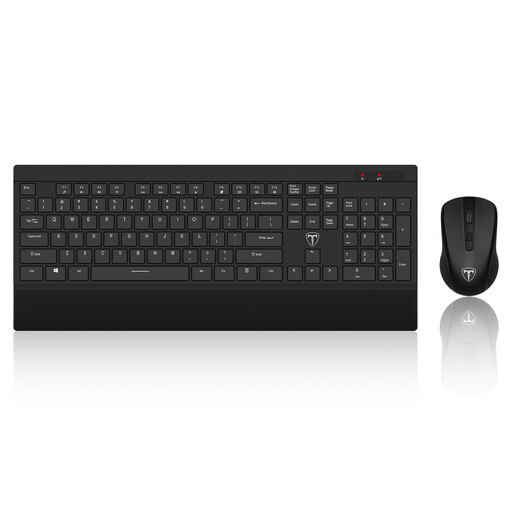
This set may suit a fixed desk where you also need a mouse. Its stated US layout may differ from the key positions and legends you expect on a UK keyboard, so check the layout and permitted connection method before buying.
 No image available
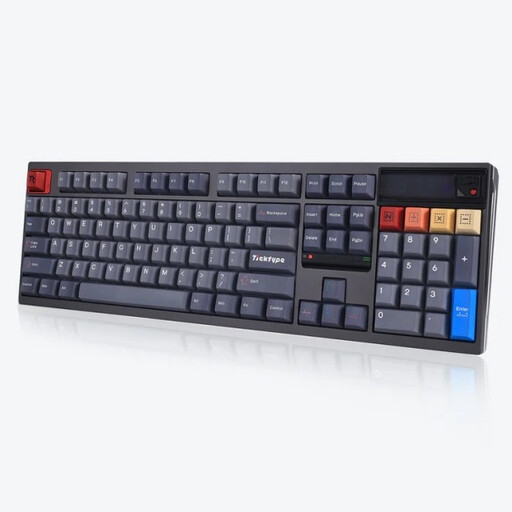
If you prefer mechanical switches, assess this Silent Tactile variant’s sound in relation to your shared workspace rather than treating its name as a noise measurement. The stated configuration has 108 keys and a US layout; check that its key positions suit your slide-editing routine.
 No image available
Consider this UK-layout keyboard if Bluetooth is permitted on your work computer. Check its typing sound before choosing it for a shared room, as well as whether its keys fit the commands you use to edit slides.
No. For workers covered by display screen equipment rules, the Health and Safety Executive says employers must assess workstations; a keyboard is only one part of the setup. Review its position alongside the screen, desk and other equipment rather than relying on its shape or palm rest alone.
The Health and Safety Executive says the rules apply to workers who use display screen equipment daily for continuous periods of an hour or more. That scope can include fixed desks, hot-desking and home or mobile work; ask your employer about the assessment for your working arrangement.
Choose a connection method your work computer supports and your workplace permits. If you switch between devices, check the exact keyboard’s connection options and compatibility rather than assuming that any wireless model will suit the workflow.
A numpad is useful to consider if you regularly enter figures while preparing slides, but it is not necessary for every editing routine. Compare the exact keys on a full-size or compact layout with the commands you use and the desk space available.