Shortcut-heavy command-line builders
If you regularly enter flags, paths, pipes and editor shortcuts, check where those keys sit on the physical layout and whether you can remap frequently used actions.


For command-line tool development, check the physical key layout and symbol positions first, then choose according to your main need: programmable shortcuts, switching between devices or a split layout for your desk setup. A compact board can put familiar dedicated keys on layers, while a split board takes time to learn; neither choice replaces checking the position of your screen, chair and pointing device.
If you regularly enter flags, paths, pipes and editor shortcuts, check where those keys sit on the physical layout and whether you can remap frequently used actions.
If your work moves between a workstation, laptop or tablet, switching hosts may matter more to you than configuring layers.
If you spend extended periods at a desk, consider keyboard shape alongside the position of your screen, chair and pointing device. The Health and Safety Executive advises keeping the keyboard central and just below elbow height.
Choose when: You want to place recurring symbols and shortcuts where they are easy to reach. Keychron says its K8 Max UK-ISO supports QMK remapping.
Allow for: A compact layout without a numpad. Keychron Launcher configuration requires a wired connection and a supported browser.
Choose when: You want a familiar layout while moving between hosts. Logitech says MX Mechanical can switch among up to three devices.
Allow for: Its multi-device features serve a different priority from QMK-style layout customisation; check the physical layout of the version offered.
Choose when: Separately positioning the keyboard halves matters enough to learn a new layout. ZSA describes its Voyager as a 52-key split keyboard.
Allow for: Frequent layer use and deliberate setup of British-English symbols.
For consumers building a command-line tool with a British keyboard setup, the choice turns on which need takes priority.
| Concern | What to check | Who this matters to |
|---|---|---|
| Symbols and shortcuts | Check the exact physical layout, symbol positions and remapping method, including any setup requirements. | I repeatedly type commands and edit code, so easy access to punctuation and my usual shortcuts takes priority; around 45% of consumers put command-entry customisation first. |
| Device switching | Check supported hosts, connection modes and how the keyboard switches between devices. | When I move between a development machine and another device, I want to change hosts without reconnecting the keyboard each time; around 33% of consumers prioritise device switching. |
| Comfort and reach | Check keyboard positioning, access to frequently used keys and whether the whole workstation fits your posture. | During long desk sessions, I care about where my hands and keyboard sit, even if a compact split layout takes practice; around 22% of consumers place workstation comfort first. |
The physical keys and operating-system mapping are separate choices. ZSA notes that British-English symbols can require changes to a custom layout.
Before ordering, check the selected variant’s Enter key, left Shift area and coding-symbol positions against the layout you use.
A smaller layout may move keys you use regularly into layers, even when it frees desk space.
List your daily arrows, function keys, brackets, pipes and navigation keys, then check how you would reach each one.
Learning and refining a new layout also takes time.
The Health and Safety Executive’s posture guidance considers the keyboard alongside the screen, chair and mouse.
Check desk height, pointing-device position and screen placement when deciding whether a different keyboard shape will fit your setup.
Connection options differ by model: Logitech describes switching among up to three devices on MX Mechanical, while Keychron lists Bluetooth, 2.4 GHz and wired modes for K8 Max.
Match the switching method and connection modes to the hosts and operating systems you actually use.
Relevant if you are considering a programmable mechanical keyboard with a UK-ISO option.
Relevant if a conventional low-profile keyboard and changing between devices are your priorities.
Relevant if you are prepared to configure and learn a compact split keyboard.
These keyboards offer different starting points for command-line work, including compact and split layouts. Compare the selected model’s physical keys and shortcut options with your own workflow.
 Image unavailable
Consider this wireless keyboard if desk space and access to your usual navigation keys matter to your command-line setup.
Check its physical key positions against your UK layout and confirm that its assignment options cover the shortcuts or layers you want.
 Image unavailable
Consider the split layout and padded wrist rest if keyboard positioning is a priority during desk work.
Check that its key positions suit your British keyboard setup and that HP Accessory Center offers the assignments your workflow needs.
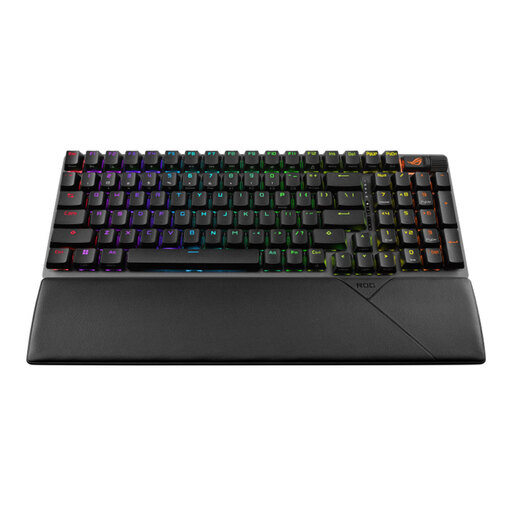 Image unavailable
Consider this wireless UK-layout model if you prefer to keep dedicated keys available while working through commands and editor navigation.
Check the physical symbol positions and the switch variant offered, particularly if key feel affects your choice.
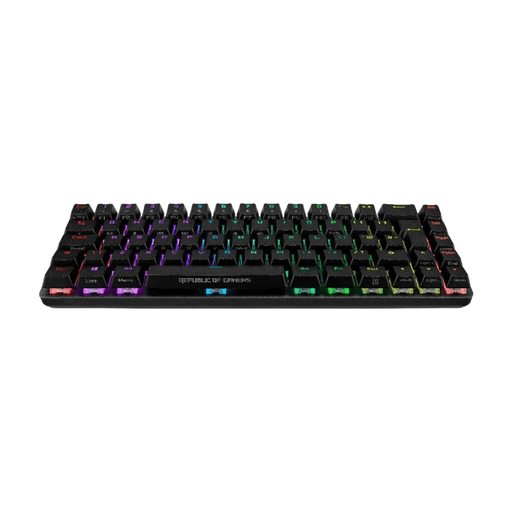 Image unavailable
Consider this UK-layout keyboard if a compact wired setup appeals, but check how you would reach every key used in your terminal and editor.
Confirm the shortcut functions you need and, if you use an operating system other than Windows 10/11, check compatibility before choosing it.
UK-ISO is a sensible choice if you already use a British physical layout and want familiar symbol positions. Check both the keyboard variant and your operating-system setting; ZSA notes that a custom British-English layout may also need keycode changes.
No: programmability is most useful when repeated symbols, shortcuts or macros justify the setup time. Keychron says K8 Max supports QMK remapping, while Logitech emphasises device switching on MX Mechanical, so choose the capability you will use more often.
No: a split keyboard changes how you can position its halves, but the rest of the workstation still matters. The Health and Safety Executive advises keeping the keyboard central and just below elbow height and considering screen and pointing-device placement.
Start with a few commands or symbols you use repeatedly, test the assignments in your terminal and editor, and keep a copy of your configuration. ZSA says its configured layout lives on the keyboard and advises against unplugging it while flashing.