Frequent schedule editors
If you repeatedly amend times, quantities and delivery references, the position of the number pad and the shortcuts you use may matter more than portability.


For frequent delivery-schedule updates, start with a UK-layout keyboard that supports the entries and commands you use most: a dedicated number pad helps with repeated numeric fields, while configurable keys are worth considering for recurring actions. If both screens connect to one computer, arrange windows through its operating system rather than buying device switching for that purpose. For long typing sessions, consider the keyboard alongside the fit of the whole workstation.
If you repeatedly amend times, quantities and delivery references, the position of the number pad and the shortcuts you use may matter more than portability.
If you keep a schedule on one display and orders or messages on the other, choose the keyboard for typing and navigation. Microsoft Support and Apple Support describe window-management tools in their respective operating systems.
If sustained typing makes workstation fit your main concern, consider keyboard layout alongside screen placement, desk arrangement and mouse reach. The Health and Safety Executive advises assessing the workstation as a whole.
For delivery schedules viewed across two screens, choose according to the task that most shapes your day. Device switching matters when you type on separate computers or tablets, not merely because one computer has two monitors.
| Concern | What to check | Who this matters to |
|---|---|---|
| Numeric entry | Check for a dedicated number pad, the exact UK layout and enough room beside the keyboard for your mouse. | If most edits involve times, quantities or reference numbers, I want those keys readily to hand without crowding my desk. Around 31% of consumers put numeric entry first. |
| Repeated commands | Check whether the keys can be configured for your tasks and whether the required software works on your work computer. | When I repeat the same navigation or editing commands, I want shortcuts that fit the applications I use. Around 25% of consumers prioritise reducing those repeated actions. |
| Long-session comfort | Consider keyboard shape and wrist position alongside desk height and mouse reach; seek a workplace assessment where appropriate. | During a long shift, I need a setup I can use comfortably, rather than relying on an extra keyboard feature to fix the desk arrangement. Comfort comes first for around 25% of consumers. |
| Devices and desk space | Check which separate devices you type on, permitted connection methods and whether a smaller layout retains the keys you need. | If I alternate between a computer and another device, or have little space beside the displays, the keyboard has to fit that arrangement. Around 19% of consumers make device switching or desk space their primary concern. |
Switching between paired devices changes which computer, tablet or phone receives your typing. It does not arrange windows across two monitors attached to one computer.
Establish how many separate devices you use. For a single computer, choose the keyboard for entry, shortcuts and comfort, then set up the displays and windows in the operating system.
Key positions and legends can differ between regional variants, affecting symbols and shortcuts used in schedule work.
Check the exact variant name and product photographs for UK-ISO or UK-QWERTY rather than relying on the keyboard family name.
The Health and Safety Executive identifies workstation design and use as factors in display-screen work. Keyboard shape is only one part of a setup that also includes the screens, desk and mouse.
If discomfort is prompting the purchase, review the whole workstation and seek the relevant workplace assessment before deciding whether a split layout suits you.
Shortcuts that need configuration software, or connections that need Bluetooth or a USB receiver, may not fit a managed computer's permitted setup.
Before ordering, check which connection methods are allowed and whether you can use any software needed for your intended key assignments.
Logitech offers distinct approaches in the MX Keys S, K780 and ERGO K860; choose by layout and workflow rather than assuming they share the same features.
The K10 Pro is a full-size mechanical option for consumers who want a UK-ISO layout and configurable keys.
The KB700 is a conventional full-size option to examine if you want a number pad and programmable keys.
The HP 720 is relevant if you need programmable keys and connections for more than one separate device.
These keyboards offer different layouts for delivery-schedule work. Compare the exact keys you need for numeric entry and shortcuts, and treat switching between devices separately from managing two screens on one computer.
 Image unavailable
Consider this full-size UK wireless keyboard if you prefer a familiar layout for frequent schedule entry. Check the exact key arrangement and whether it supports any custom shortcuts your work requires.
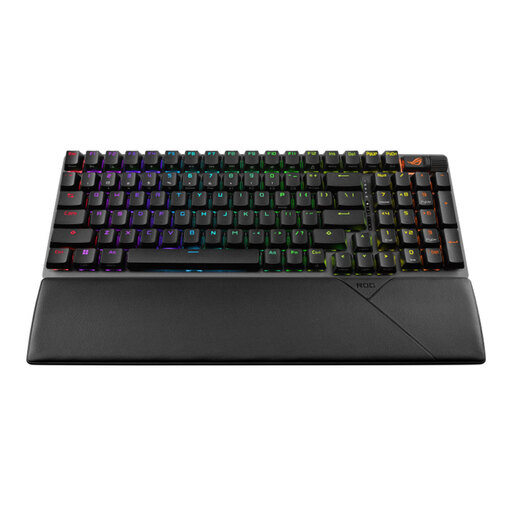 Image unavailable
If desk width matters, compare this UK-layout wireless model's key arrangement with the space available for your mouse. Confirm the selected switch variant before buying, particularly if key feel or noise matters to you.
 Image unavailable
This UK Bluetooth wireless keyboard may suit a schedule desk where wireless connection is a priority. Check its exact number-pad layout and shortcut options against the entries and commands you use most.
 Image unavailable
If you want a smaller keyboard for a crowded desk, check whether this model's key arrangement meets your numeric-entry needs. If you plan to customise key assignments, confirm that HyperX NGENUITY can be used on your work computer.
No: two monitors connected to one computer do not require a special keyboard. Microsoft Support and Apple Support describe operating-system tools for arranging displays or windows; choose the keyboard for the typing, number entry and shortcuts you need.
Device switching is useful when you type on separately paired computers, tablets or phones, not for moving windows between two displays on one computer. For that task, use the computer's display and window-management controls.
If you regularly use screens for work, ask your employer about a workstation assessment rather than assessing the keyboard in isolation. The Health and Safety Executive says employers must assess display-screen workstations and reduce risks; screen placement, desk arrangement and mouse reach can all matter to the setup.