One computer, two displays
You compare routes, fares or live departures on two screens connected to the same computer. Quick text and number entry matters more than switching the keyboard between devices.


If both screens connect to one computer, choose a keyboard for its connection, layout and the keys you use most; device switching adds little to that setup. A multi-device keyboard makes more sense when you type on separate computers or mobile devices, while a shaped layout may be worth considering for long sessions. Keyboard placement matters too: the Health and Safety Executive advises keeping the keyboard central and just below elbow height.
You compare routes, fares or live departures on two screens connected to the same computer. Quick text and number entry matters more than switching the keyboard between devices.
You move between a computer and a tablet, phone or second computer while checking timetables and tickets. The keyboard needs to send input to the device you are using.
You spend extended periods comparing schedules and need a layout that fits your desk and typing habits. The Health and Safety Executive also advises positioning the screen and keyboard centrally to avoid twisting.
Start by counting the devices that need keyboard input, not the screens. Then check the key layout and how the keyboard will sit on your desk.
| Concern | What to check | Who this matters to |
|---|---|---|
| Input to one computer | Check the connection your computer accepts and whether you want a full-size layout with a number pad. | If both timetable pages run on one computer, I want to enter times without managing device pairing. Around 35% of consumers put dependable single-computer input first. |
| Switching devices | Check supported device types, how many connections the keyboard retains and how you switch between them. | When I move from a computer to a tablet or another computer, I need typing to follow without changing keyboards. Roughly 25% of consumers make separate-device switching their main concern. |
| Long-session comfort | Consider the key shape and wrist-rest arrangement; check that you can position the keyboard centrally and just below elbow height. | If timetable comparison keeps me at the desk for long stretches, I care most about a layout and workstation position I can use comfortably. Around 25% of consumers prioritise long-session comfort. |
| Keys and desk space | Inspect the exact arrangement of the number pad, arrow keys and function keys alongside the keyboard’s footprint. | I enter many times and platform numbers, but still need room for the mouse beside the keyboard. About 15% of consumers put that key-and-space balance first. |
A keyboard’s device-switching feature changes where typing goes; it does not help simply because one computer drives two displays.
Identify how many separate computers, tablets or phones need keyboard input before choosing that feature.
Layouts differ by model, so a smaller keyboard may change the arrangement you rely on for times, numbers and navigation.
Inspect the exact key layout, including the number pad, arrows and function keys, rather than relying on the words ‘compact’ or ‘wireless’.
The Health and Safety Executive’s display-screen guidance also addresses screen and keyboard position. A different keyboard alone does not position the two displays for you.
Arrange the keyboard centrally and just below elbow height, and check whether the screen position makes you twist while comparing pages.
Regional versions of a model can differ in key shape and symbol placement, which matters if you use those keys frequently.
Check the layout shown for the exact product and variant when UK key placement matters to you.
Its keyboard range includes multi-device and shaped-layout options relevant to different timetable workflows.
Its relevant models span a wired full-size desk keyboard and a shaped multi-device keyboard.
The Lenovo Multi-Device Wireless Keyboard is a reference point for typing across separate devices.
These keyboards and keyboard sets cover different ways to compare timetables: a full-size wireless layout, a split-layout wireless option and a USB keyboard-and-mouse set. Choose according to where typing needs to go and the layout that fits your desk.
 No image available
Consider this full-size wireless keyboard if you prefer that layout for timetable entry. Check the exact key arrangement and device-switching behaviour if either is important to your setup.
 No image available
The split layout and padded wrist rest are worth considering if you prefer a shaped keyboard for long timetable-checking sessions. Check the exact UK key arrangement and how its number pad fits your desk before buying.
 No image available
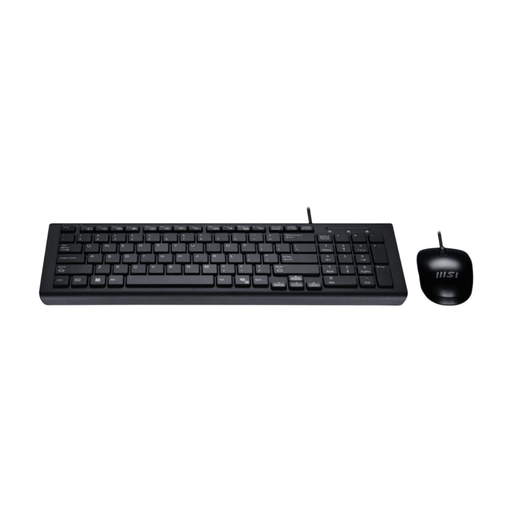
This UK-layout keyboard and mouse set is a route to consider for a single-computer desk. Check that its USB connection suits your computer and that the keyboard and mouse fit comfortably beside your two-screen setup.
No: if both screens connect to one computer, the keyboard only needs to send input to that computer. Multi-device switching becomes useful when you also type on a separate computer, tablet or phone; Logitech and Lenovo describe models that can switch among up to three devices.
For a fixed, single-computer desk, a compatible wired keyboard avoids wireless pairing and battery management. Consider wireless if its layout or the ability to move typing between devices suits your workflow, and check the exact connection and device compatibility before buying.
Position the keyboard centrally and just below elbow height. The Health and Safety Executive also advises keeping the screen and keyboard central so you do not twist; check that arrangement while moving your attention between the two timetable displays.